

If a donor gave to the wrong participant, or a gift needs to count for another student, you can move the P2P donation yourself. The donation and its team credit follow the participant you pick.
Step 1: Open the P2P Donations report
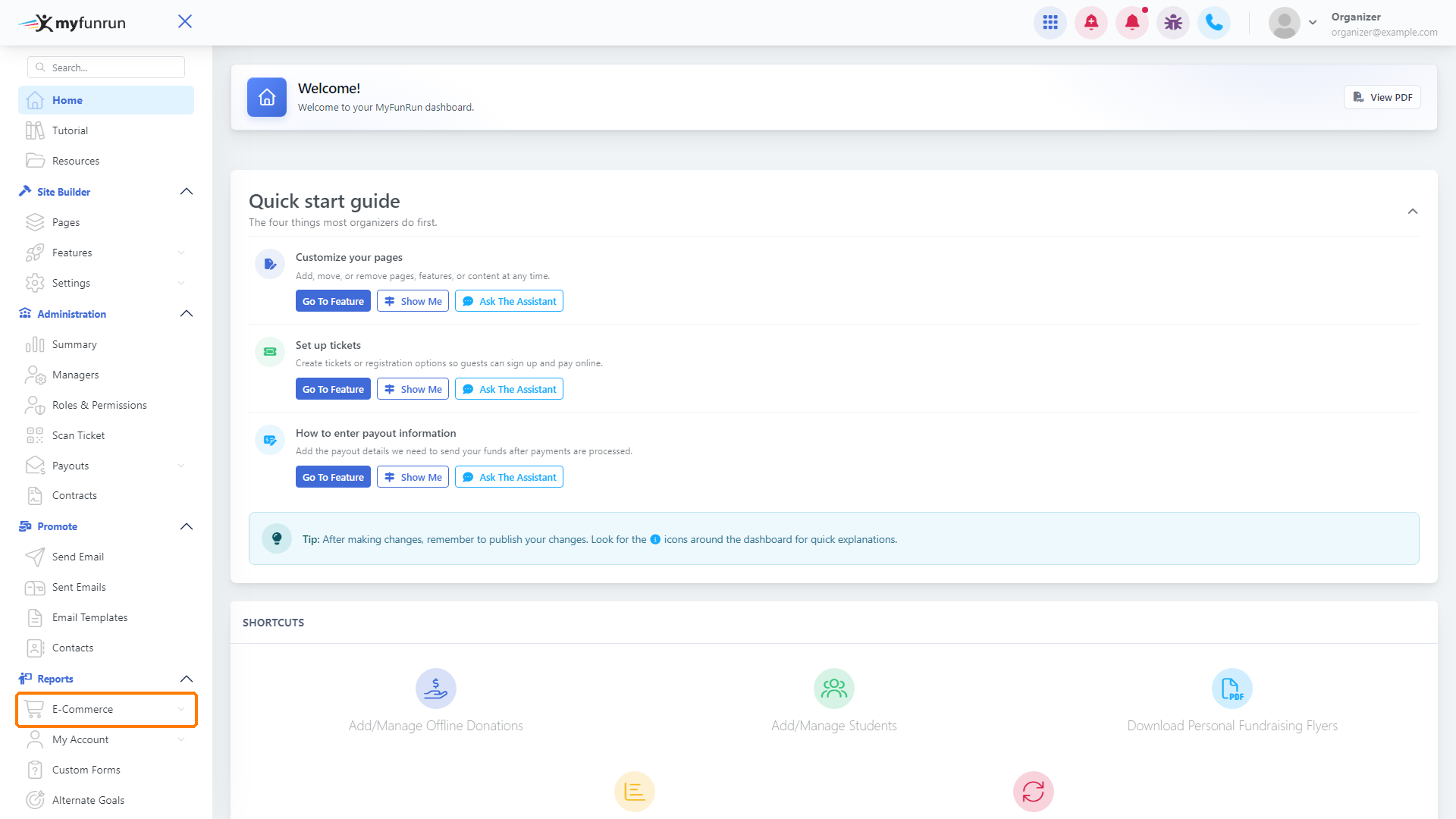
From your dashboard, under Reports, click E-Commerce.
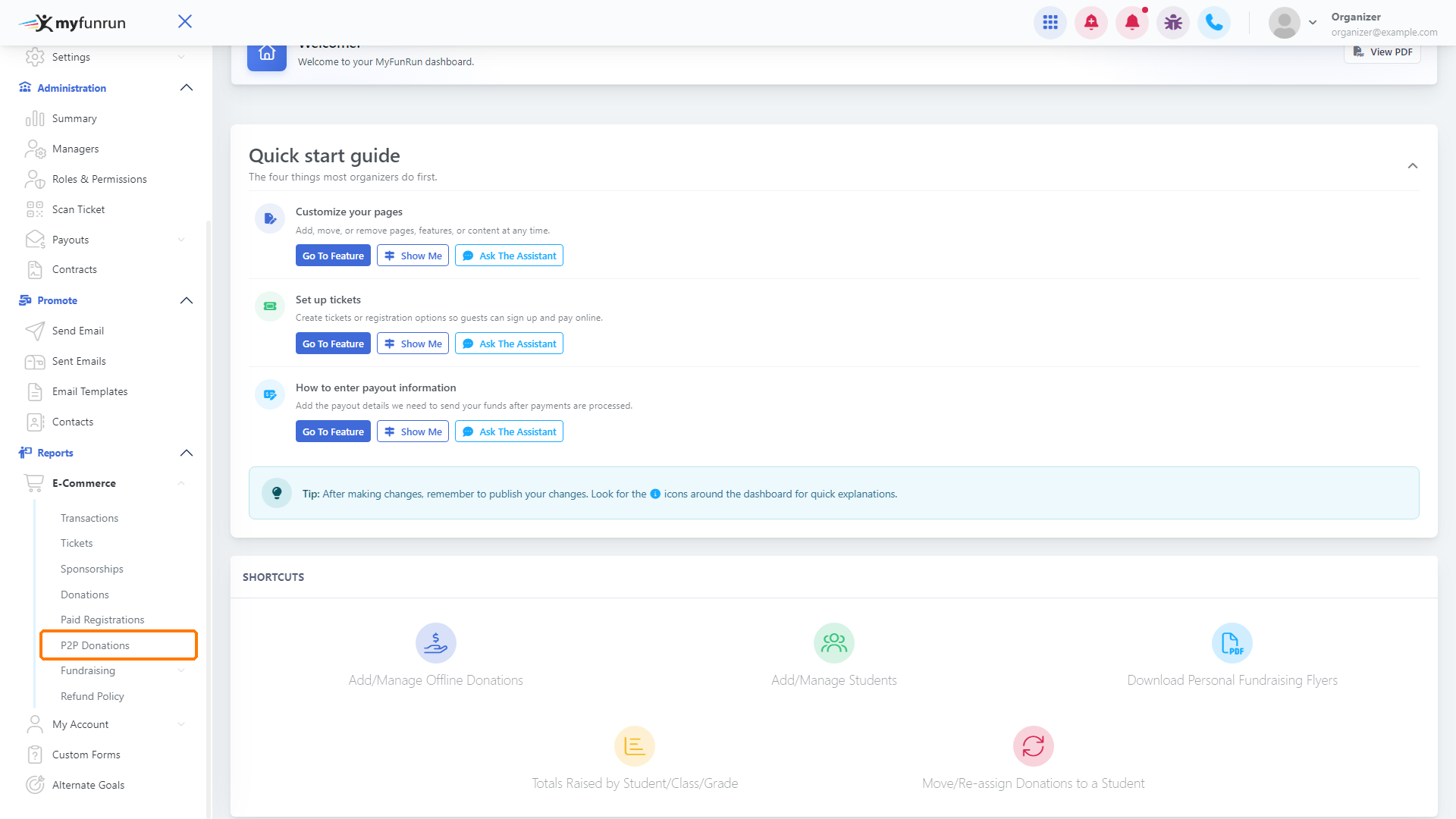
Then click P2P Donations.
Step 2: Find the donation
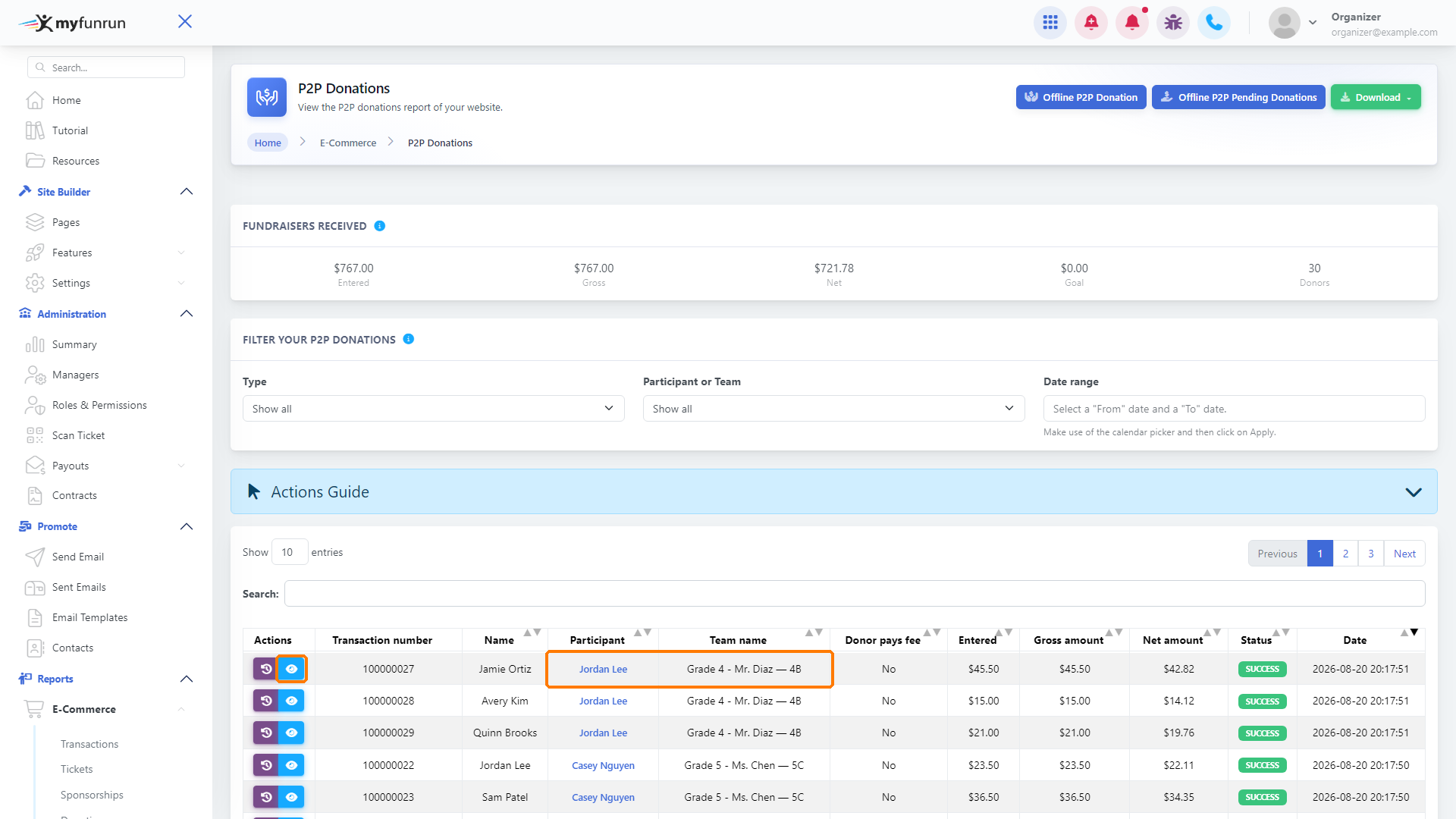
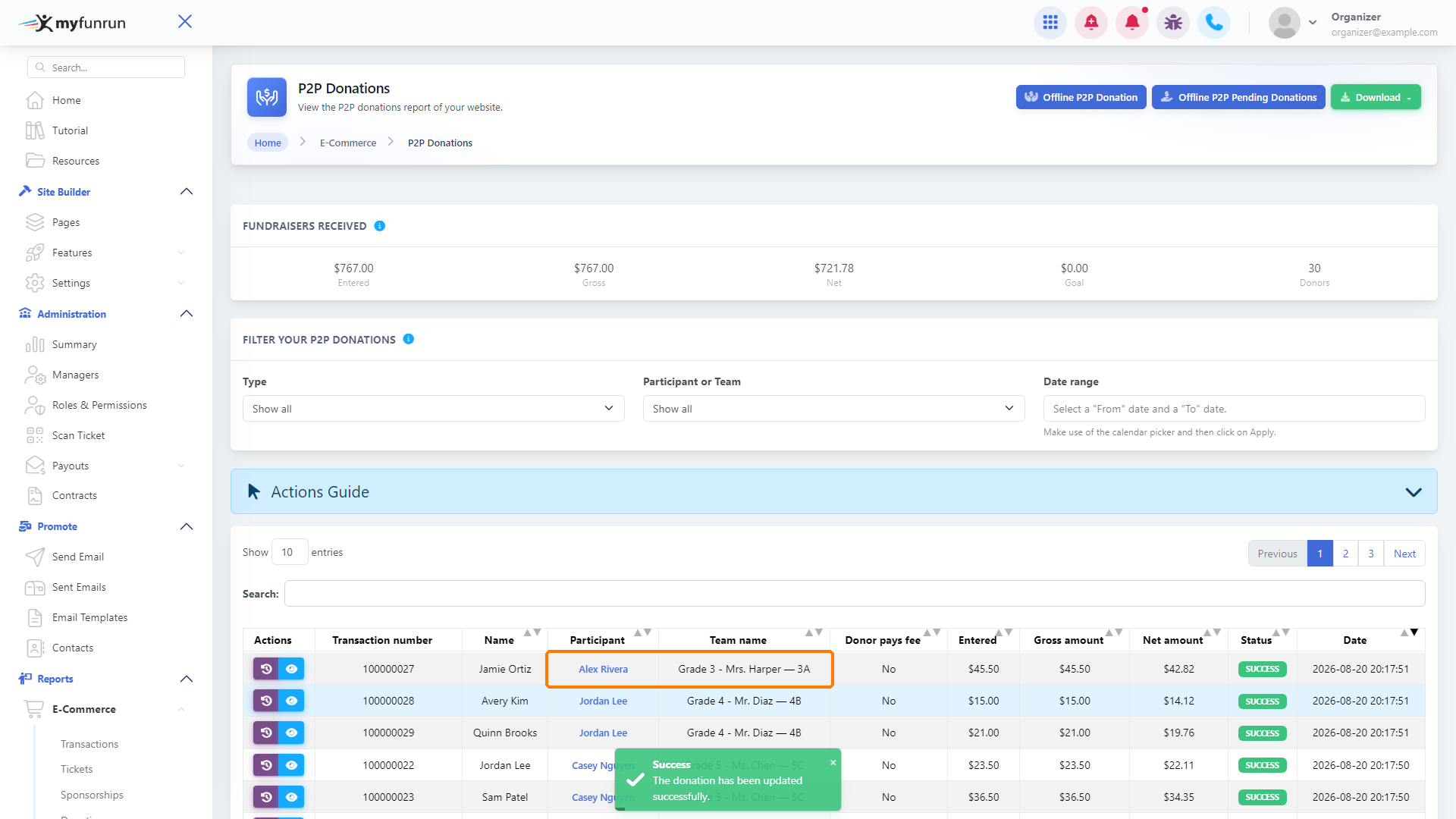
The report lists every donation made to a participant. Find the row you want to move (check the Participant and Team name columns), then click the blue Details button on that row.
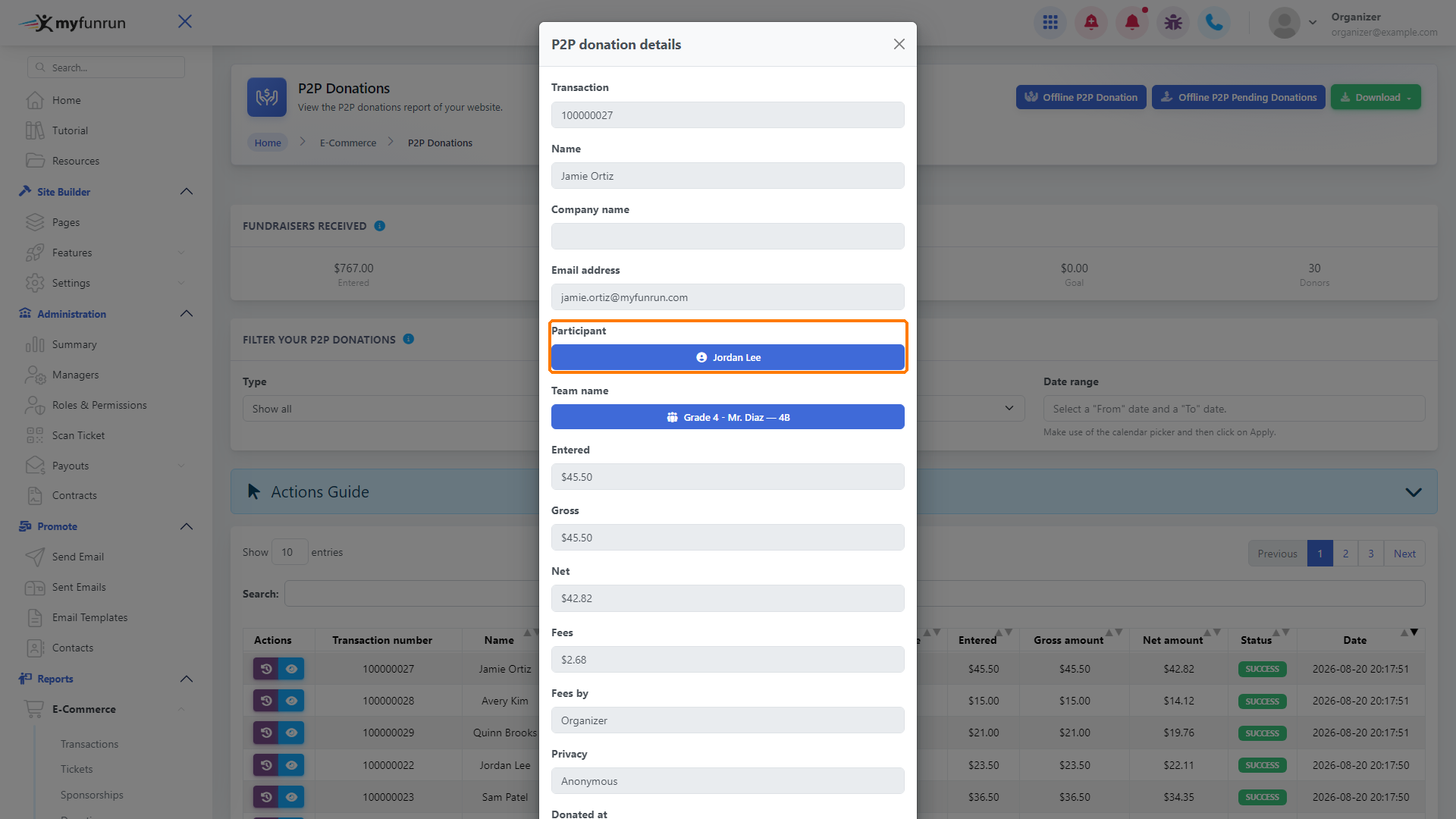
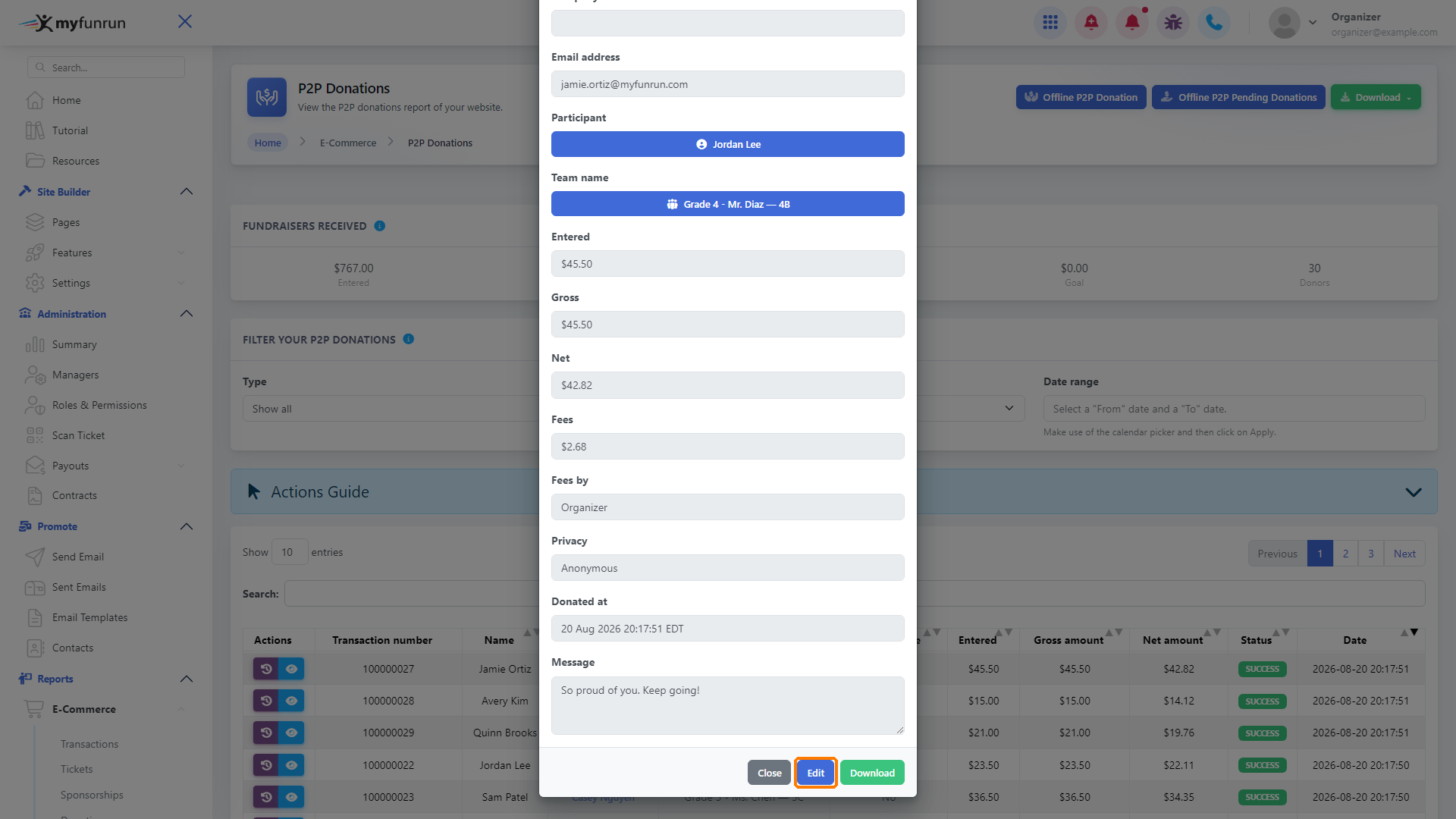
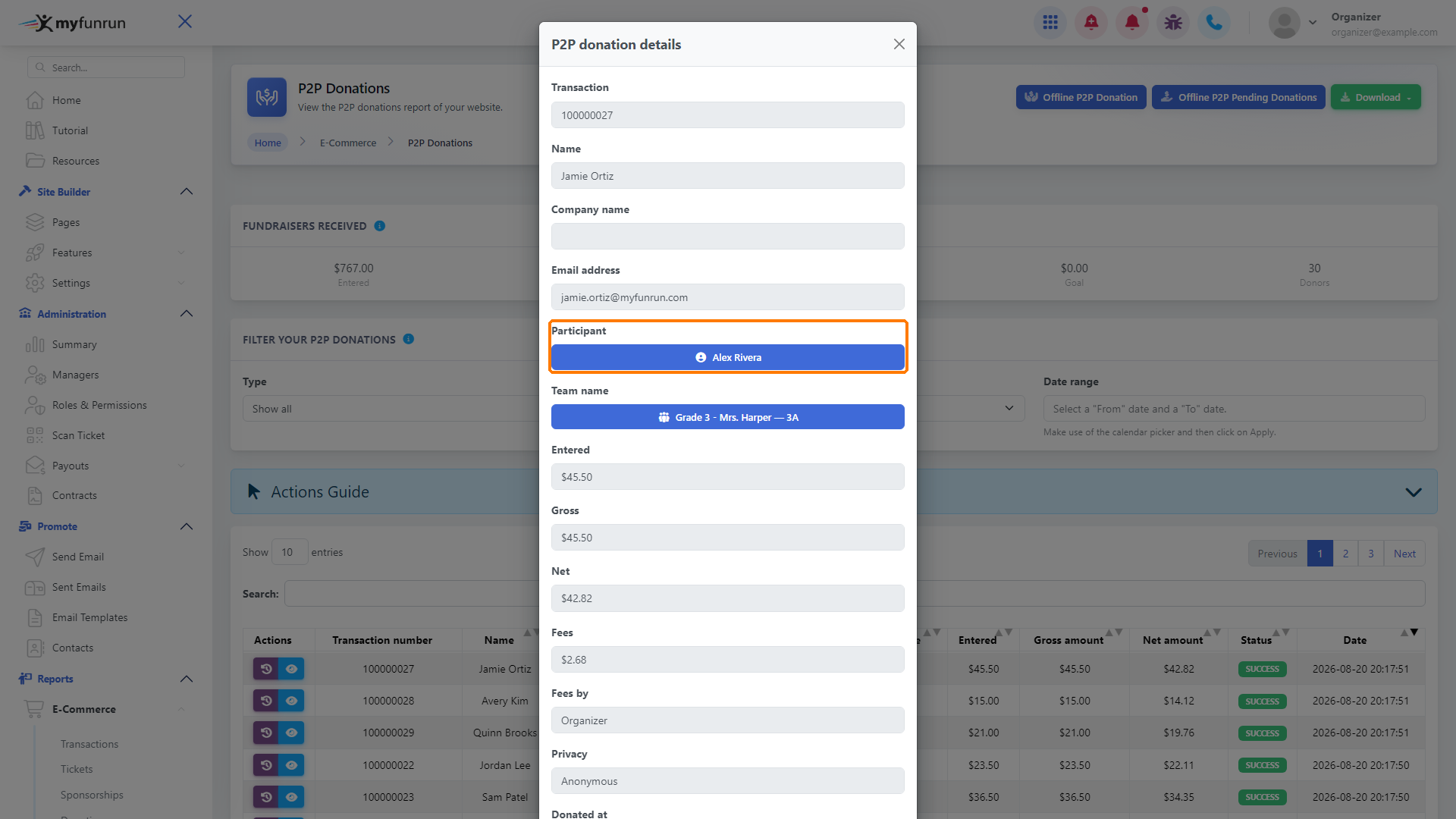
The P2P donation details window shows who the donation currently counts for.
Step 3: Edit the donation
Scroll to the bottom of the window and click Edit.
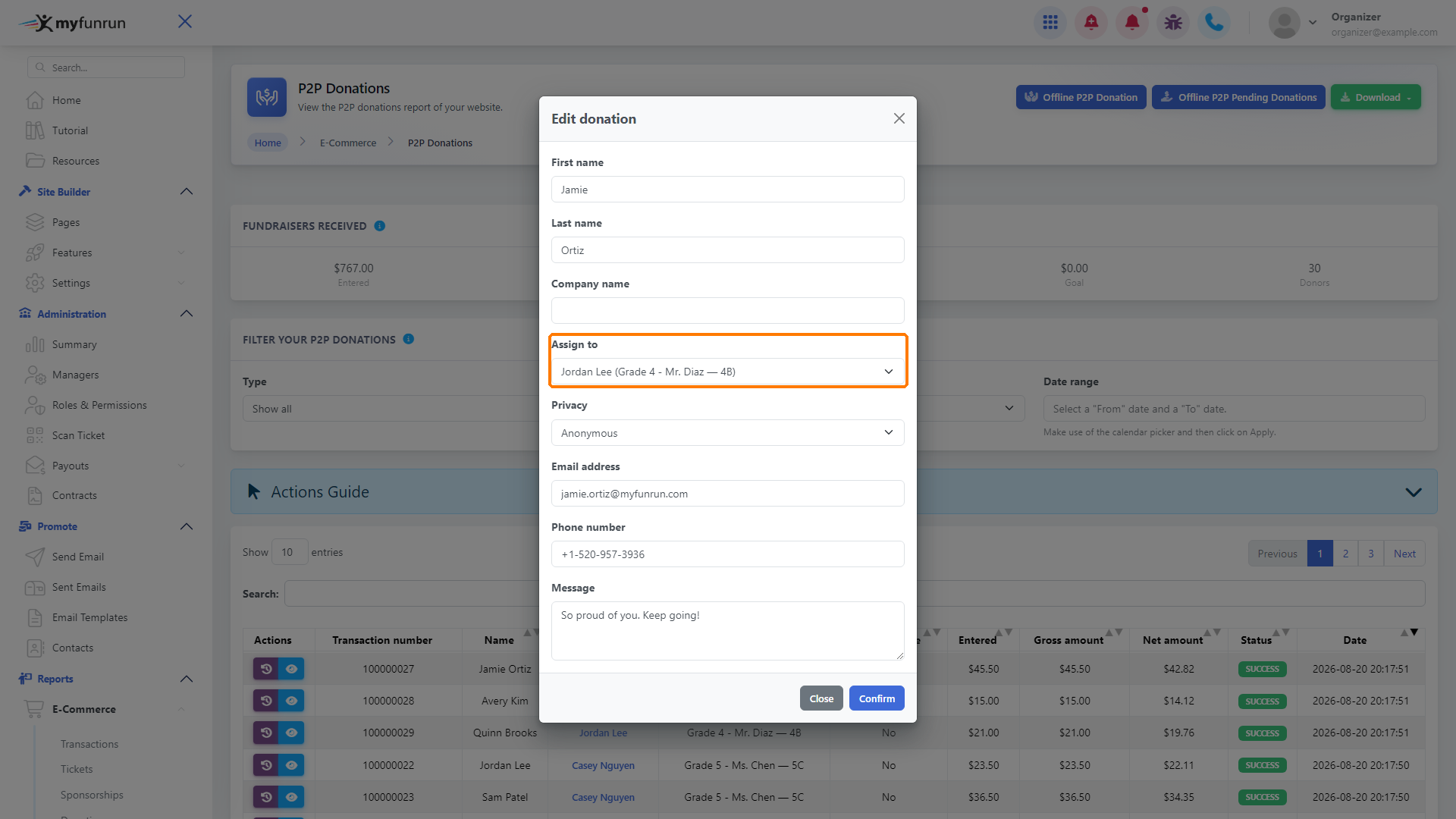
In Edit donation, the Assign to field sets who gets credit for the donation.
Step 4: Choose the new participant
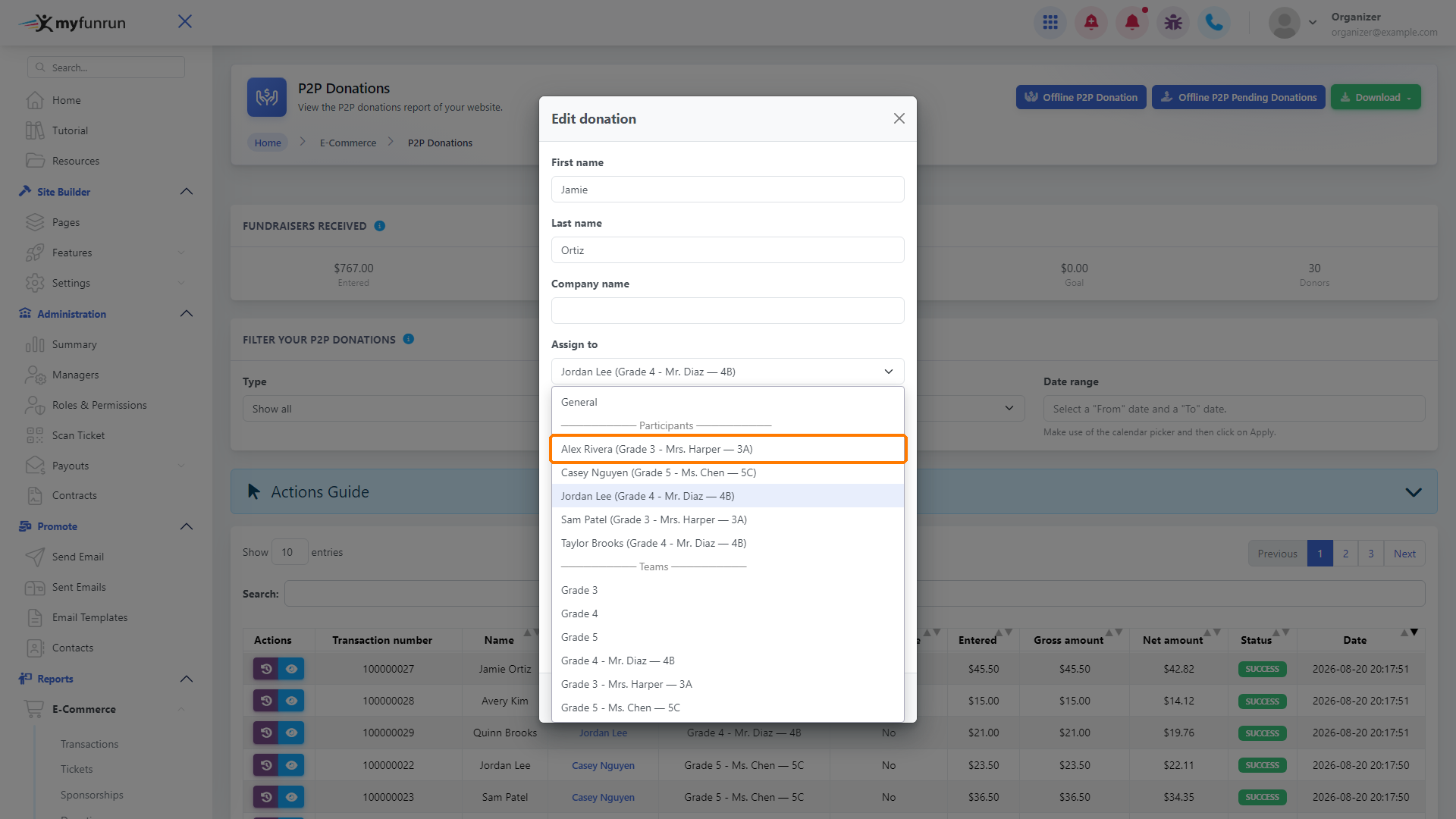
Open the Assign to list and pick the participant. Participants are listed with their class. You can also choose a team, or General.
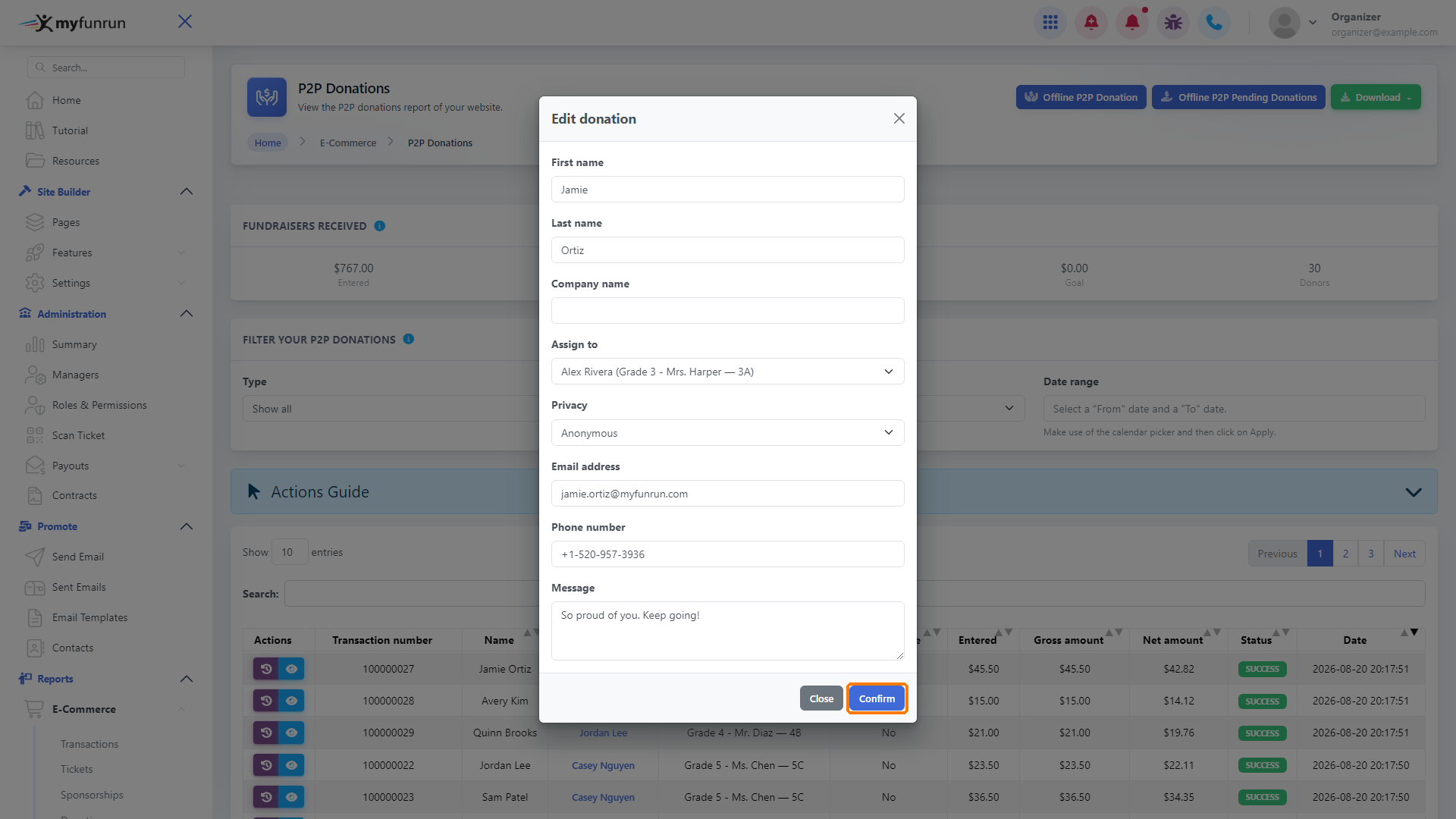
Click Confirm.
Step 5: Check the result
A message confirms that the donation was updated. The report now shows the new participant and their class.
To double-check, click Details again.
Tip
You can also reach this report from the Move/Re-assign Donations to a Student shortcut on your dashboard home page.