

When your school's Fun Run organizer imports the participant list with your email address, and you don't have a MyFunRun account yet, MyFunRun creates an account for you and emails you a temporary password. Here's how to use it the first time you log in. You'll be asked to choose your own password right away.
Note: Temporary passwords are only sent to new accounts created from an imported participant list. If your school added you one by one from its dashboard, you get a password reset email instead (see How to reset your password). If you already had a MyFunRun account, keep using your current password.
Step 1: Find the email with your temporary password
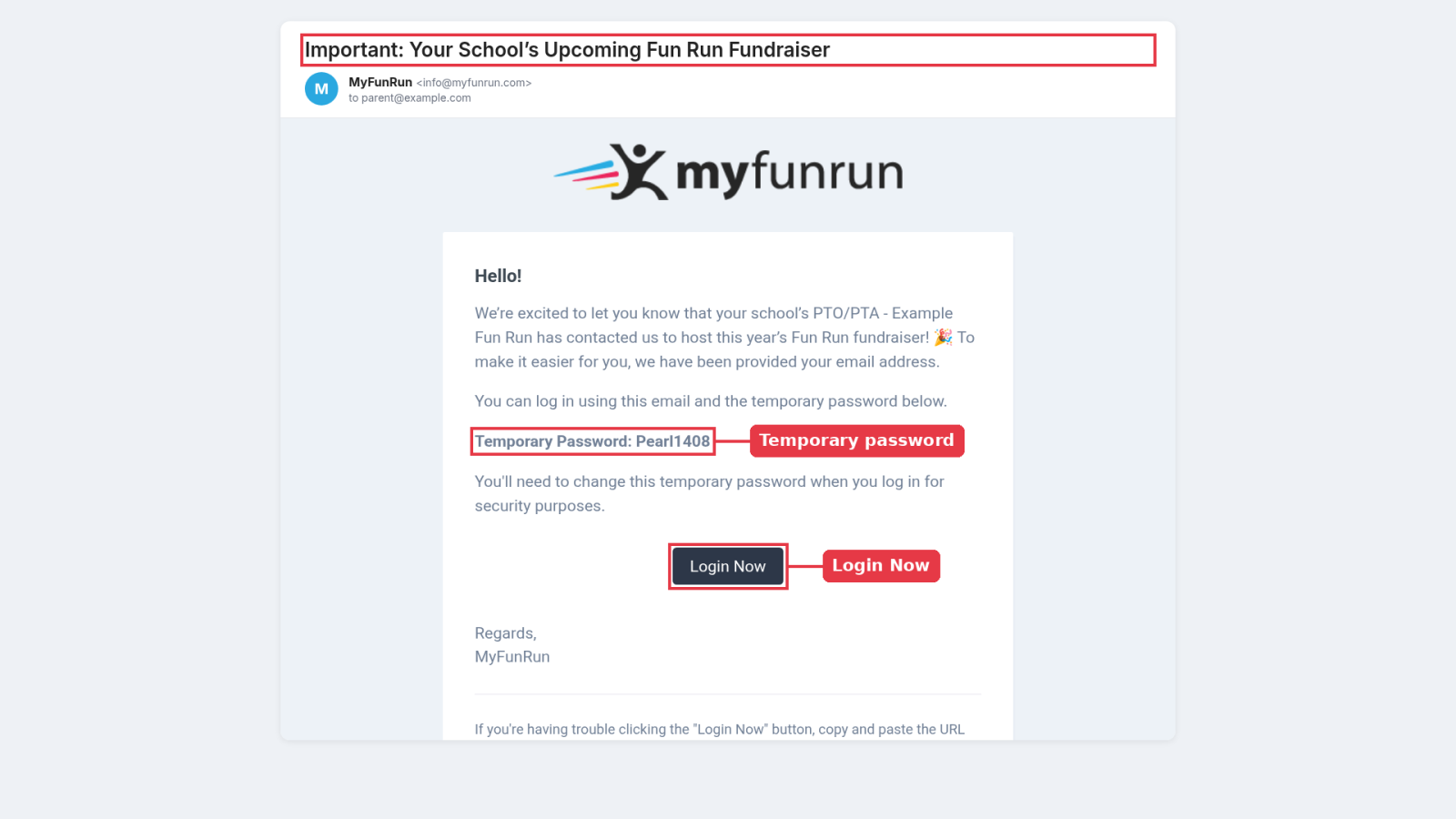
Look for an email from MyFunRun with the subject Important: Your School's Upcoming Fun Run Fundraiser. You may get two emails with this subject: the one you need says "You can log in using this email and the temporary password below" and shows your Temporary Password in bold. Keep it open, then click Login Now to open your school's Fun Run website.
Step 2: Open the login form
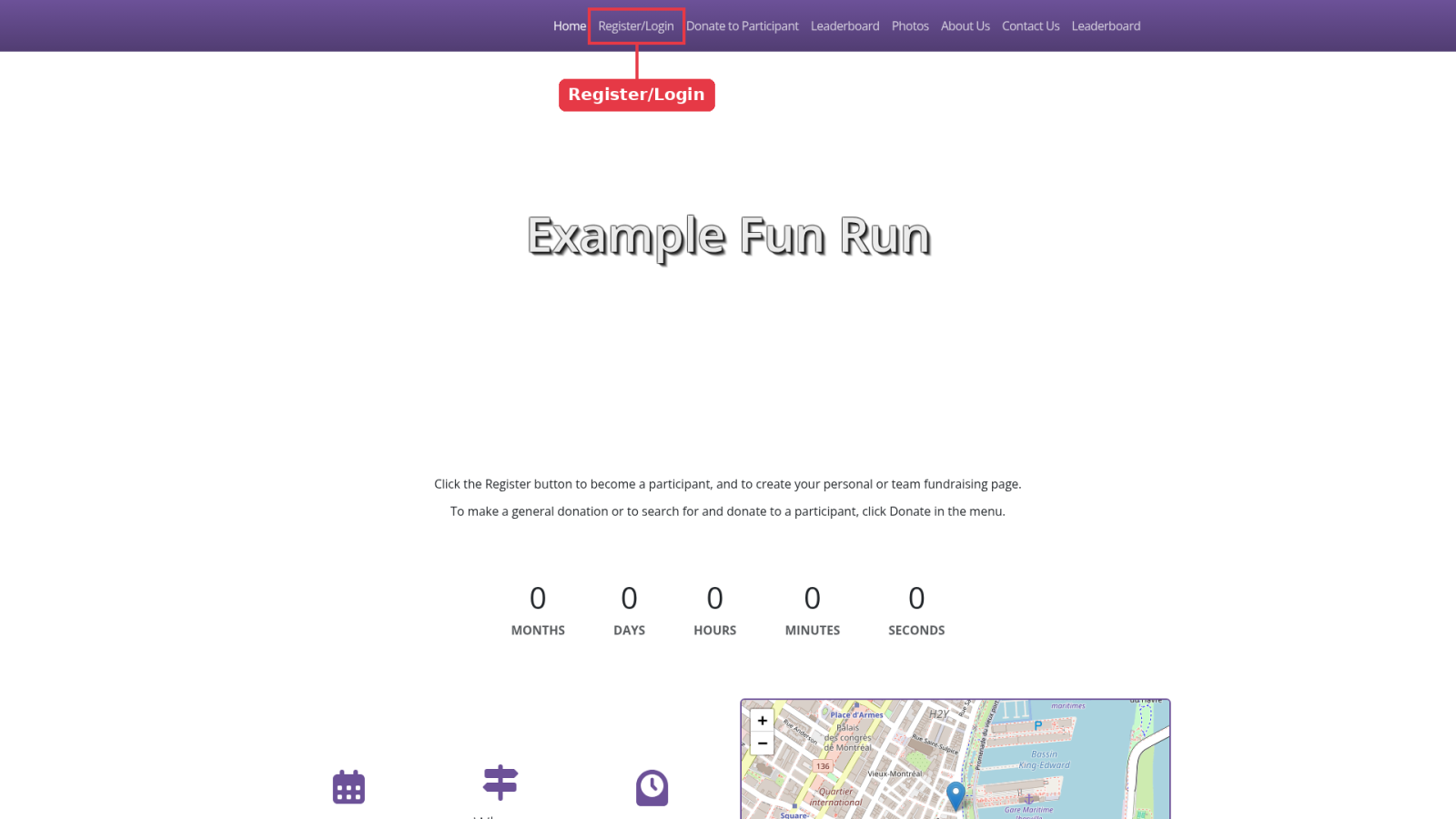
In the website's menu, click Register/Login (your school may use a slightly different name).
You already have an account, so don't fill in the registration form. Scroll down and, under Already a member?, click Login.

Step 3: Log in with the temporary password
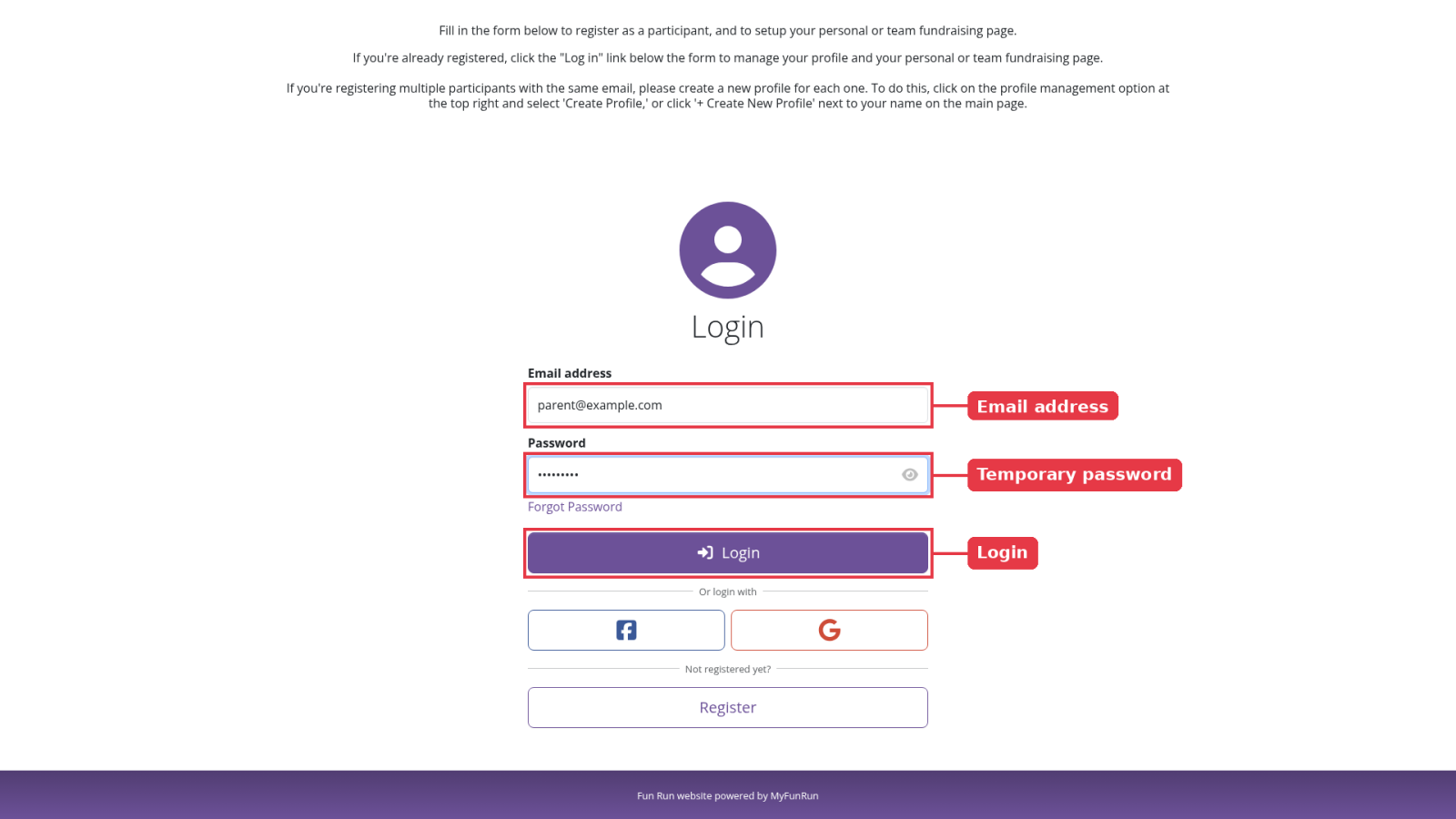
Enter the email address the message was sent to, and the temporary password exactly as it appears in the email (passwords are case-sensitive). Then click Login.
Step 4: Choose your own password
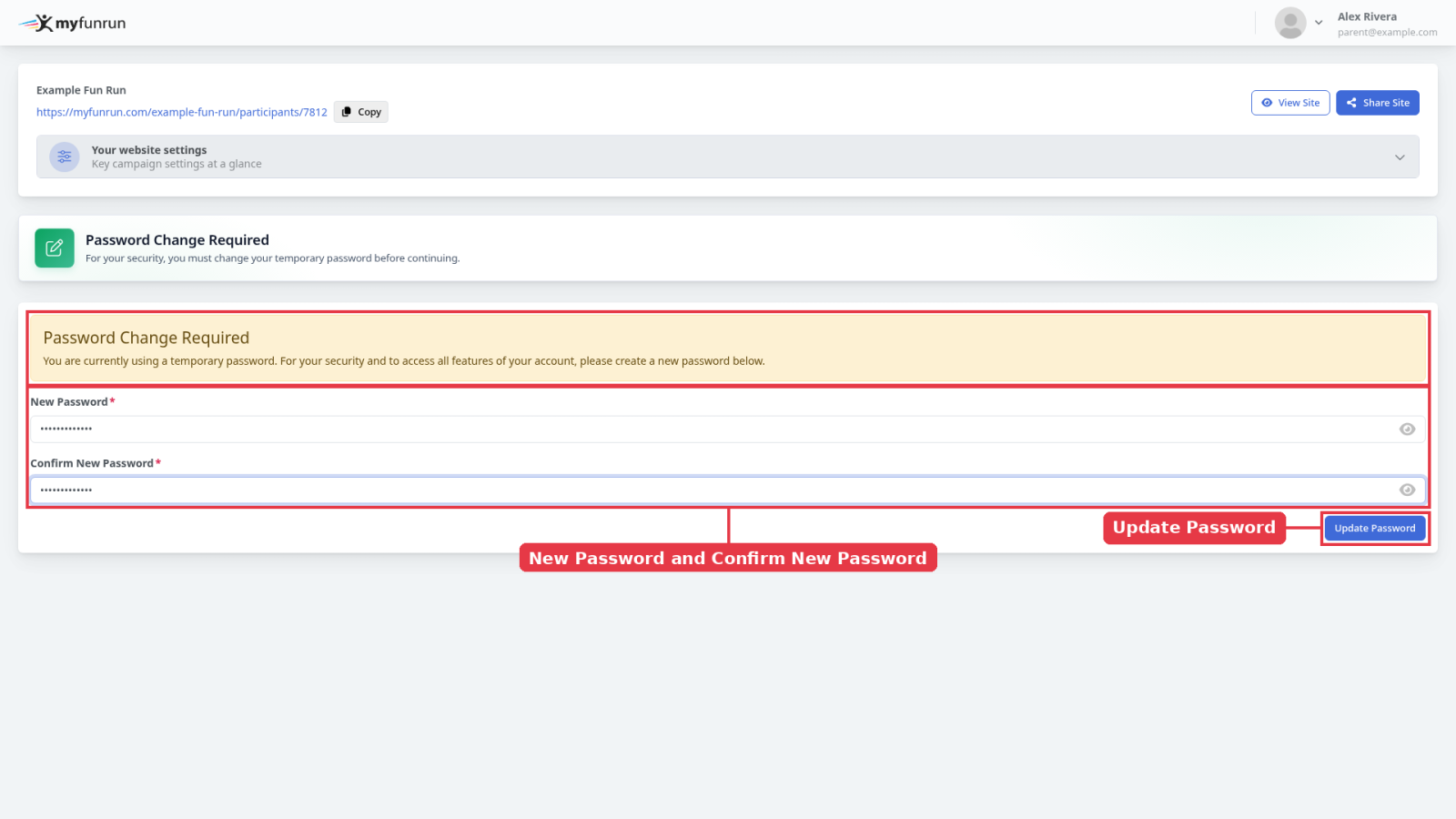
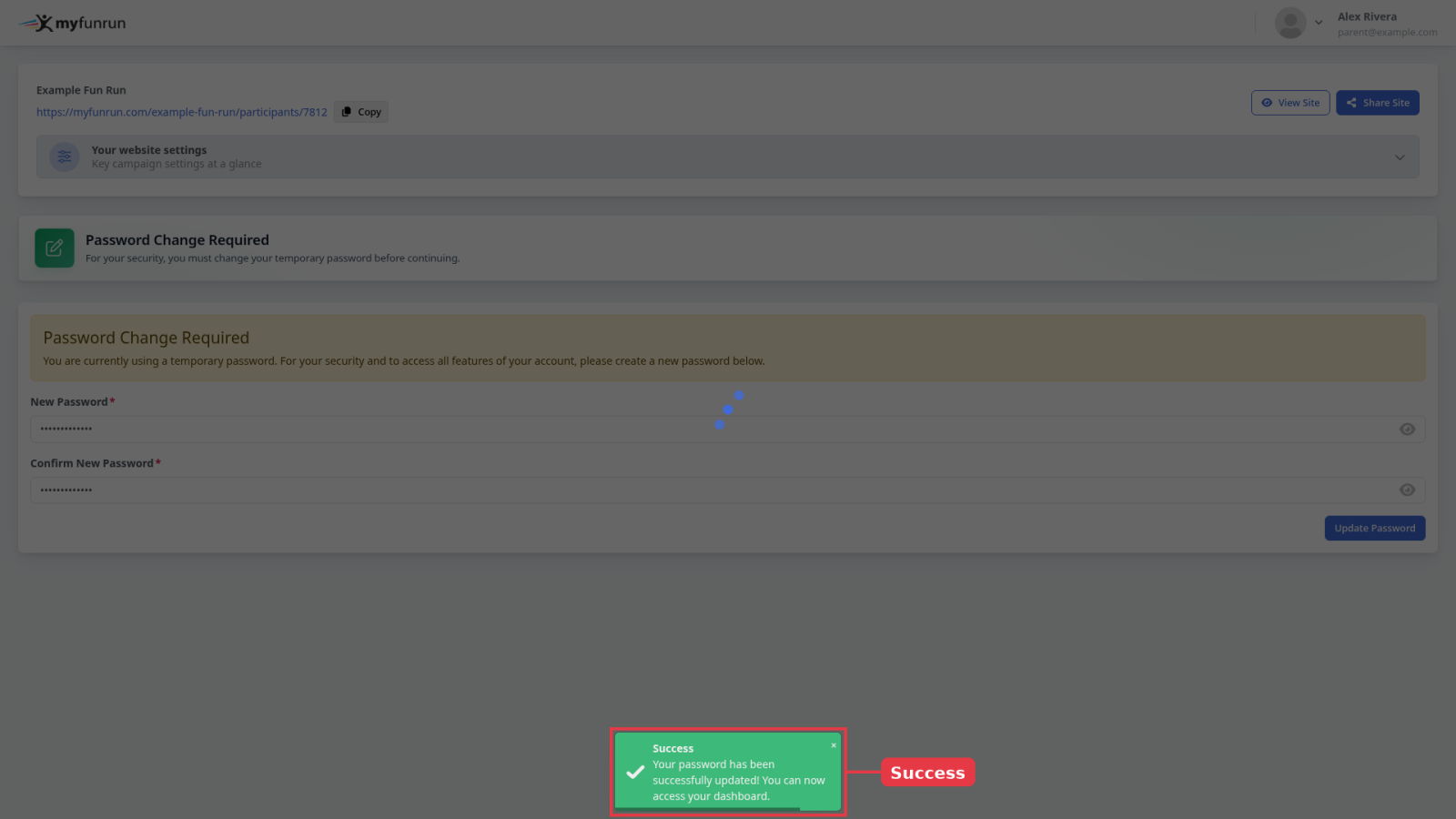
Because you used a temporary password, you go straight to Password Change Required. Type a new password in New Password, type it again in Confirm New Password, then click Update Password. You can't open other pages of your account until you do this.
Your new password must:
- be at least 12 characters long
- include both upper and lower case letters
- include at least one number
- not be a password that has appeared in a known data breach
Step 5: You're in
You'll see "Your password has been successfully updated! You can now access your dashboard." and your participant dashboard opens. From now on, log in with your email address and your new password. The temporary password no longer works.
Good to know
- You can also log in at myfunrun.com/login with the same email and temporary password. You'll be taken to the same Password Change Required page.
- The temporary password has no time limit, but it only works until you choose your own password.
- Can't find the email, or the temporary password doesn't work? Click Forgot Password on the login form and follow How to reset your password. Setting a new password that way also replaces the temporary one.