

After your fun run's payout has been sent, you can always go back and check it. The Payout details window shows the payout amounts and dates, lets you download or email CSV reports, and links to every transaction and donation in that payout.
Step 1: Open your Payouts page
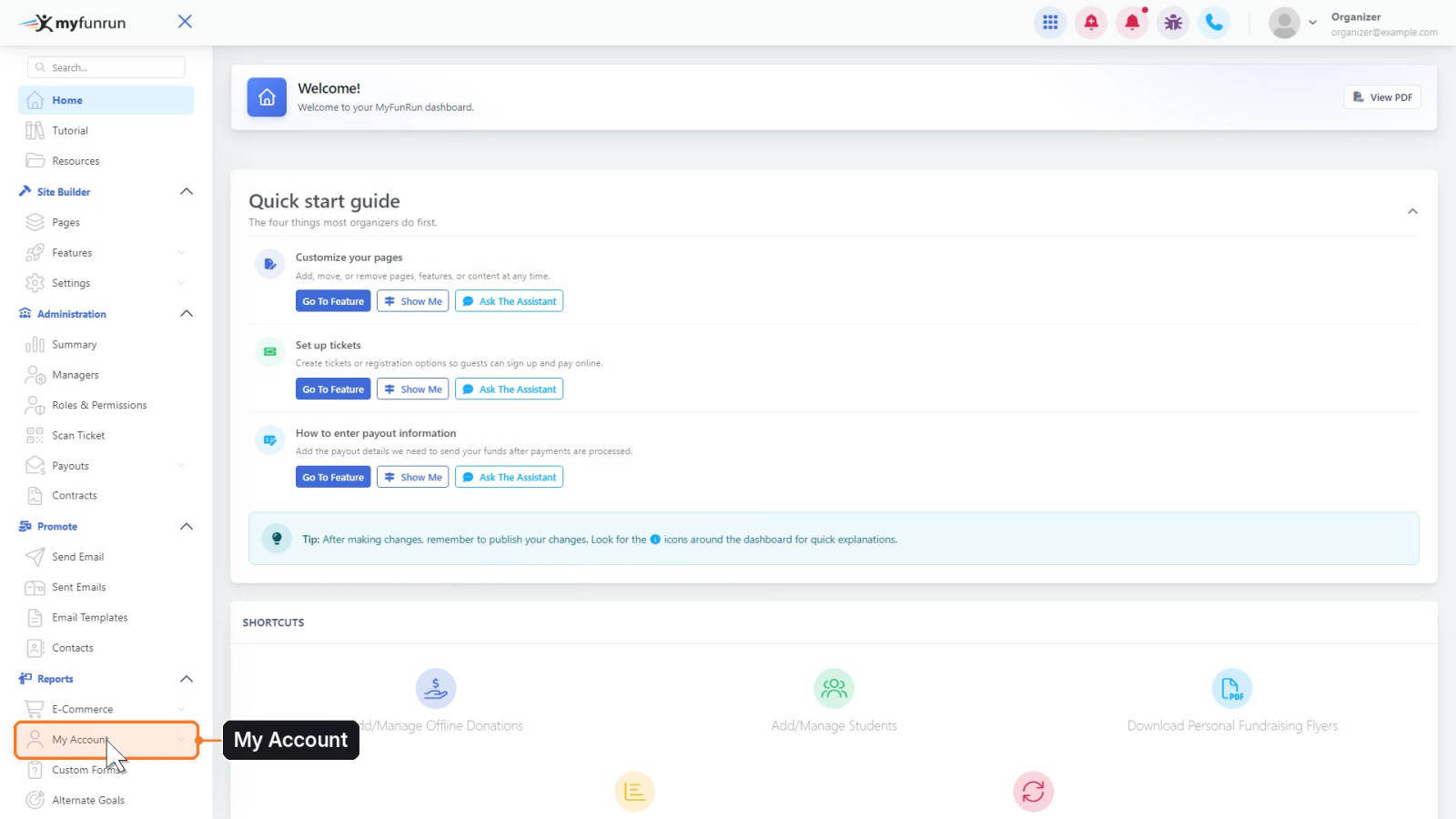
In the menu, under Reports, click My Account.
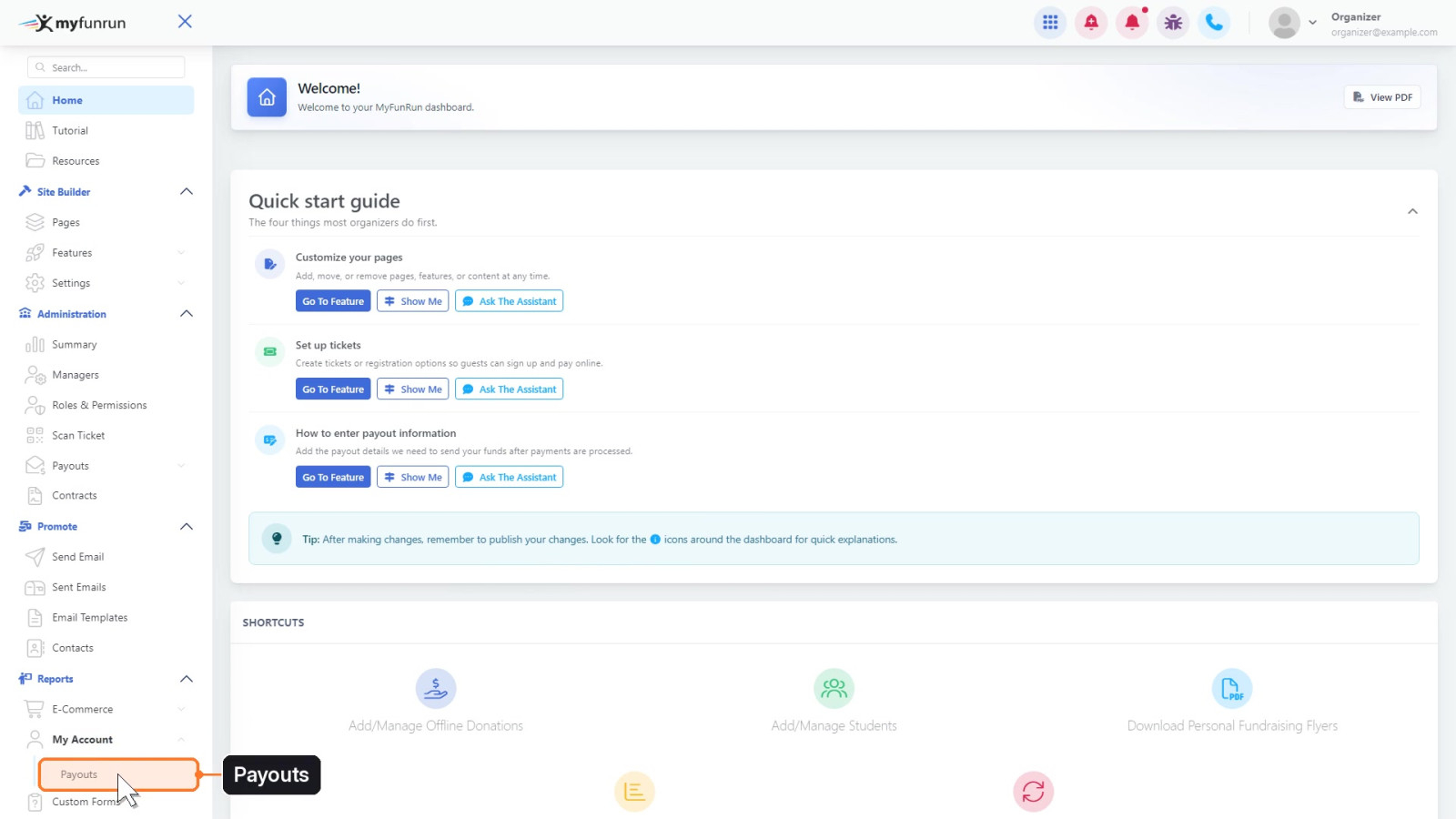
Click Payouts.
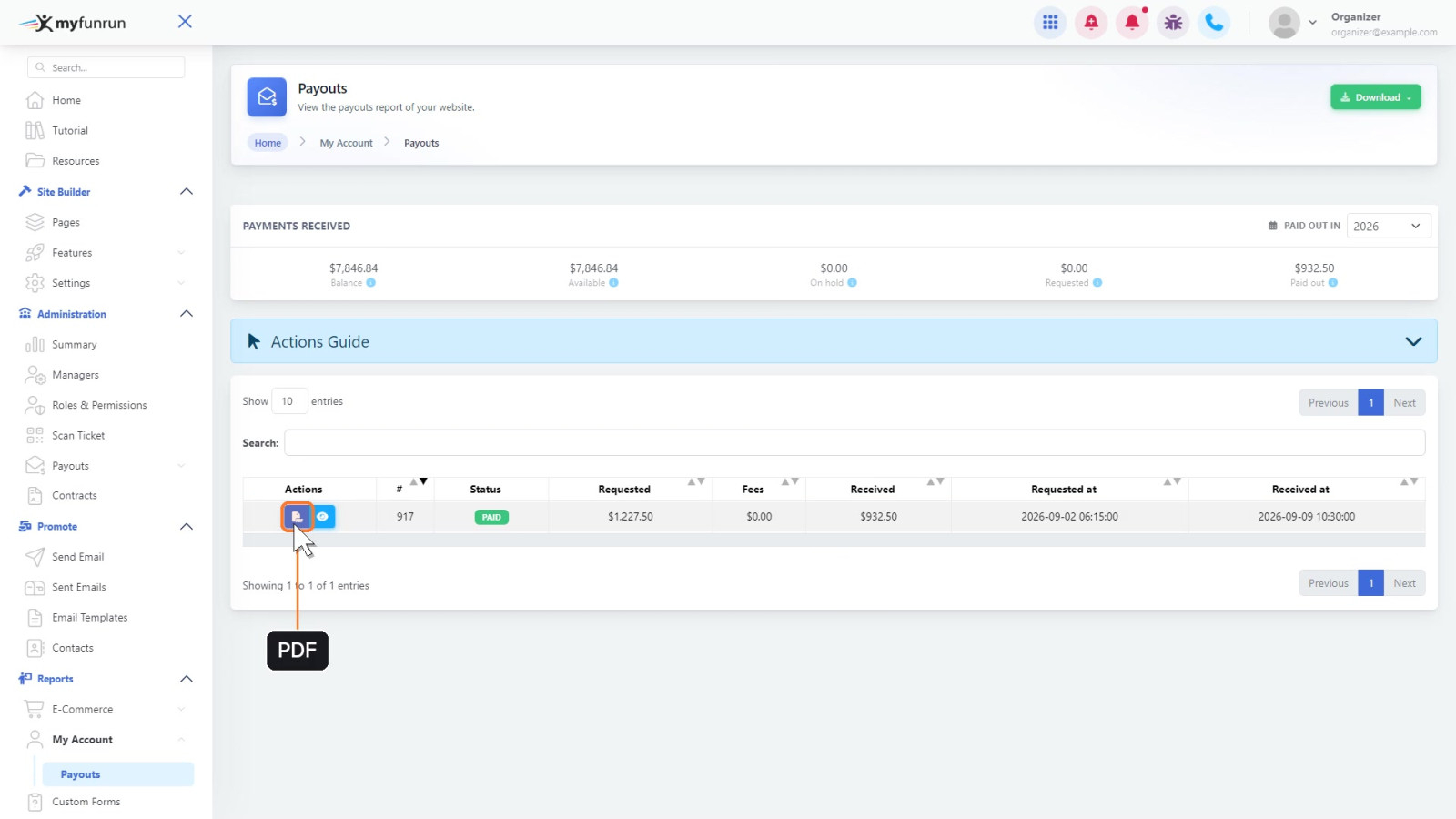
The Payouts page lists every payout for your fun run. A payout that has been sent is marked Paid, with the amount requested and the amount you received.

The PDF button gives you a printable copy of the payout.
Step 2: Open the payout details
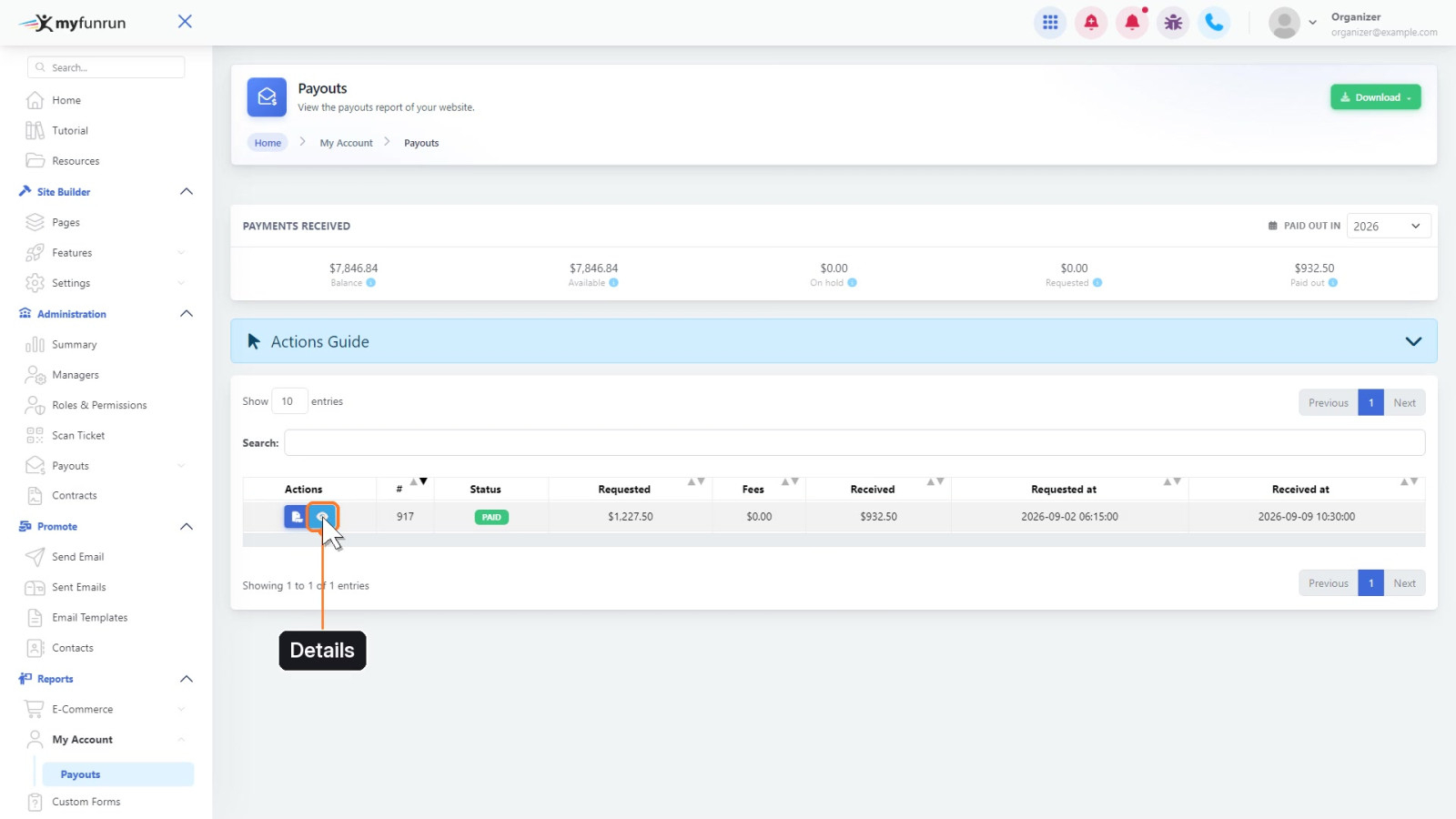
Click the Details button (eye icon) on the payout.
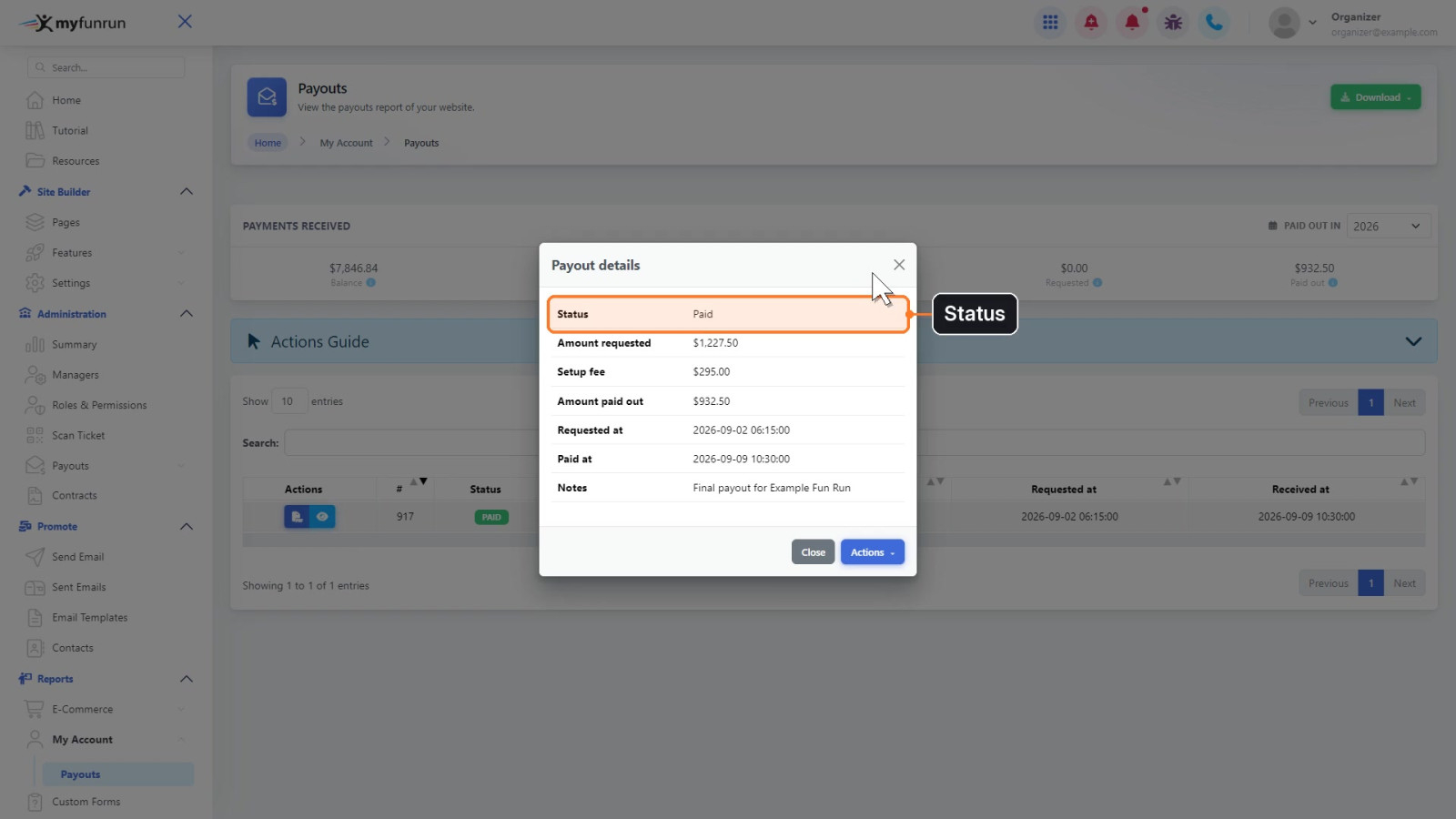
The Payout details window opens. Status shows whether the payout is paid.
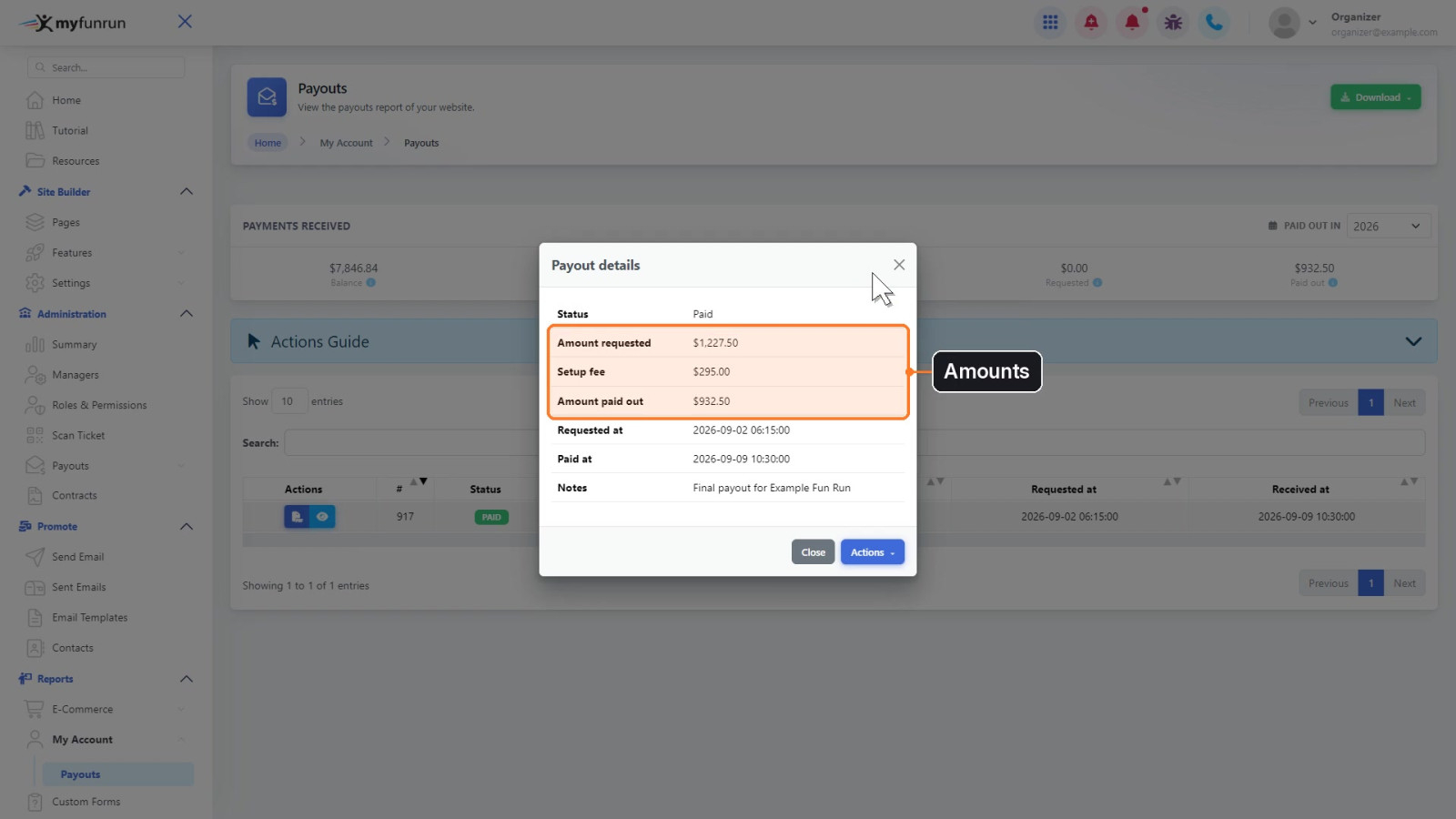
Amount requested, Setup fee and Amount paid out show what was requested and what was sent to you.
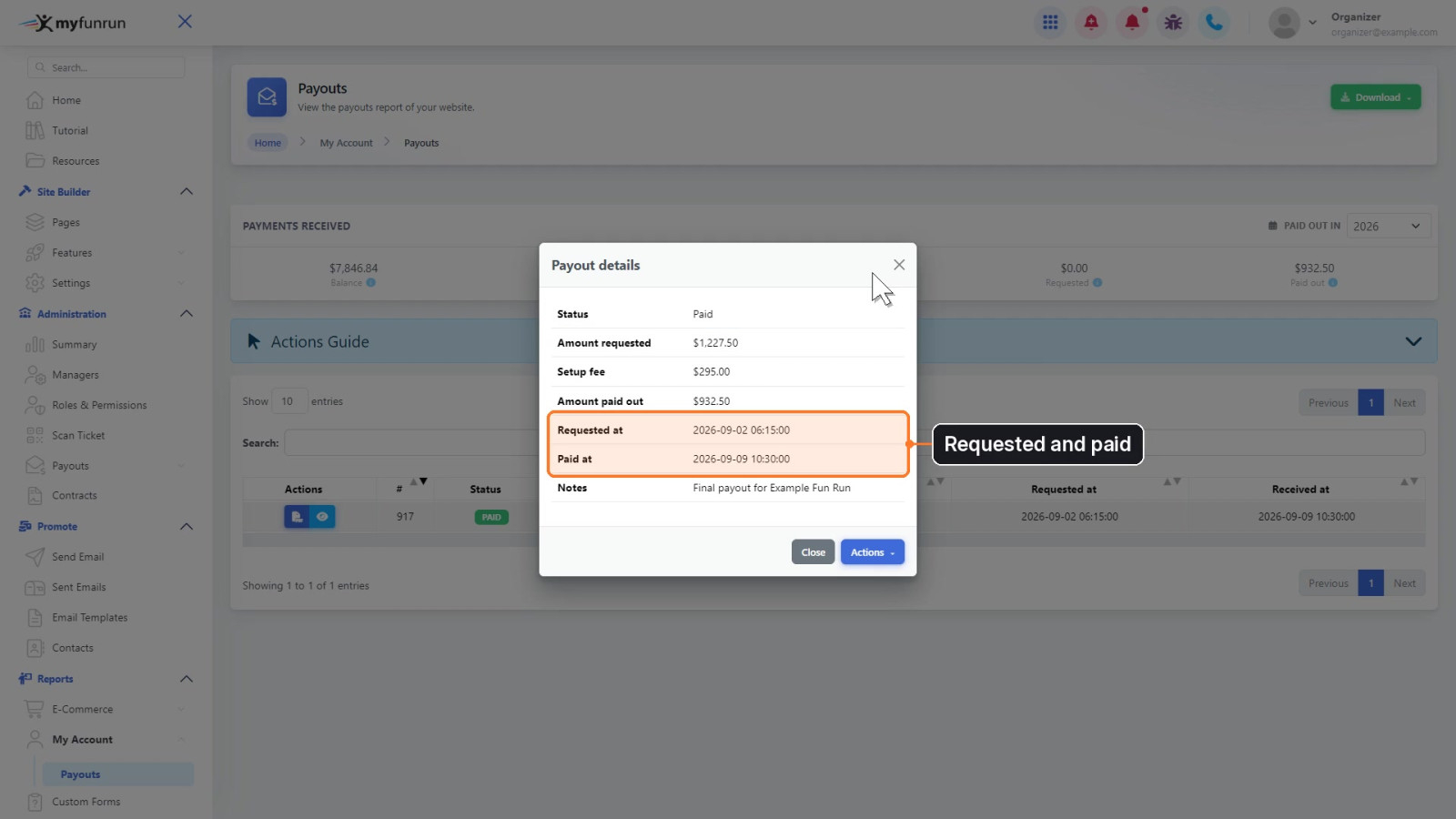
Requested at and Paid at show when the payout was requested and when it was paid.
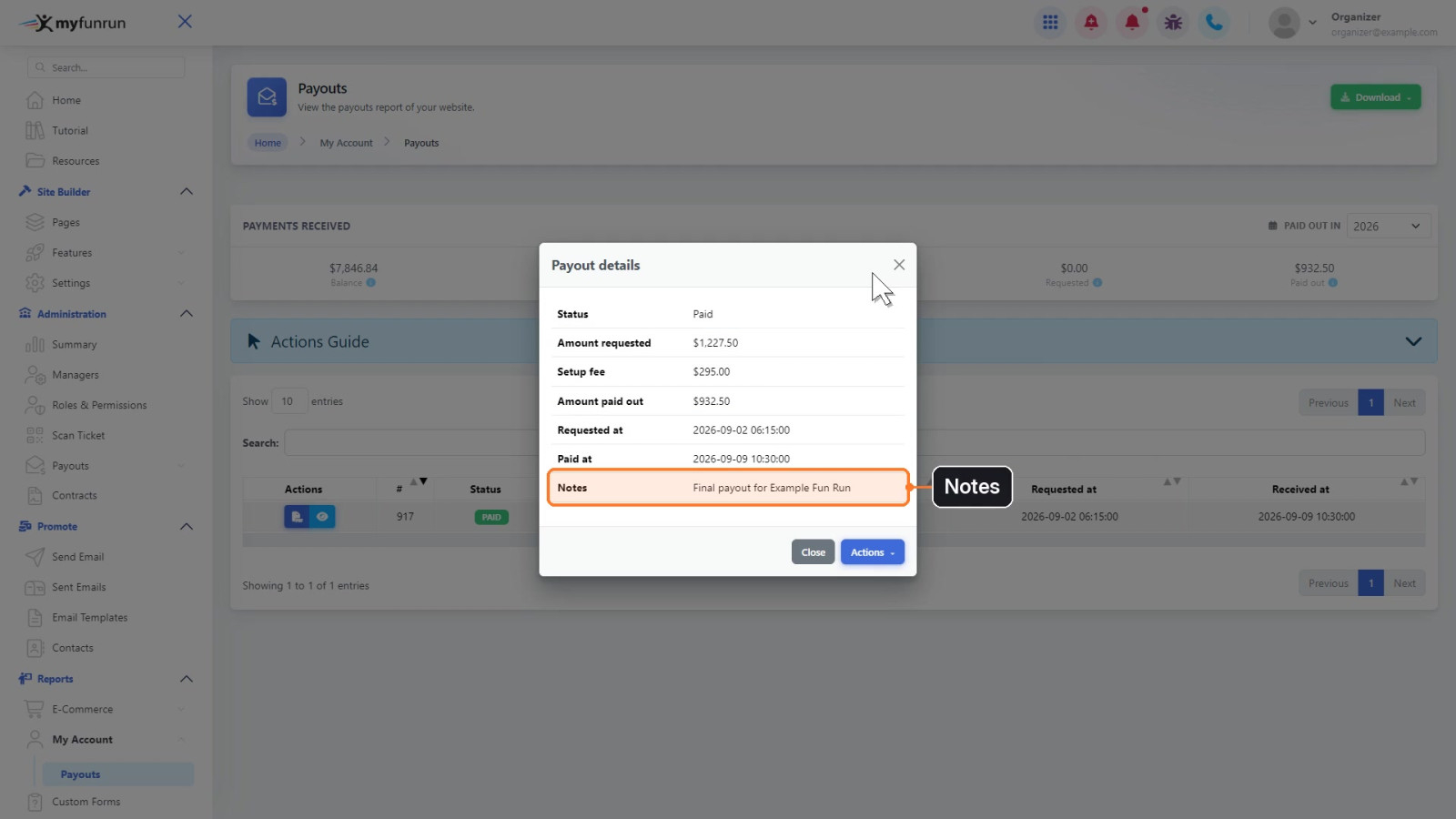
Notes shows any notes added to the payout.
Step 3: Download or email your CSV reports
Click Actions.
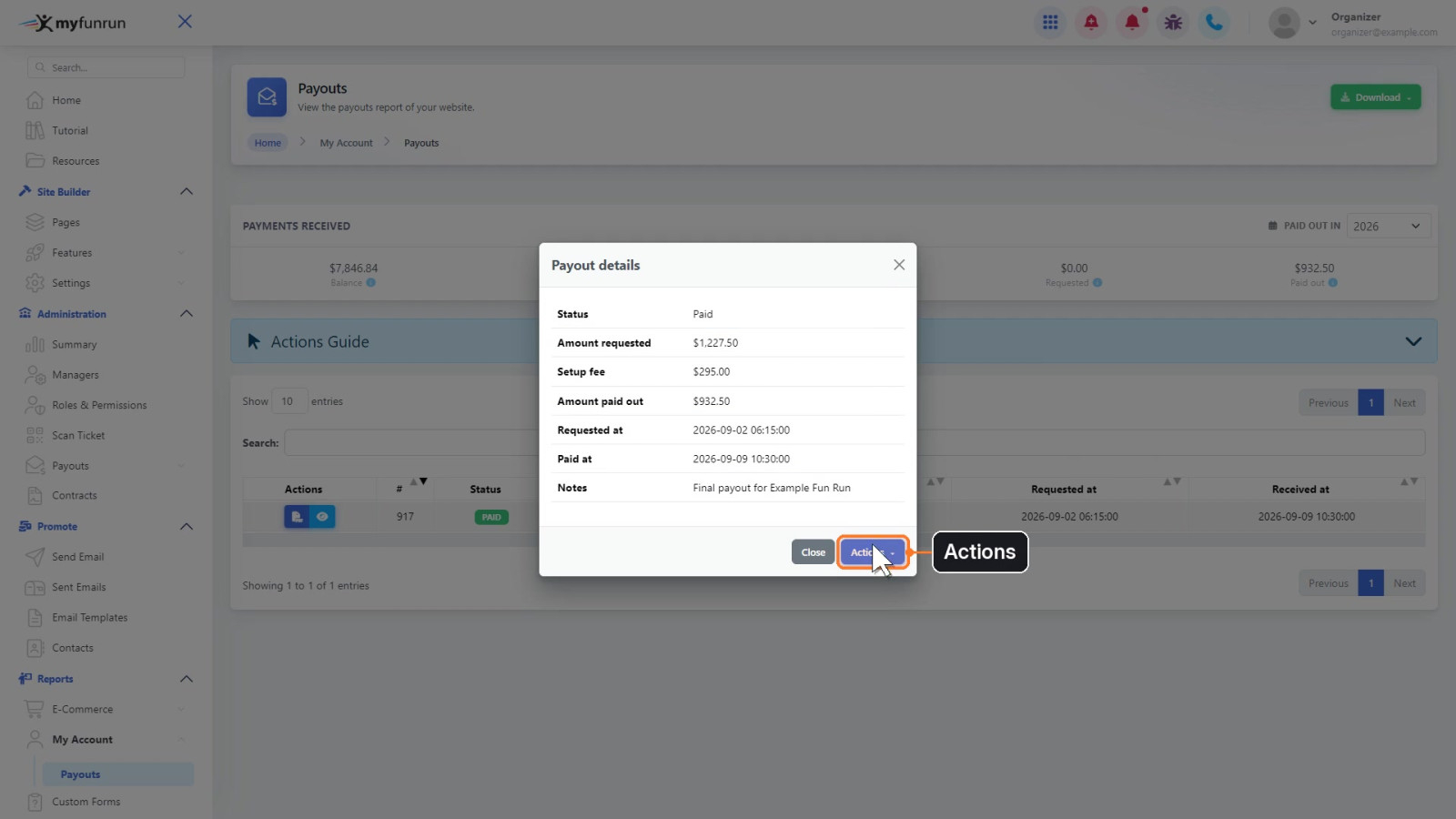
The Actions menu lists everything you can do with this payout.
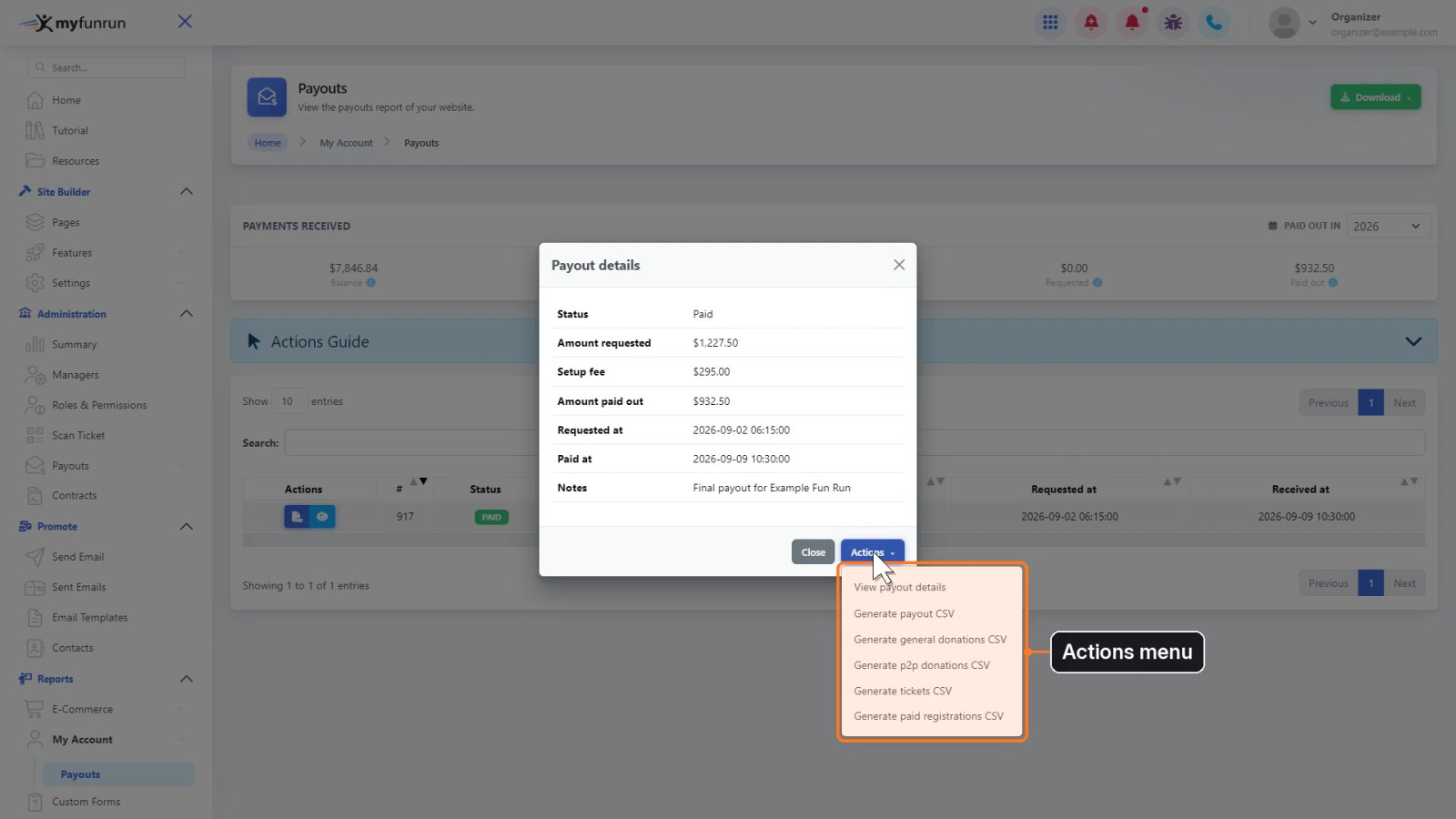
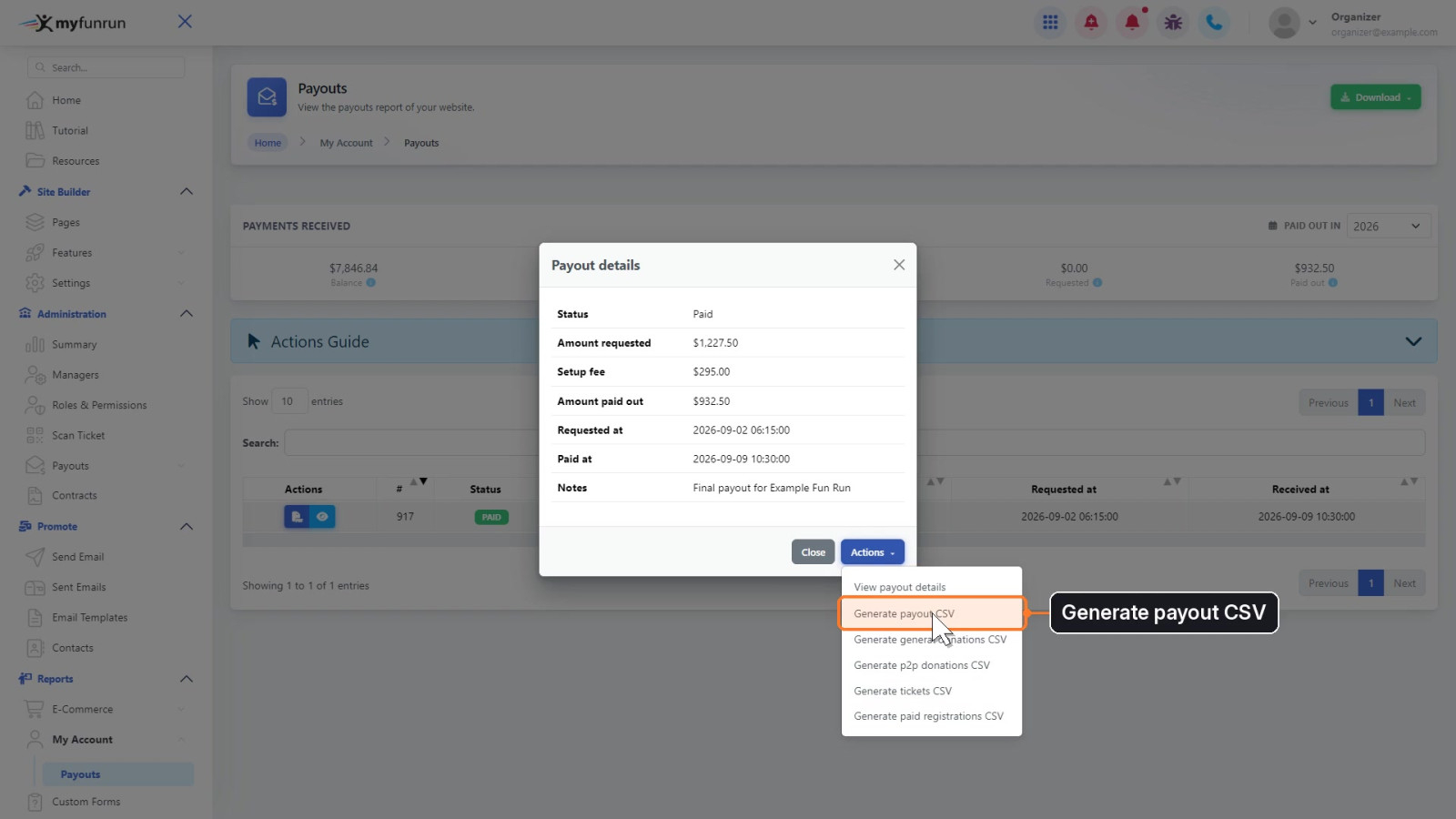
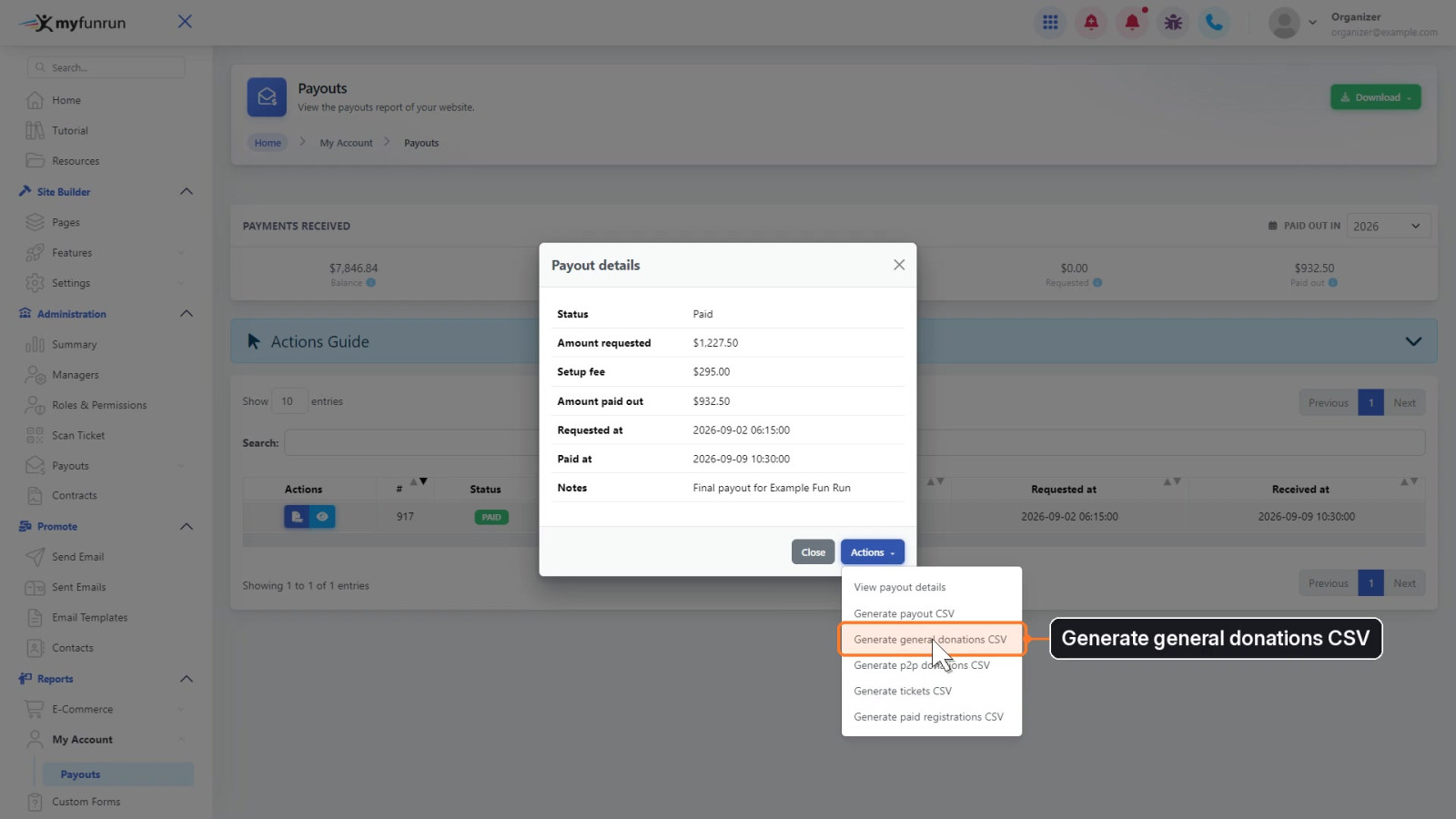
Click Generate payout CSV to download a spreadsheet of every transaction in this payout, with each supporter's details.
The next four options create a CSV for this payout of your general donations, P2P donations, tickets or paid registrations: Generate general donations CSV, Generate p2p donations CSV, Generate tickets CSV and Generate paid registrations CSV.
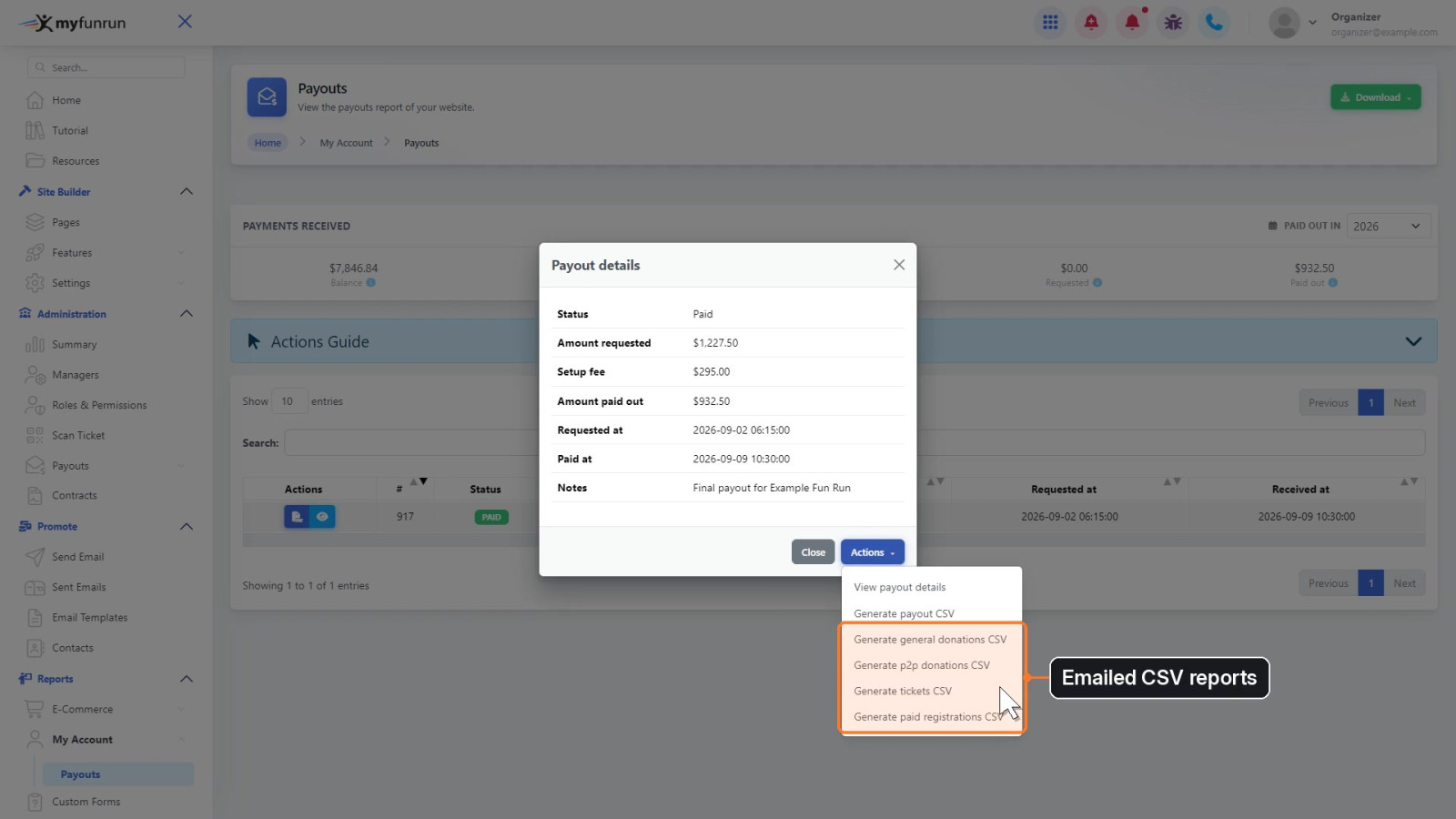
Click the one you need, for example Generate general donations CSV.
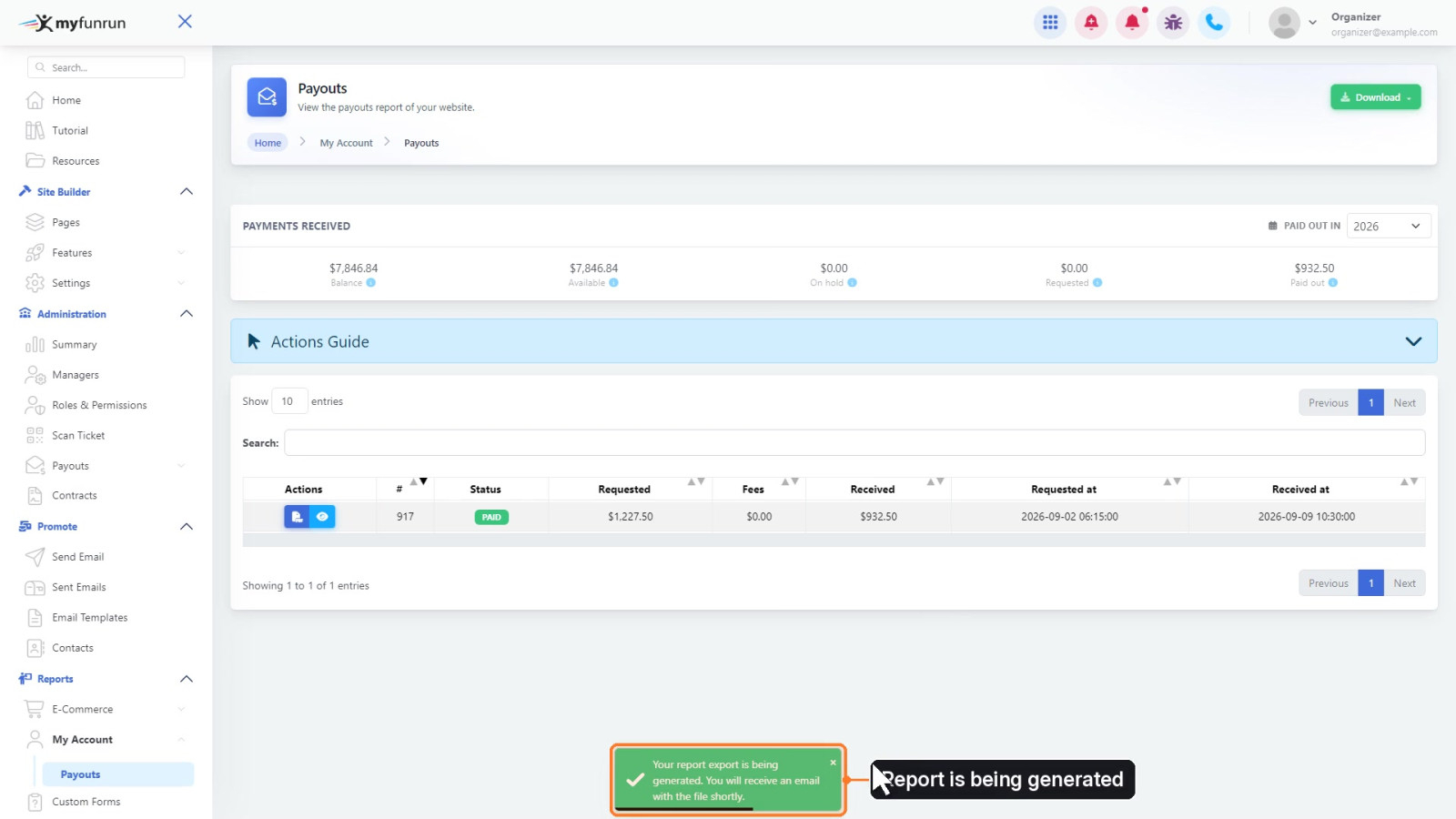
A message confirms: Your report export is being generated. You will receive an email with the file shortly.
Step 4: See every transaction and donation in the payout
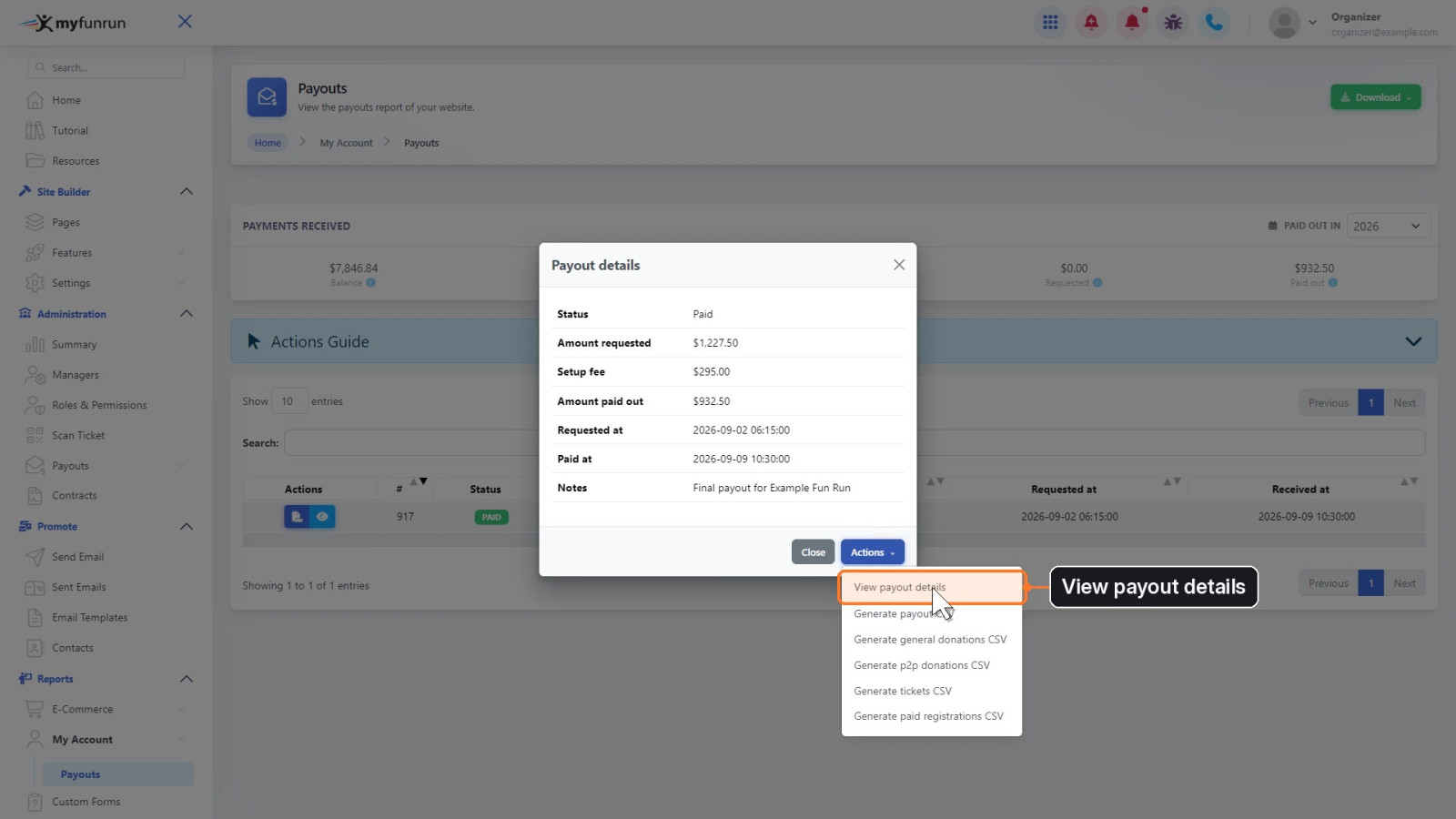
Click Details on the payout again, click Actions, then click View payout details. It opens in a new tab.
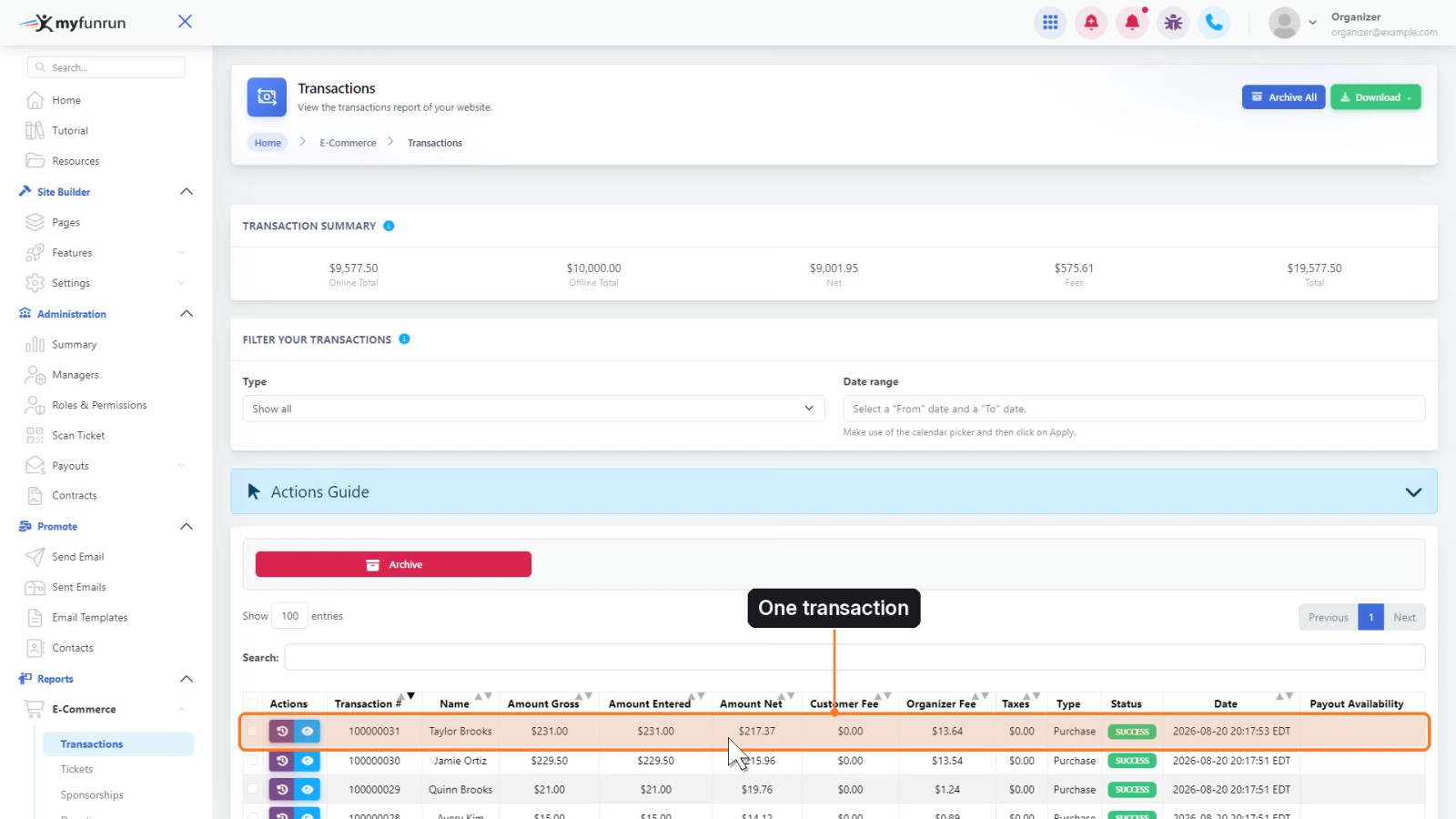
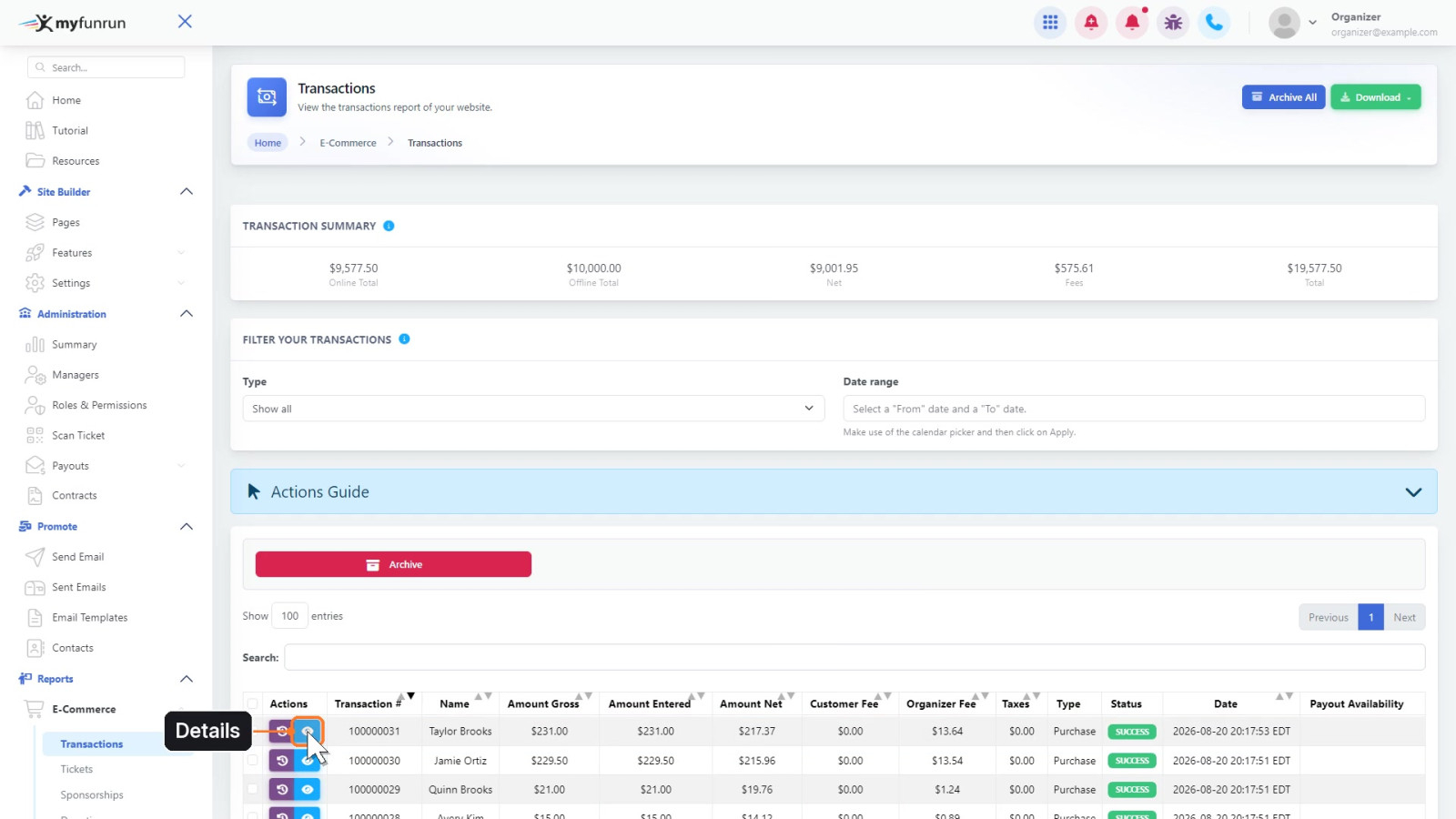
The Transactions report opens, showing only the transactions in this payout. Each row is one transaction, with the supporter's name, the amounts and the fees.
Click Details (eye icon) on a transaction.
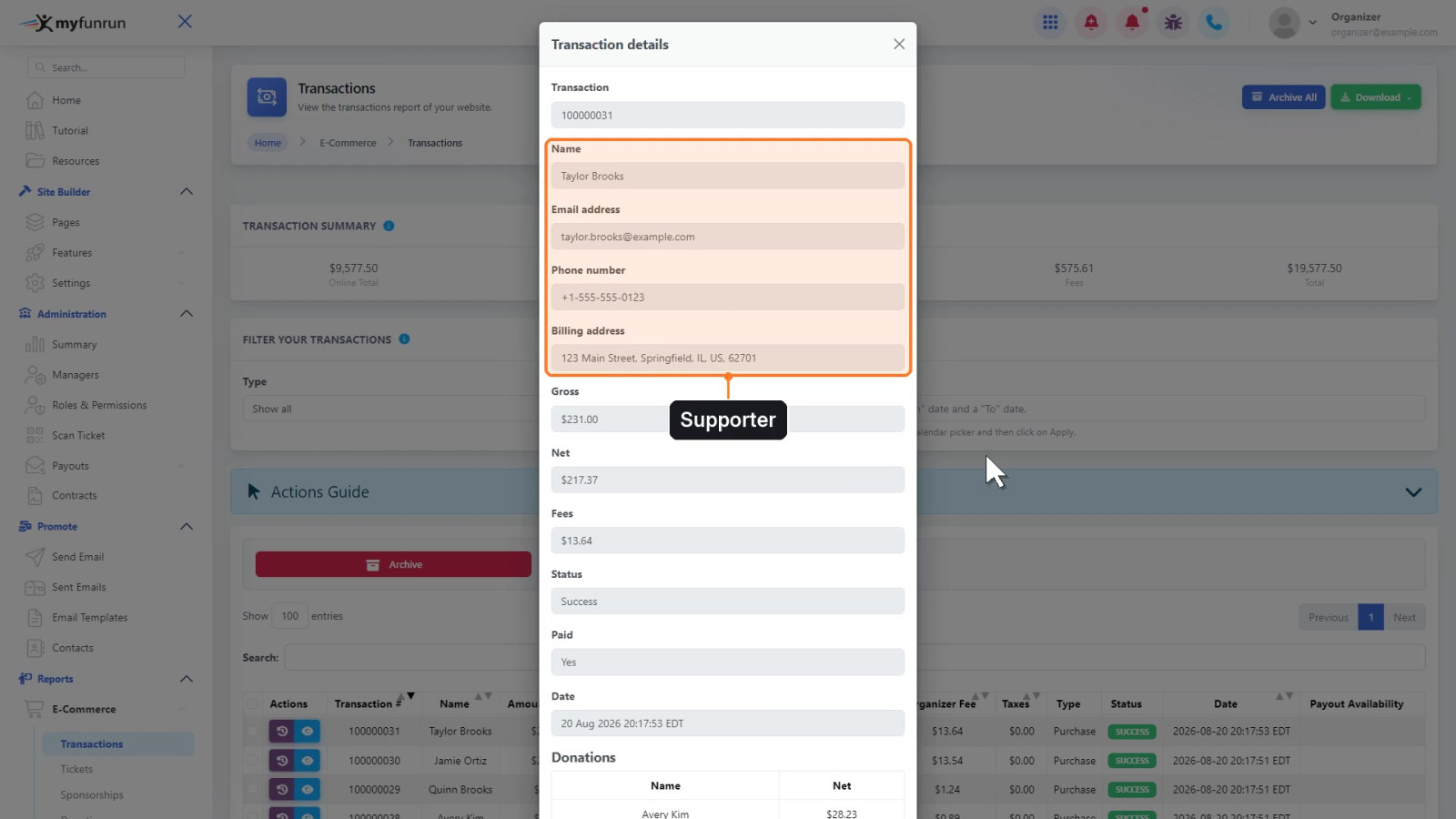
Transaction details shows the supporter's name, email address, phone number and billing address.
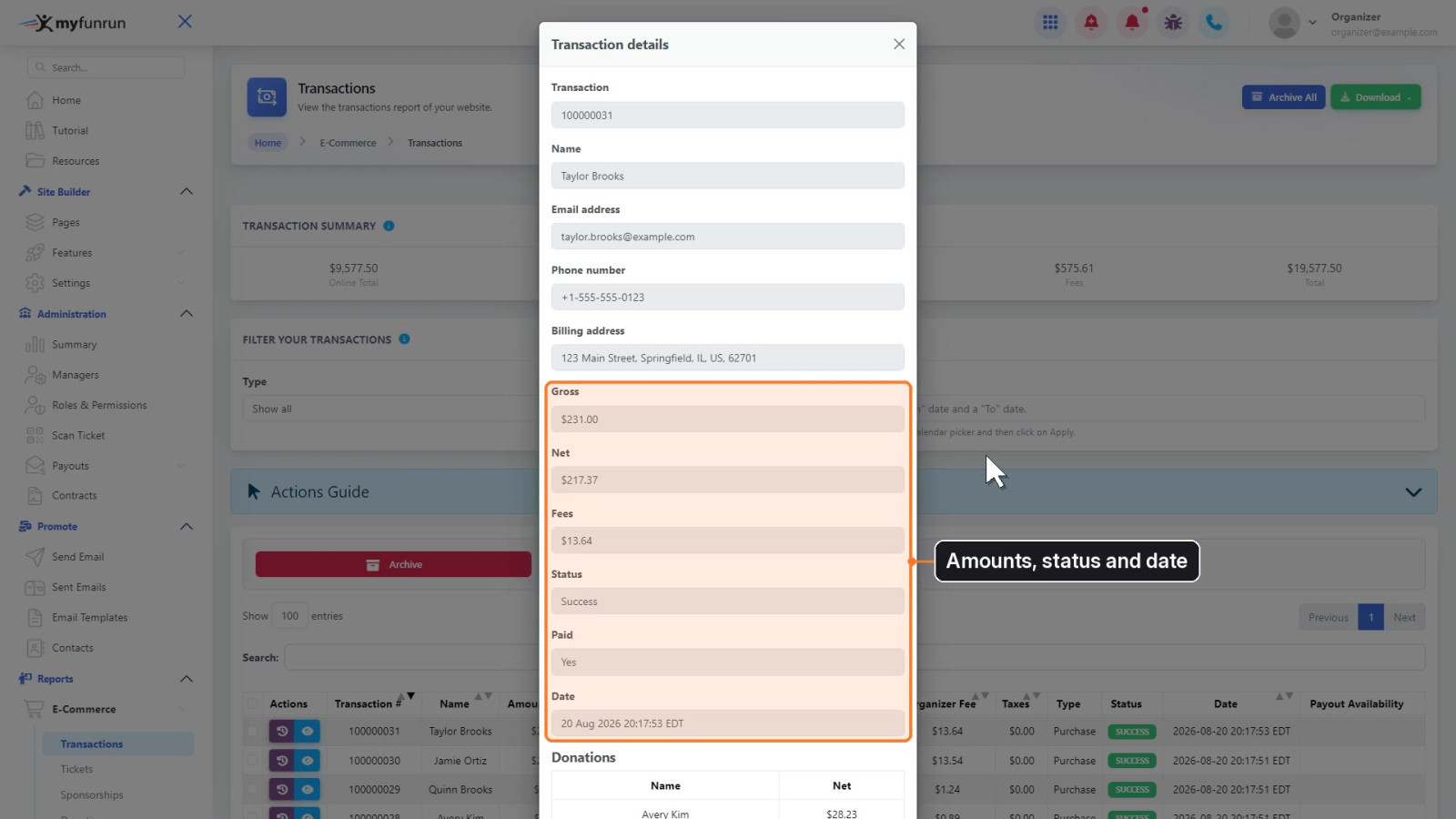
Below that you'll see the Gross, Net and Fees amounts, the Status, whether it was Paid, and the Date.
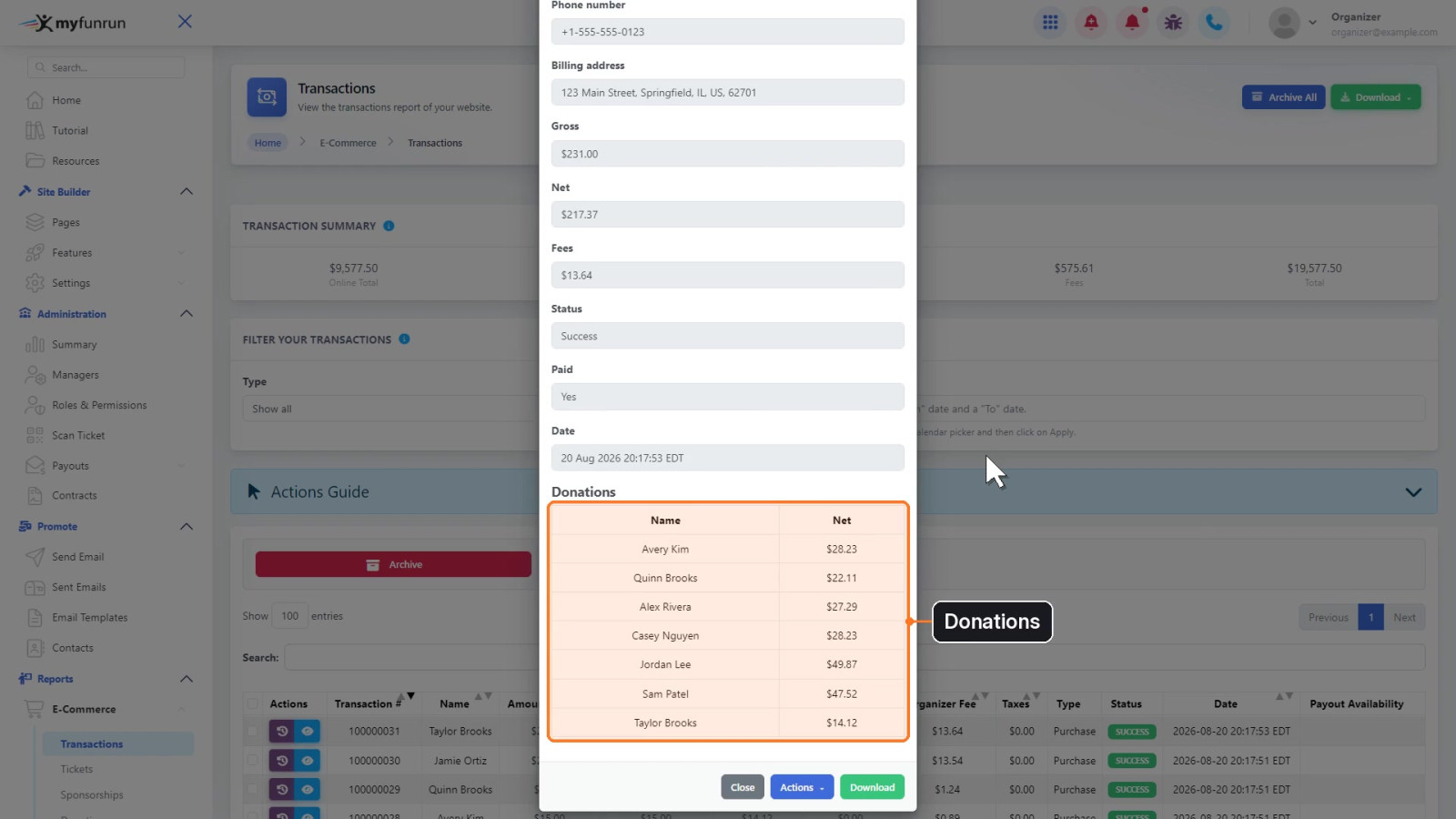
Scroll down to Donations to see each participant who received a donation in this transaction, and the net amount for each.
Good to know
- The four emailed CSV reports are emailed to the account you are signed in with.
- The transaction summary at the top of the Transactions report shows totals for your whole fun run; the table below it lists only the transactions in the payout.