

Forgot your MyFunRun password? You can choose a new one in a couple of minutes from the MyFunRun login page. This works for organizers, managers and parents. If you usually log in on your school's Fun Run website, see Log in on your school's Fun Run website? below.
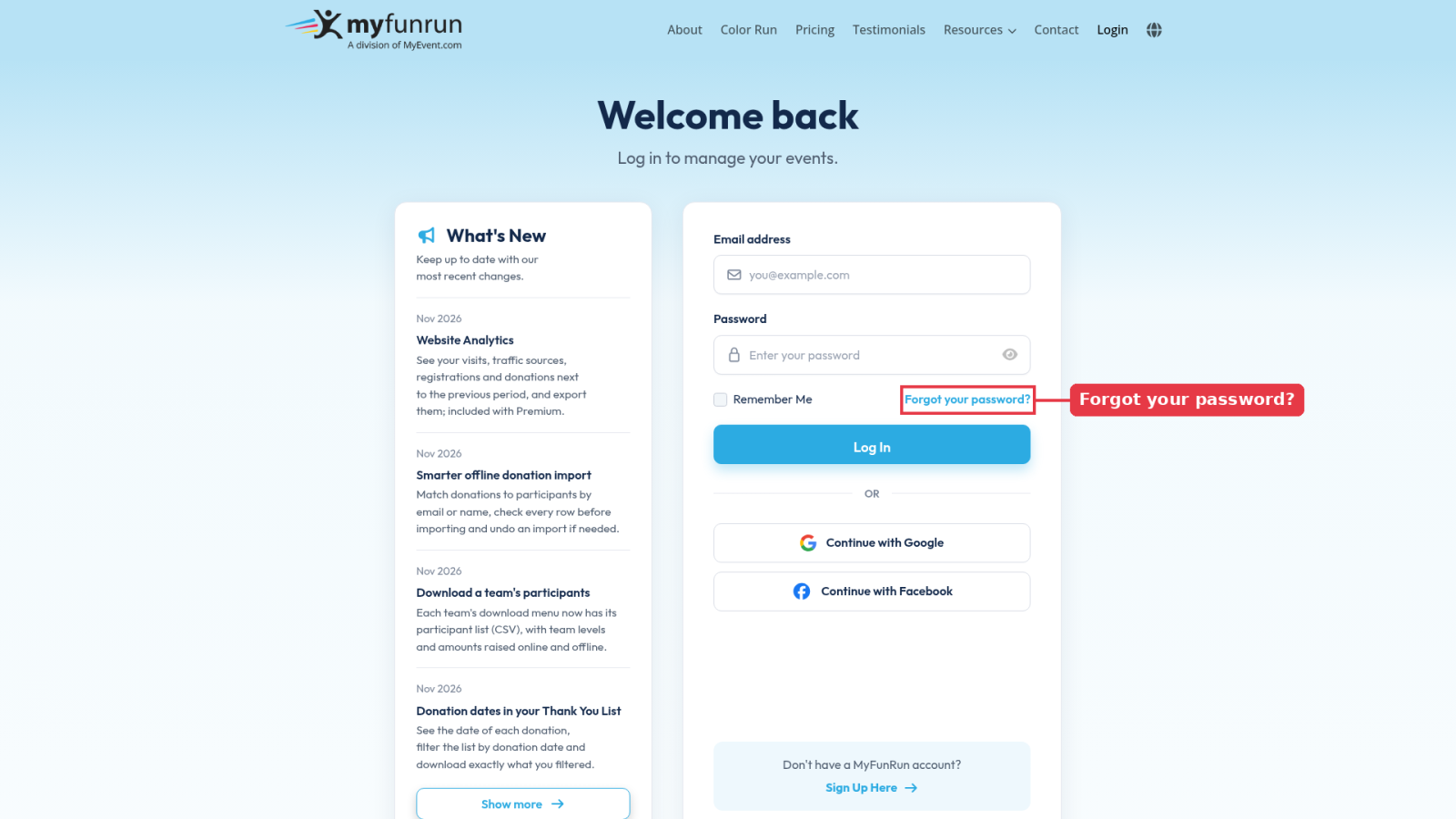
Step 1: Click "Forgot your password?"
Go to myfunrun.com/login. Under the Password field, click Forgot your password?
Step 2: Ask for a reset link
On the Reset Your Password page, type the email address you use to log in, then click Send Password Reset Link.
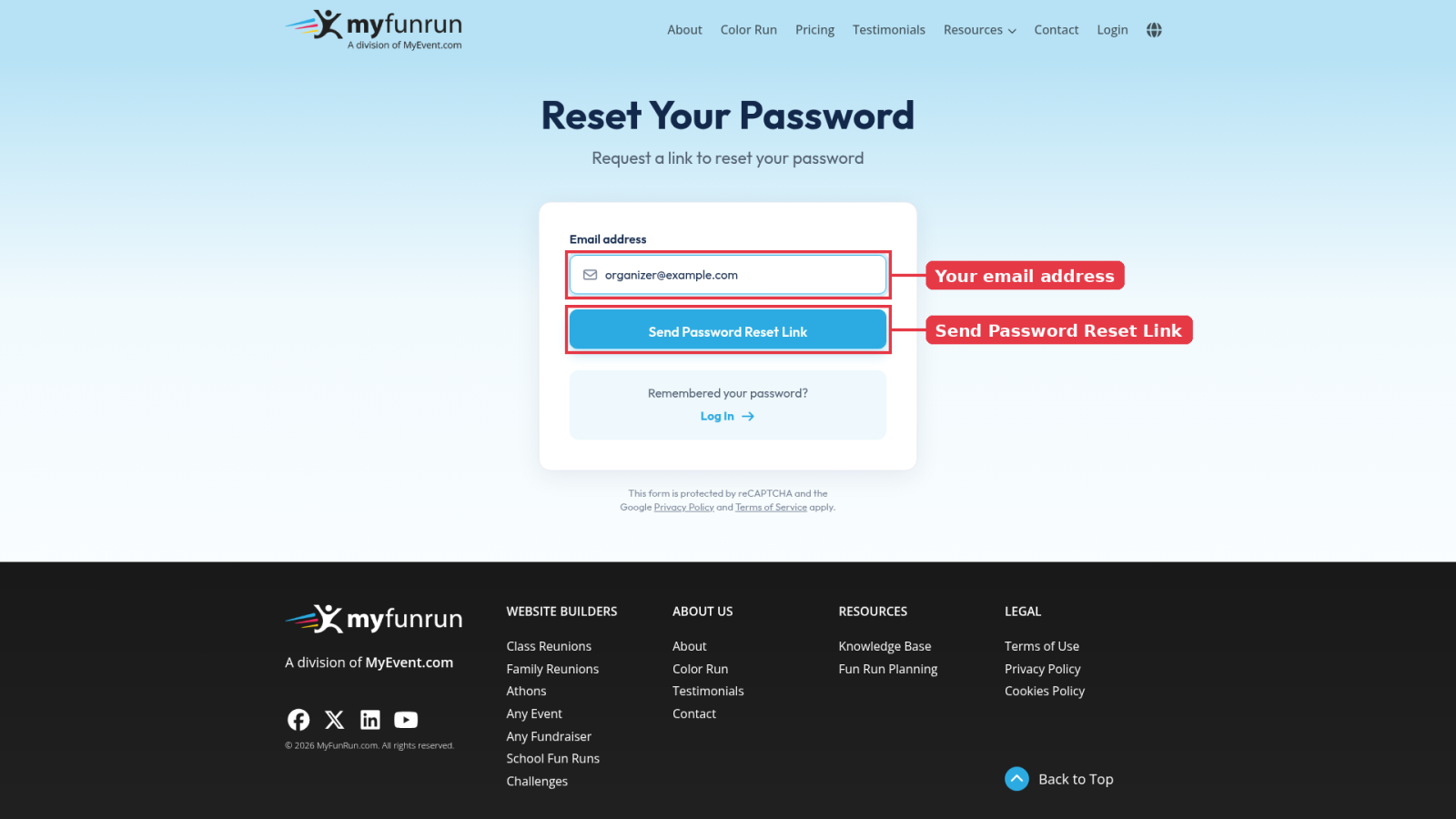
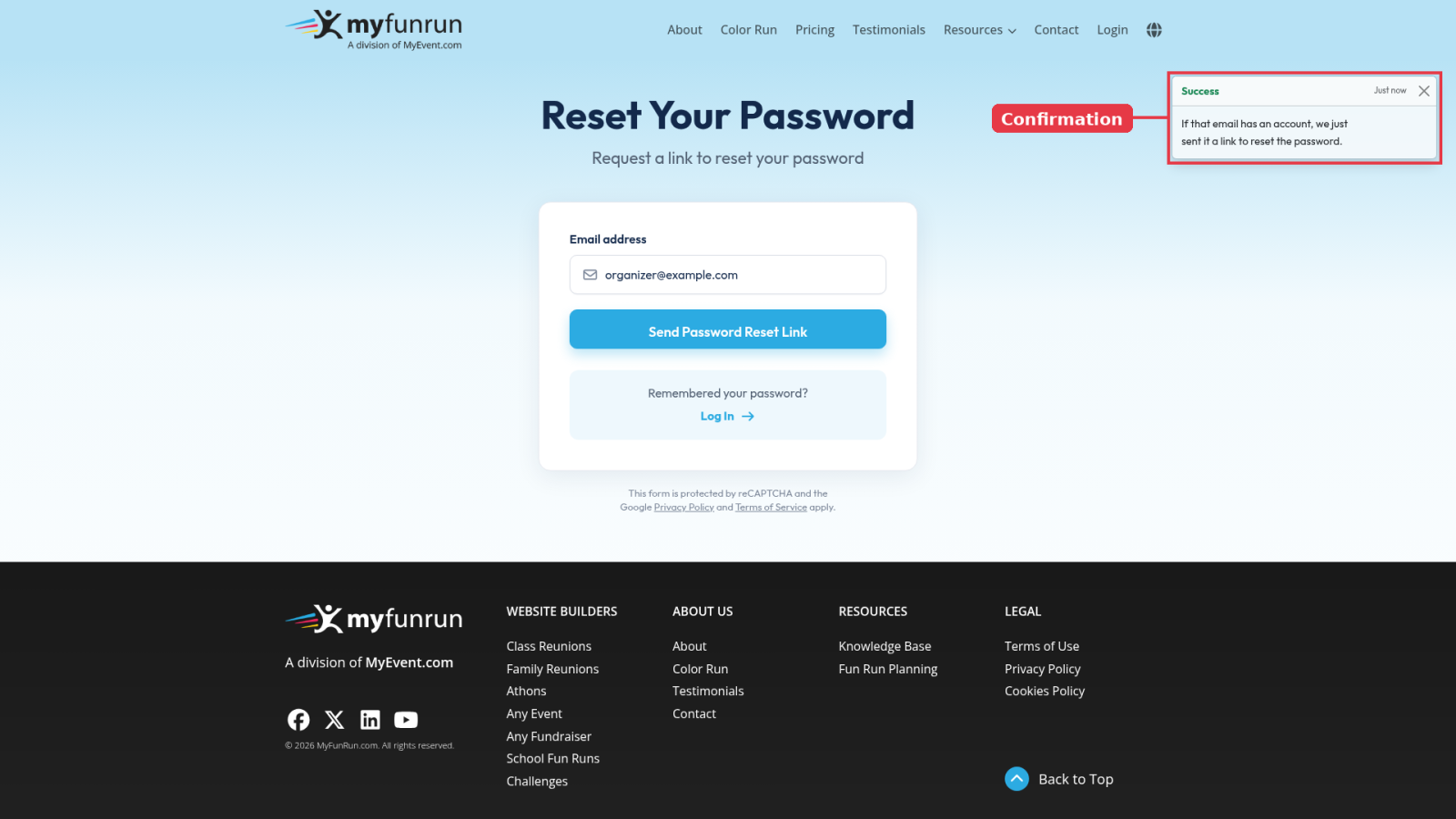
A message confirms: "If that email has an account, we just sent it a link to reset the password." For your privacy, this same message shows whether or not the email has an account, so double-check that you typed the email you log in with.
Step 3: Open the reset email
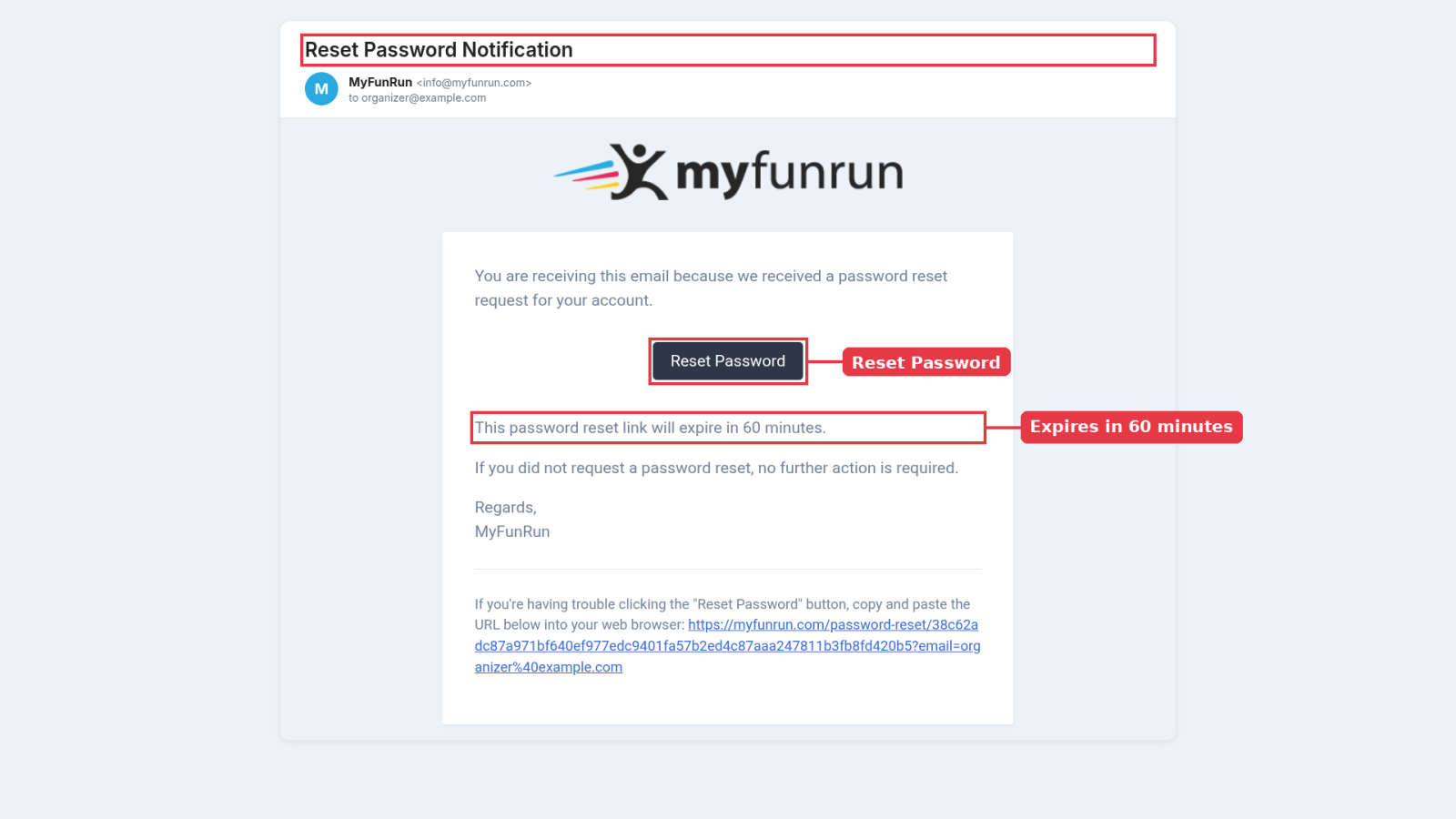
Look for an email from MyFunRun with the subject Reset Password Notification, and click Reset Password.
- The link expires after 60 minutes.
- Can't find the email? Check your spam or junk folder.
- If you ask for more than one link, only the newest one works. Wait at least a minute before asking for another.
Step 4: Choose a new password
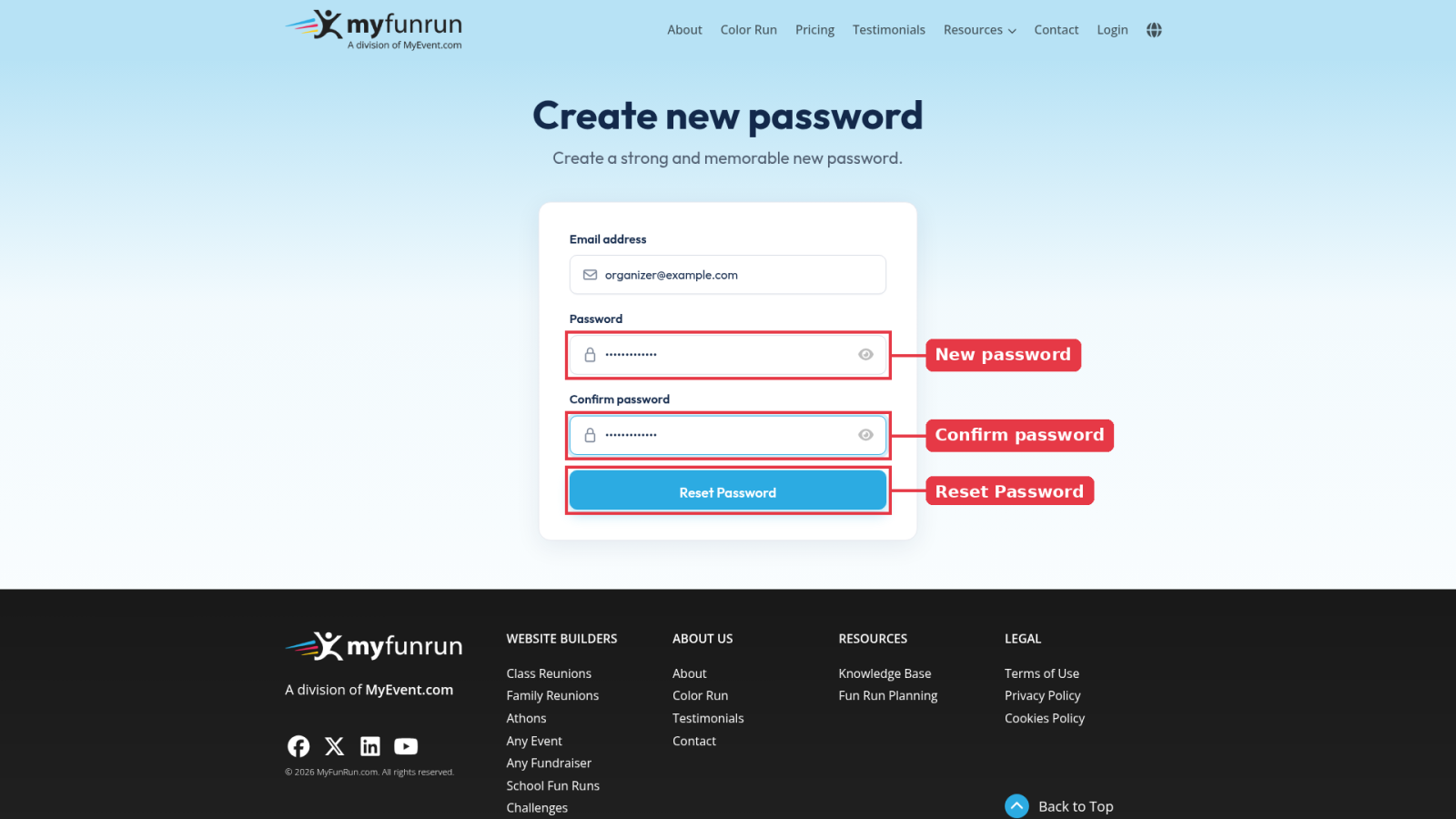
The Create new password page opens with your email address already filled in. Type your new password in Password, type it again in Confirm password, then click Reset Password.
Your new password must:
- be at least 12 characters long
- include both upper and lower case letters
- include at least one number
- not be a password that has appeared in a known data breach
Step 5: Log in with your new password
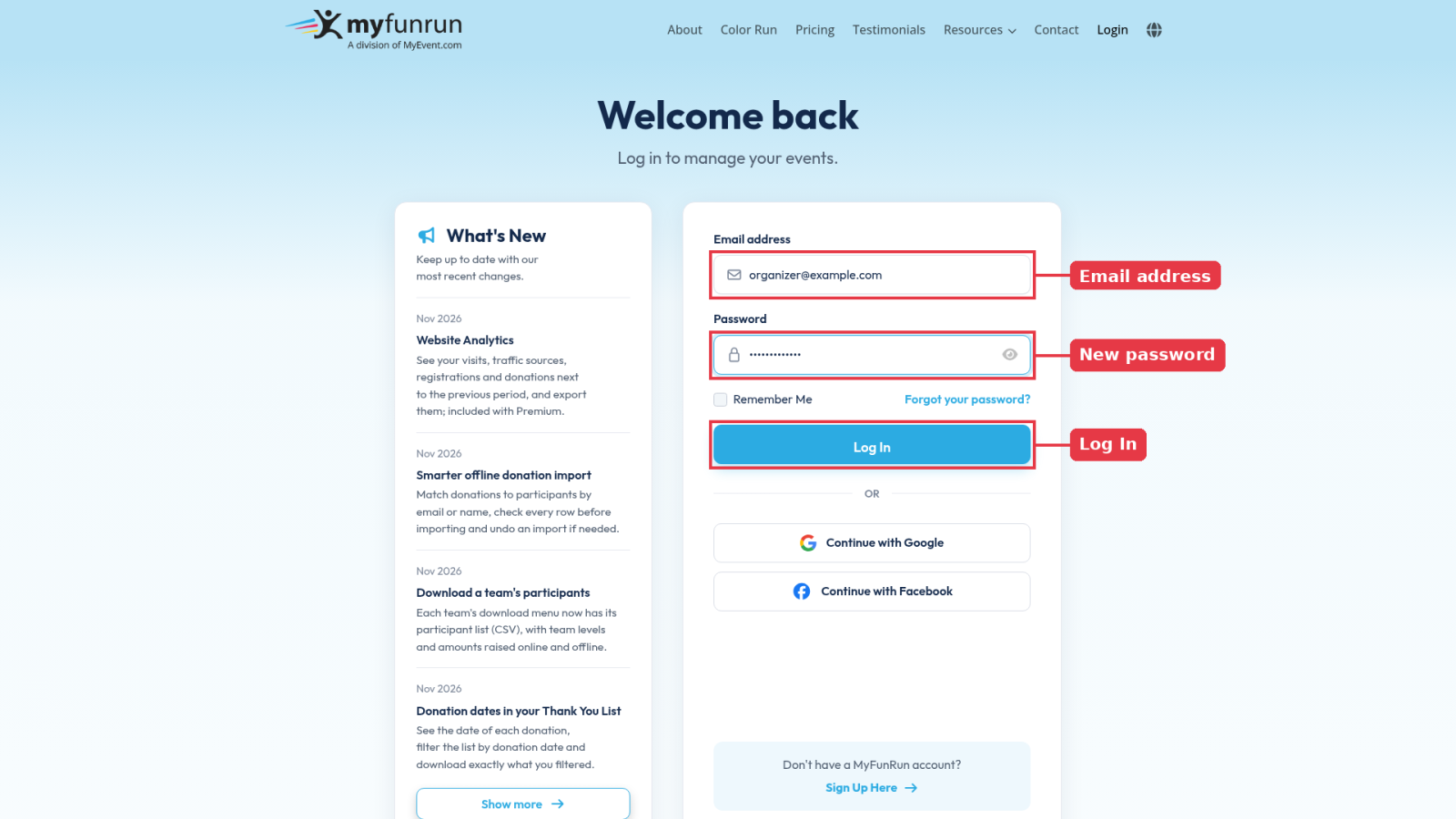
You'll see "Your password has been reset!" and MyFunRun takes you back to the login page. Enter your email address and your new password, then click Log In.
Log in on your school's Fun Run website?
Parents and participants often log in on their school's Fun Run website instead of myfunrun.com. You can reset your password from there too:
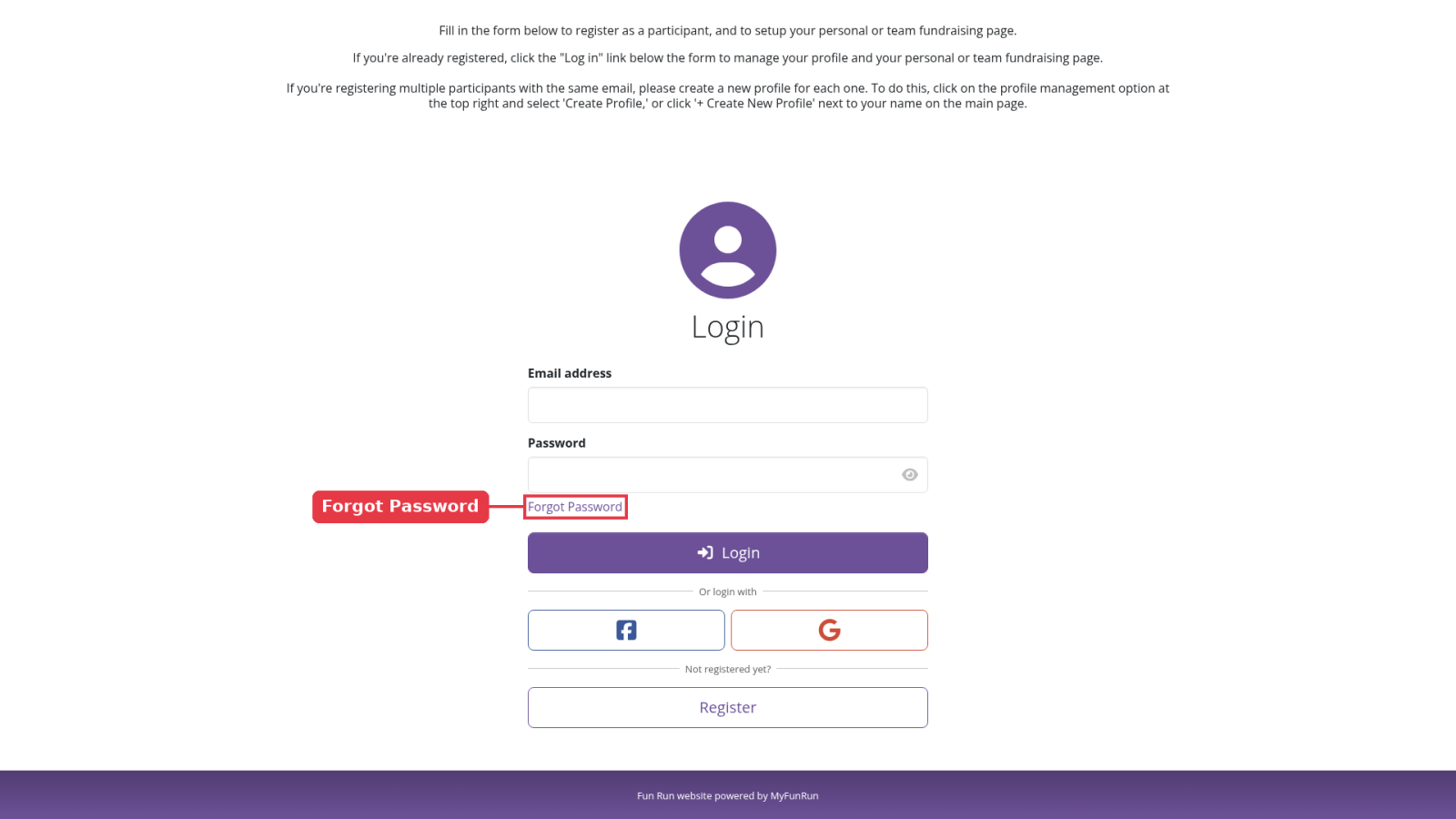
- Open the website's login form (from the menu item for registering or logging in, often called Register/Login, then Login), and click Forgot Password under the Password field.
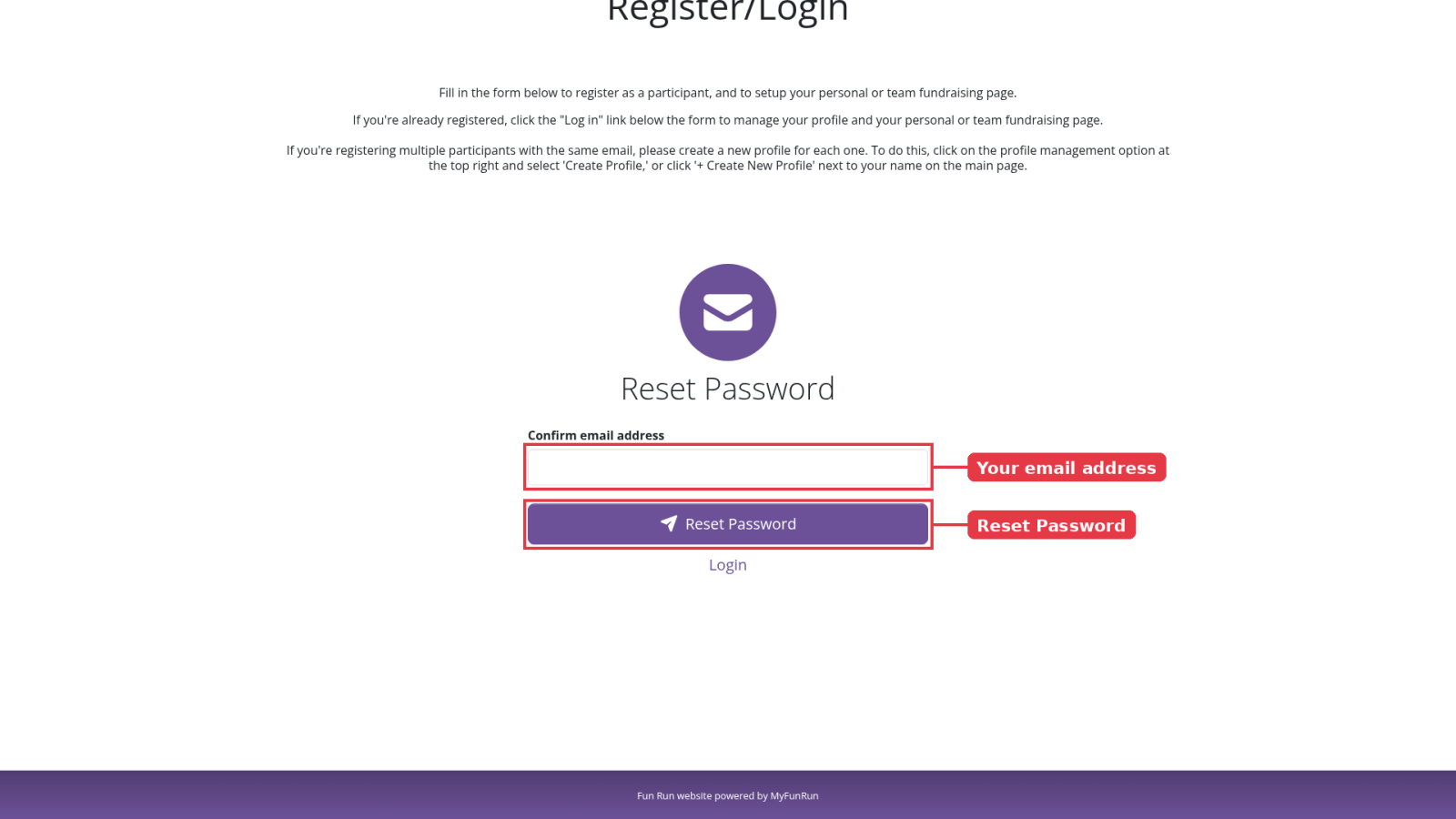
- Type your email address in Confirm email address, then click Reset Password.
- Open the Reset Password Notification email and click Reset Password. The link opens a page on your school's Fun Run website where you choose your new password. The same password rules apply.
Good to know
- Did your school send you a temporary password? See How to log into MyFunRun with the temporary password. Resetting your password also replaces a temporary password.
- Still can't get in? Contact our support team and we'll help.