

Supporters can give to more than one student in a single checkout. Each donation goes into your cart, and the Add to your order box on the cart page lets you add a donation for another participant before you pay.
Step 1: Find the first participant
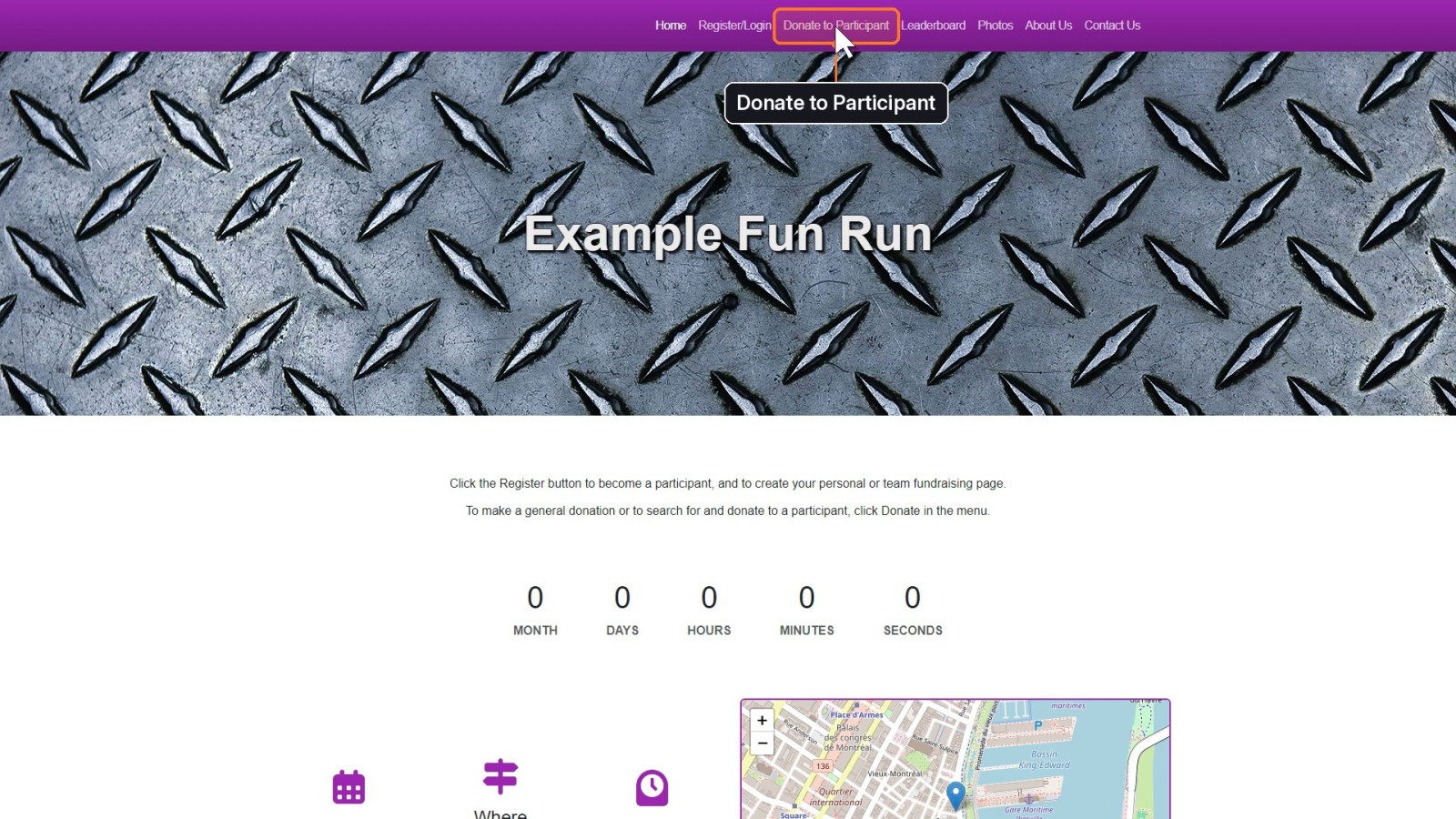
On your fun run's site, click Donate to Participant in the menu.
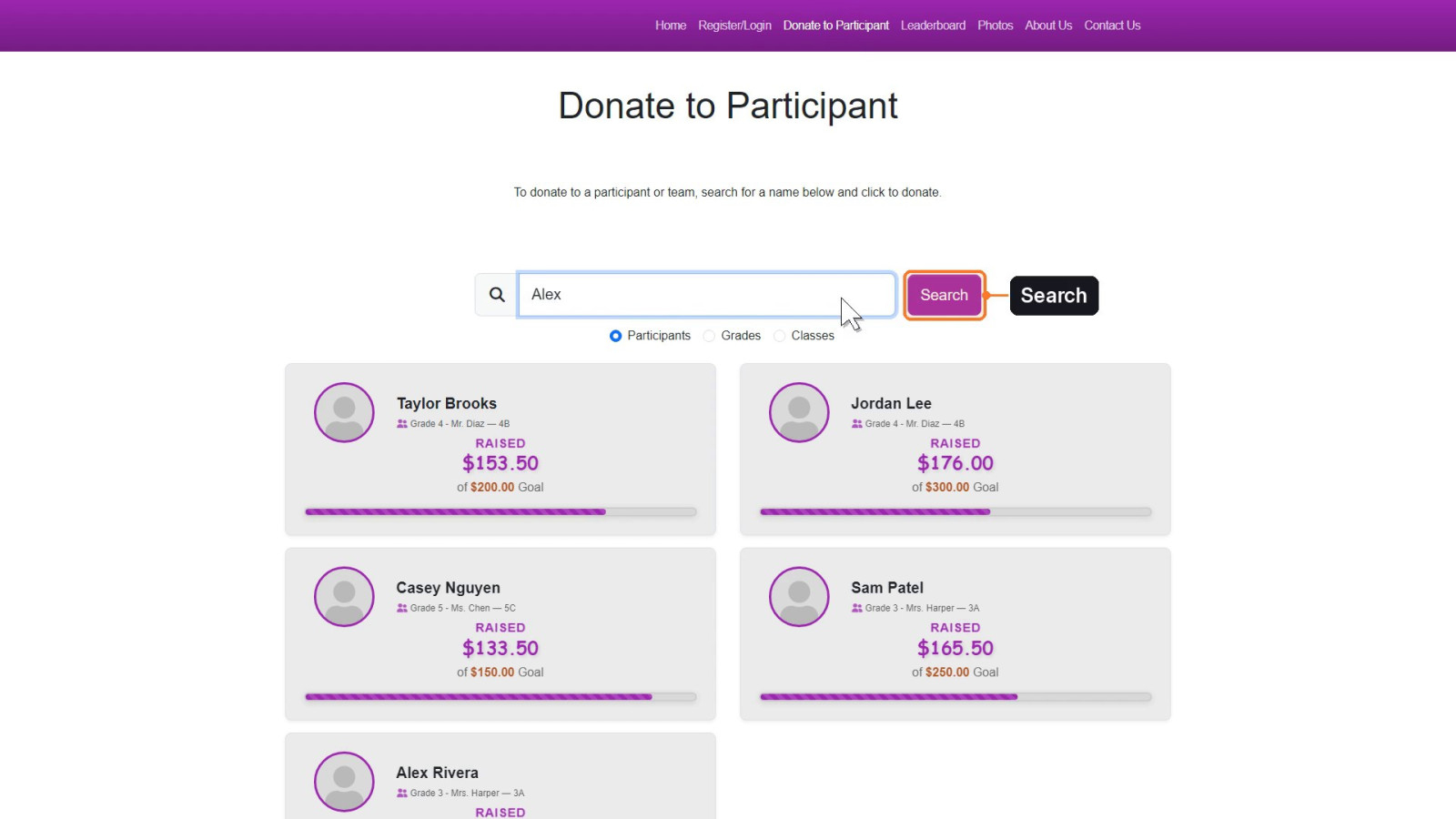
Type the participant's name in the search box, then click Search.
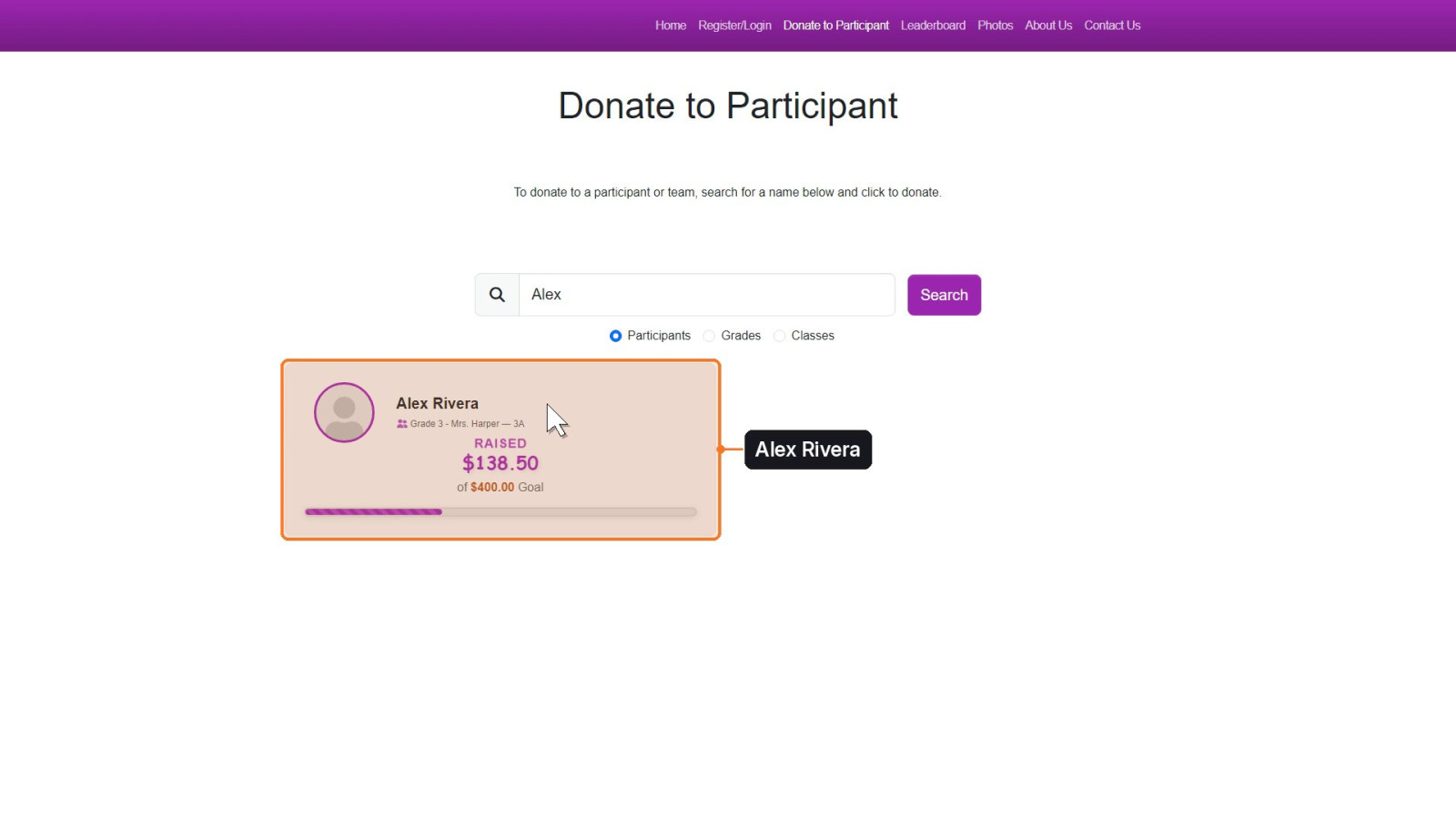
Click the participant you want to support.
Step 2: Add the first donation to your cart
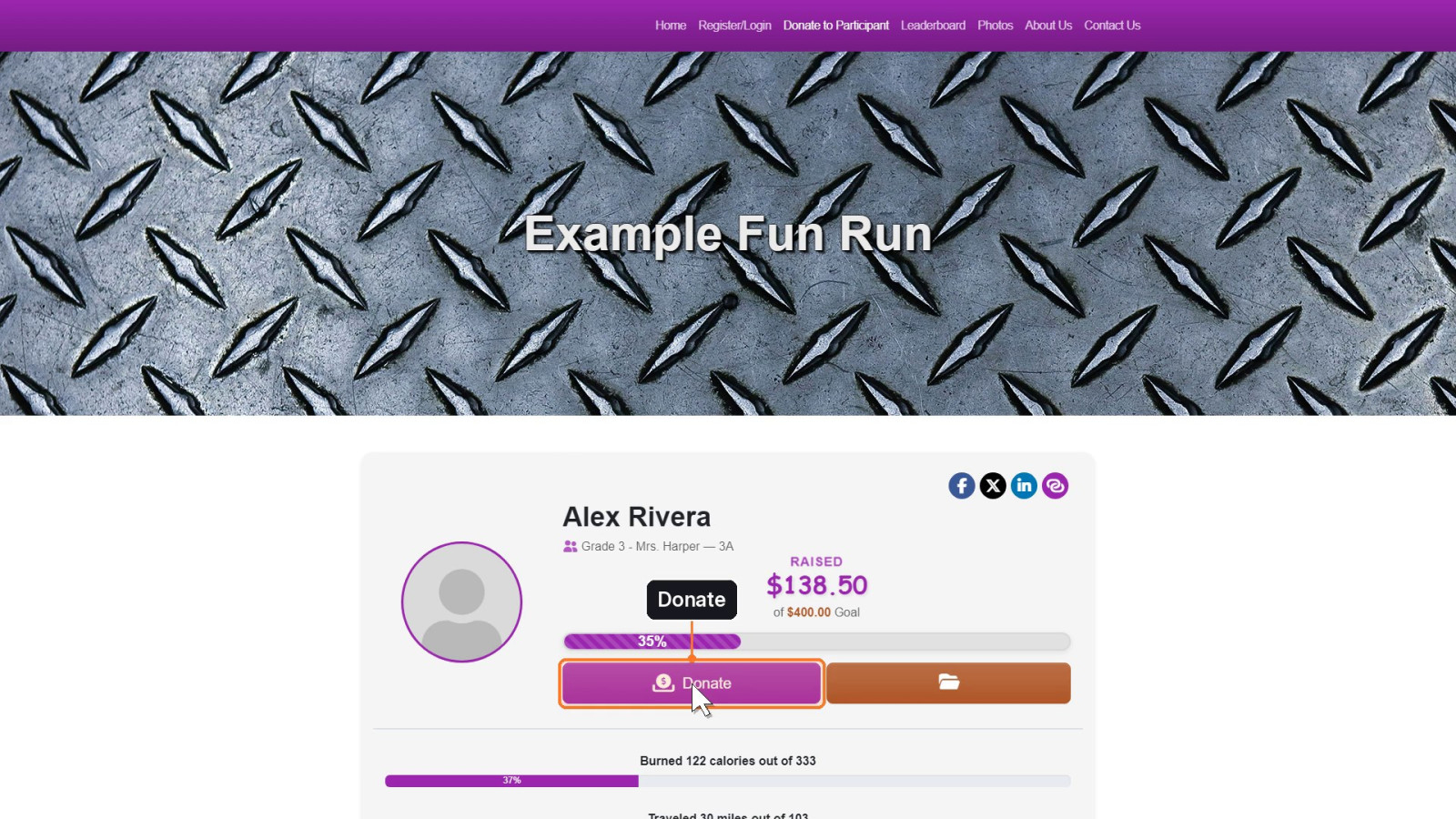
On the participant's page, click Donate.
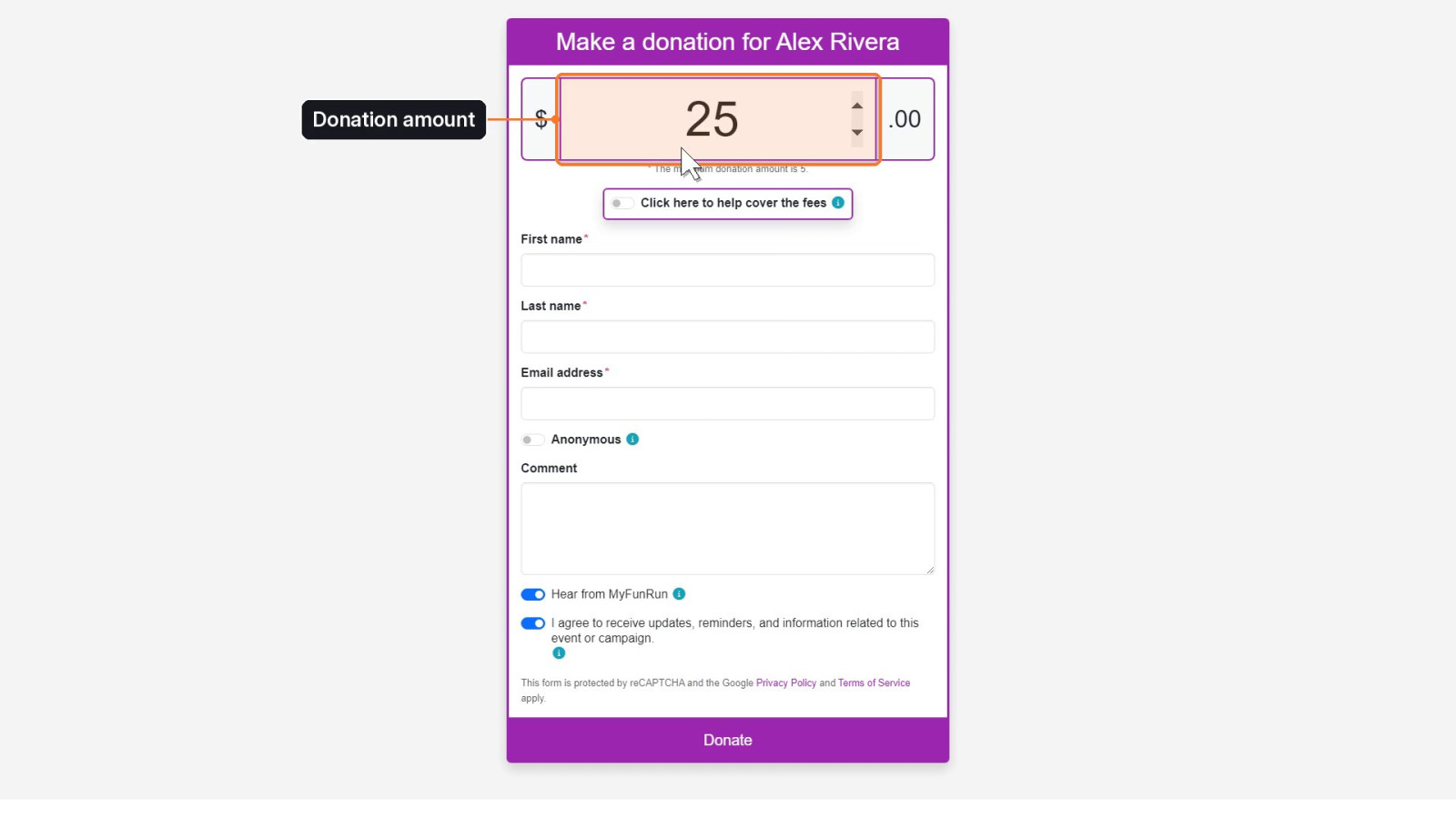
Enter the amount you'd like to give.
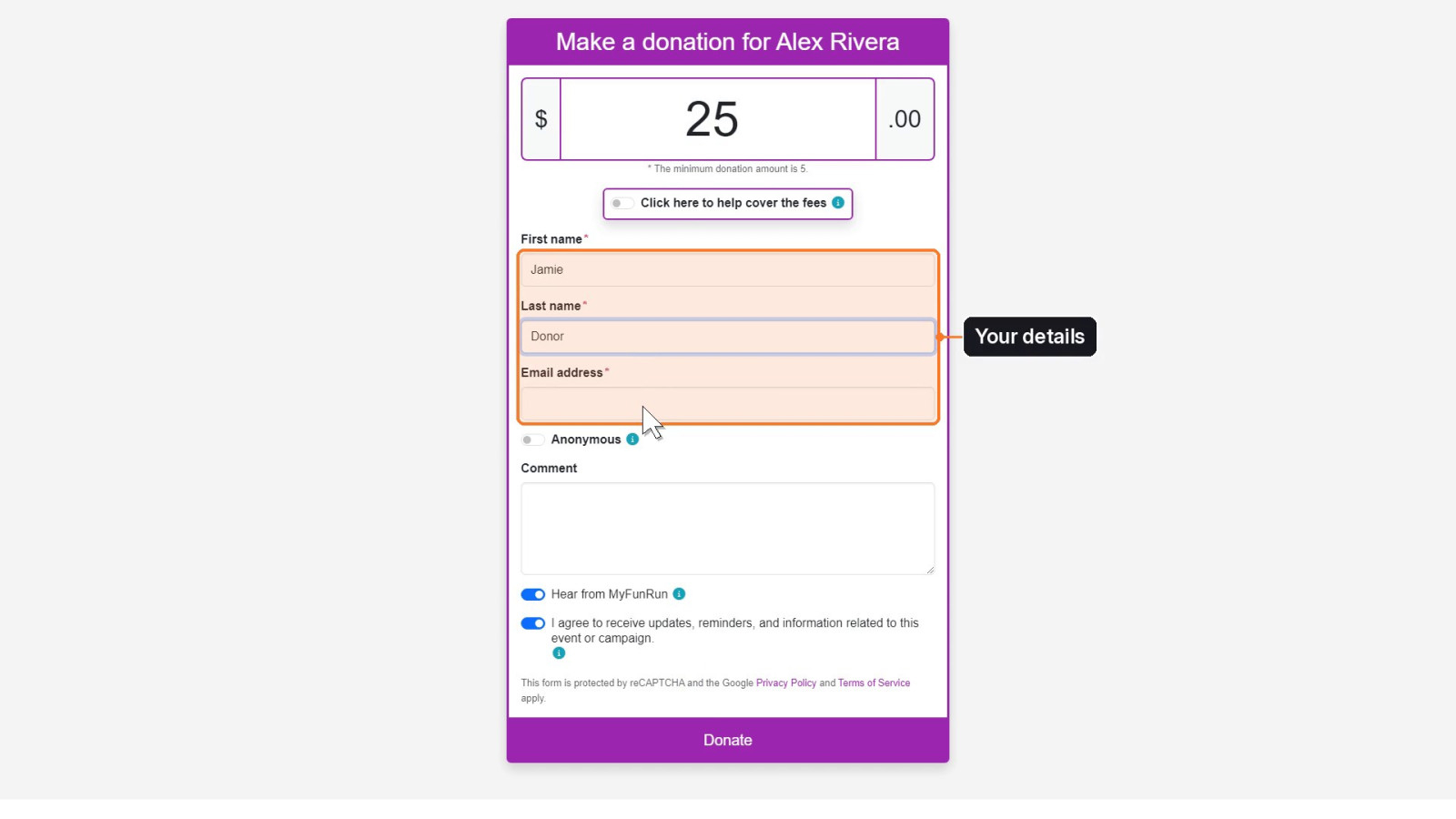
Add your first name, last name and email address.
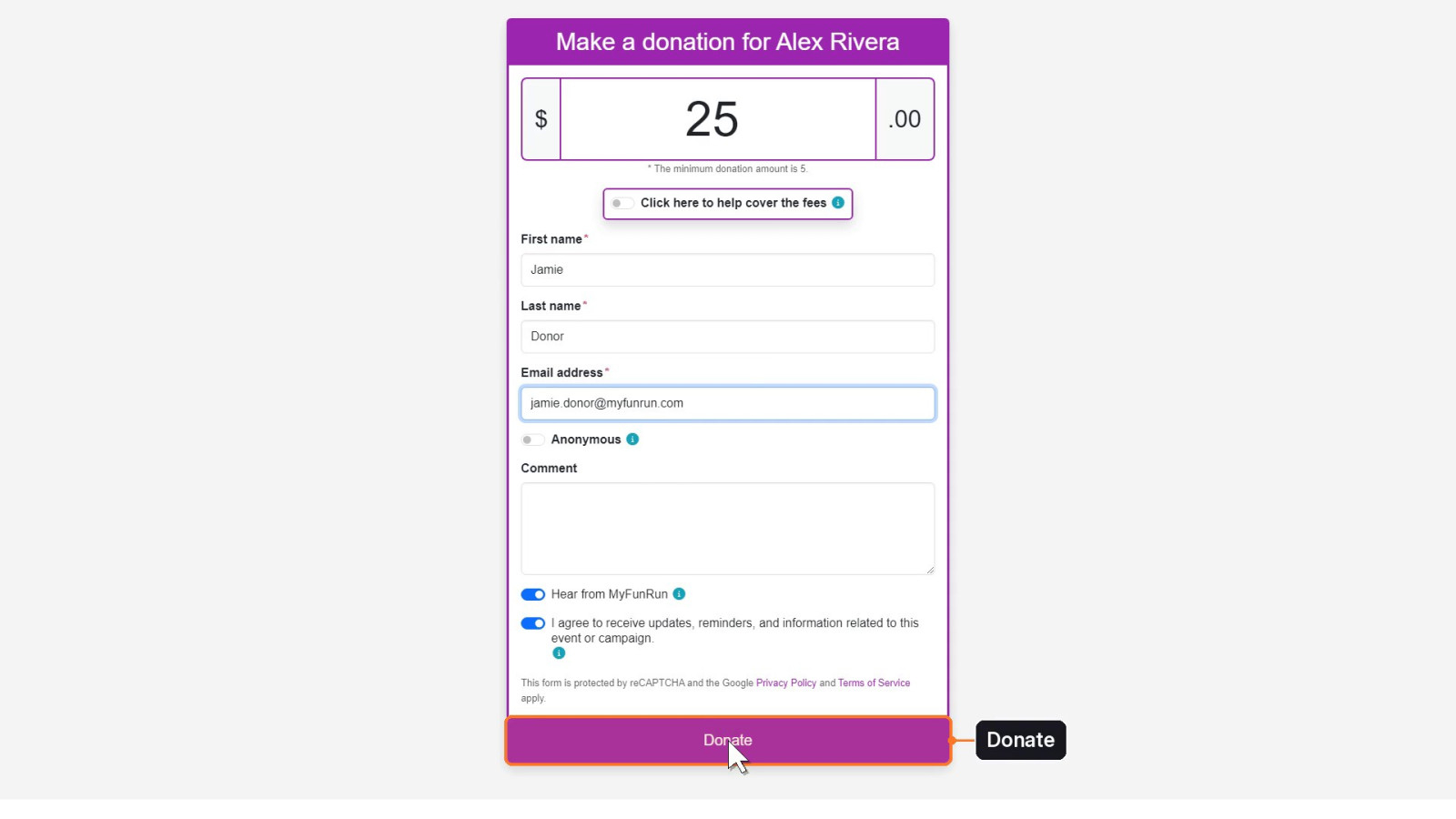
Click Donate to add the donation to your cart.
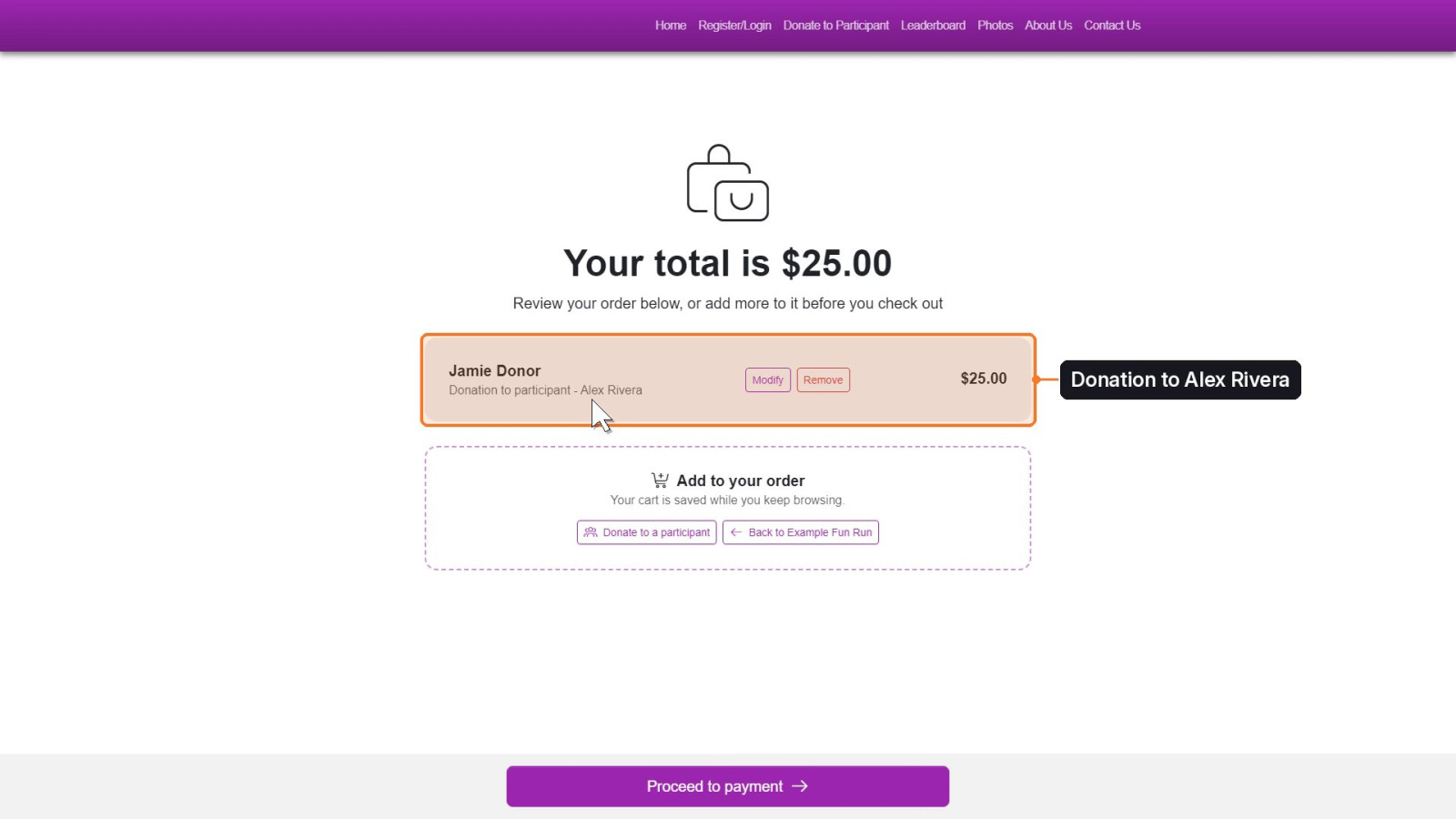
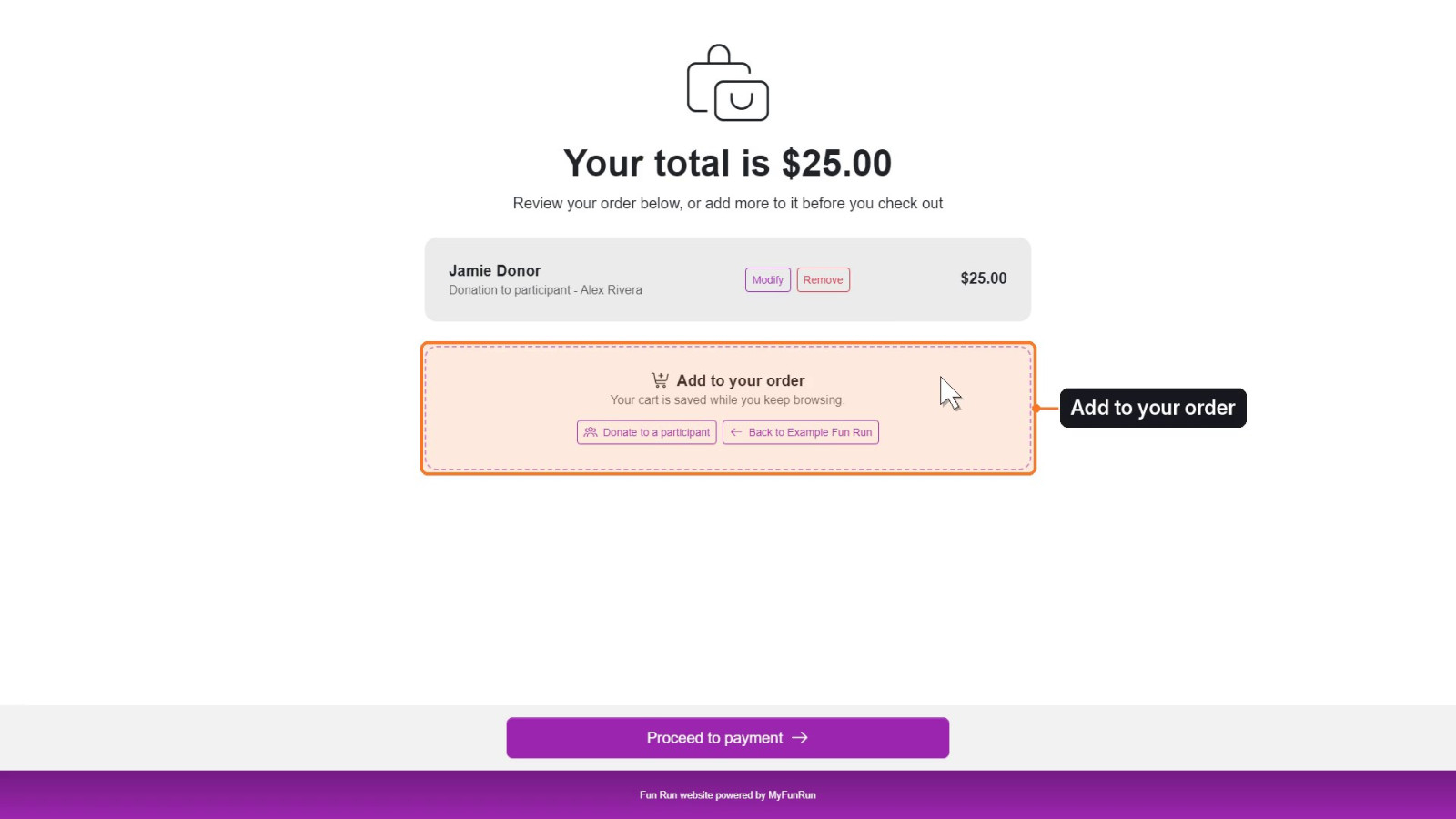
The cart page opens. It lists your donation and shows your total.
Step 3: Donate to a second participant
Below your donation, the Add to your order box reminds you that your cart is saved while you keep browsing.
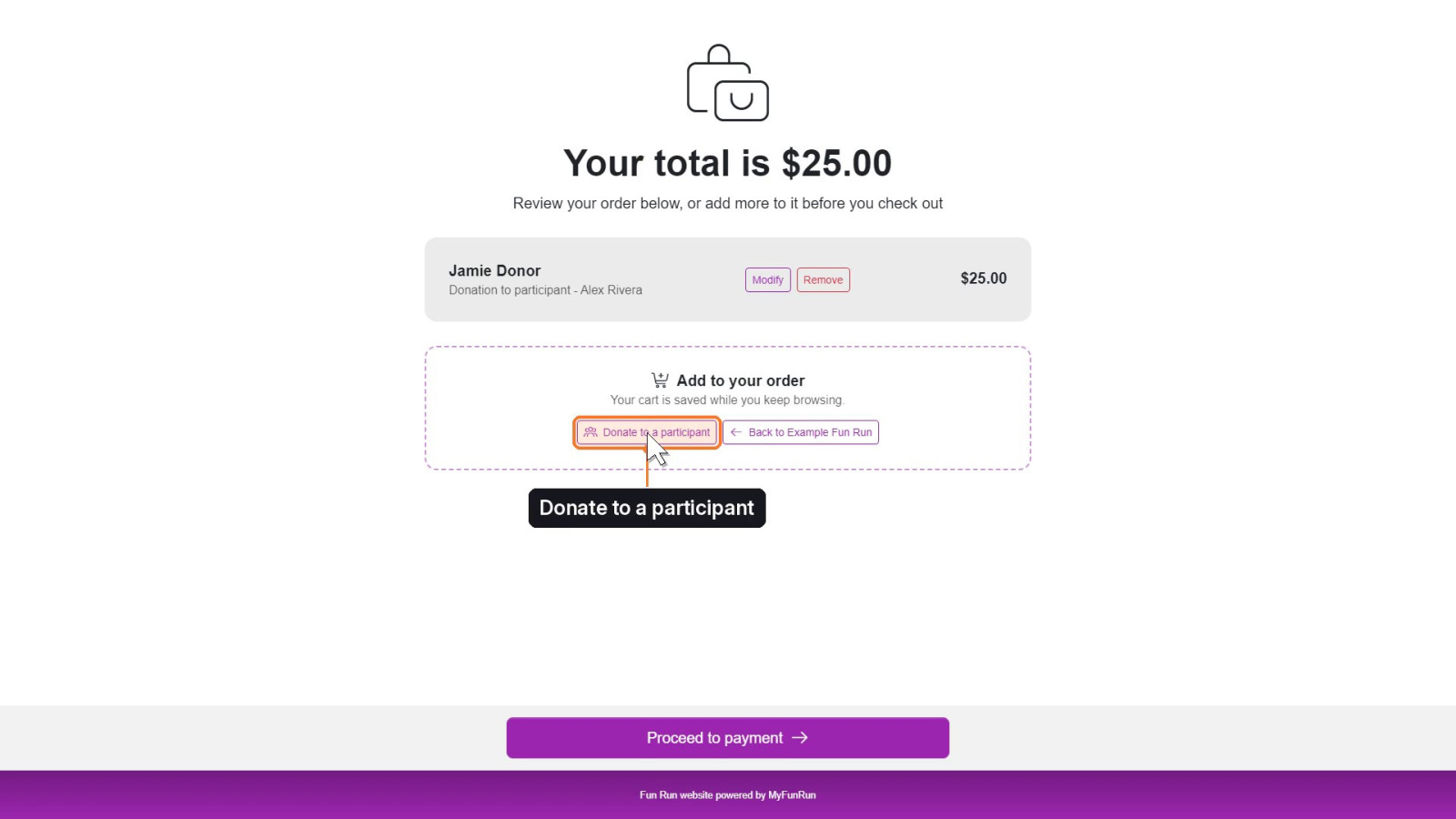
Click Donate to a participant in that box.
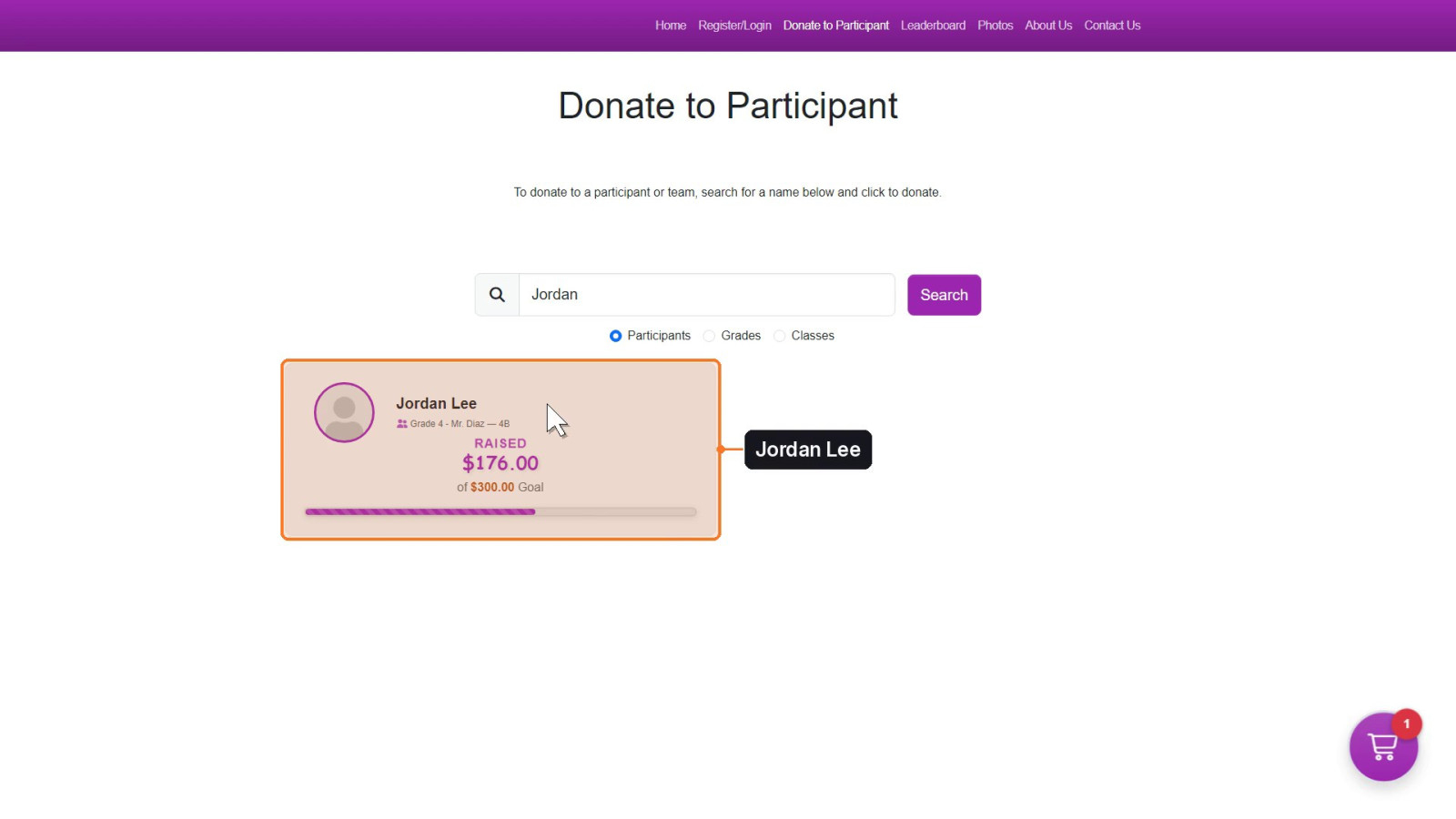
Search for the next participant and click their card. The cart button in the corner shows the donation that's already in your cart. Then click Donate, enter the amount and your details, and click Donate again to add this donation to your cart.
Step 4: Review your cart
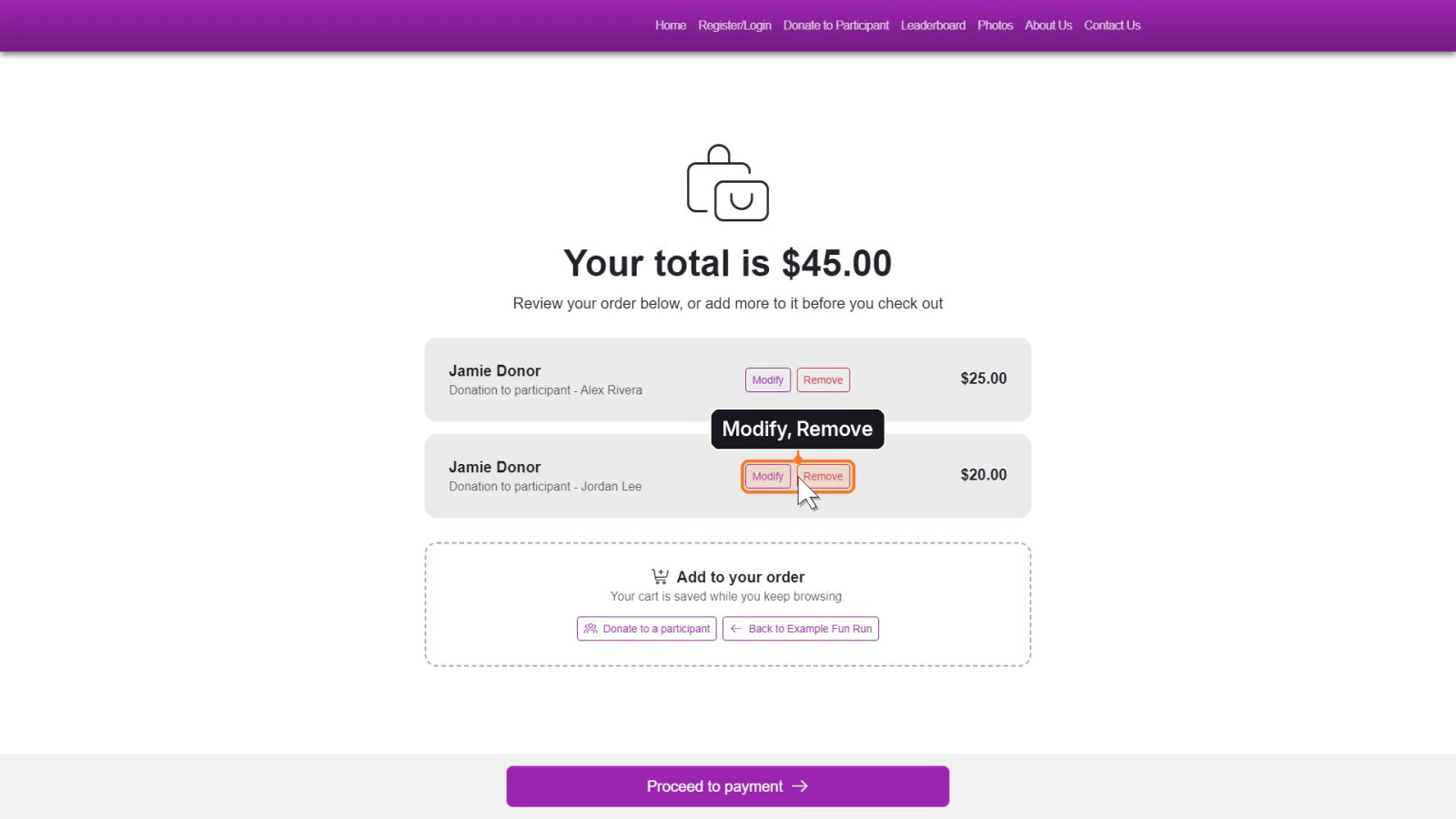
Back on the cart page, both donations are listed and your total is updated.
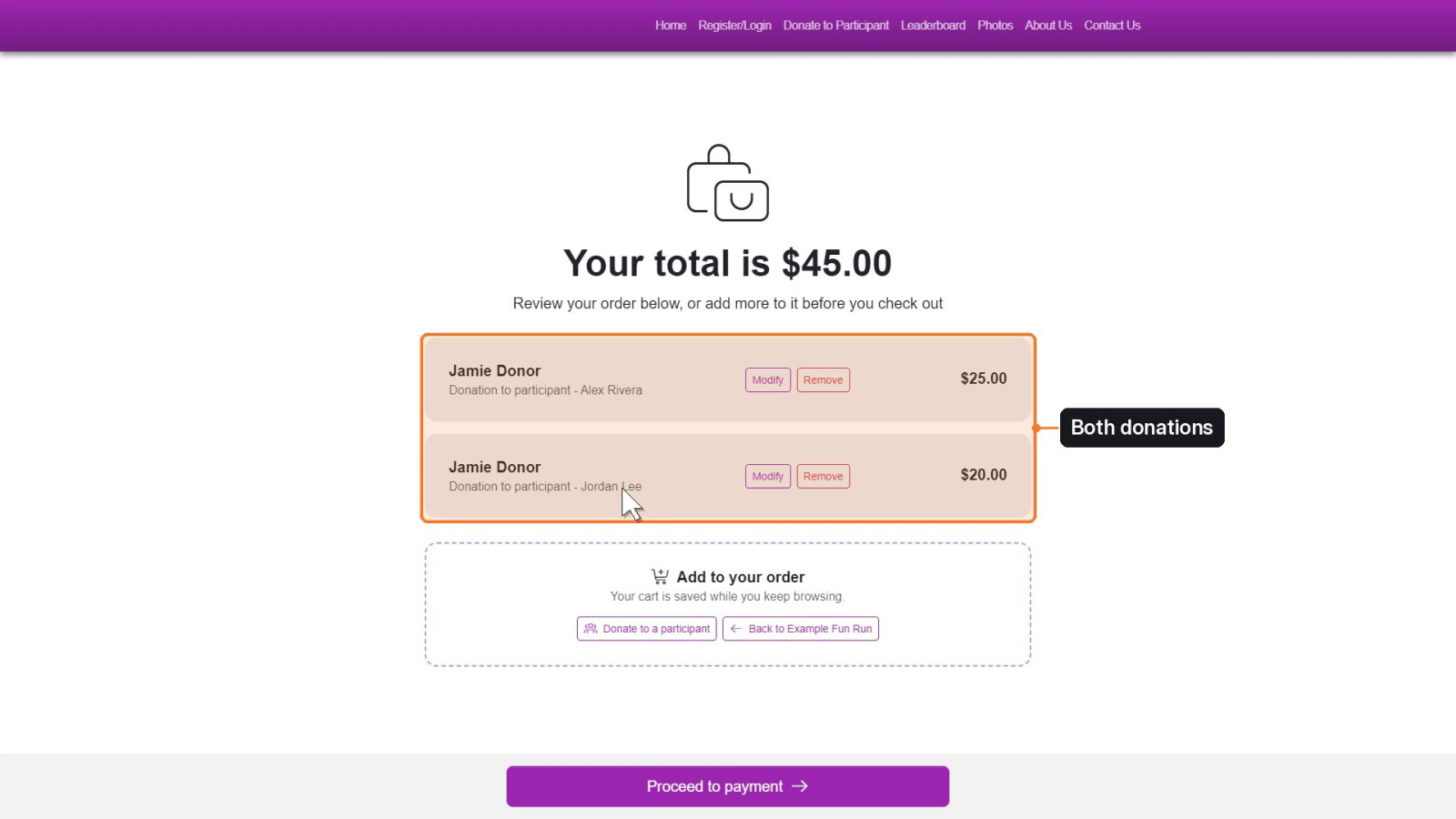
Use Modify or Remove to change a donation before you pay.
Step 5: Go to payment
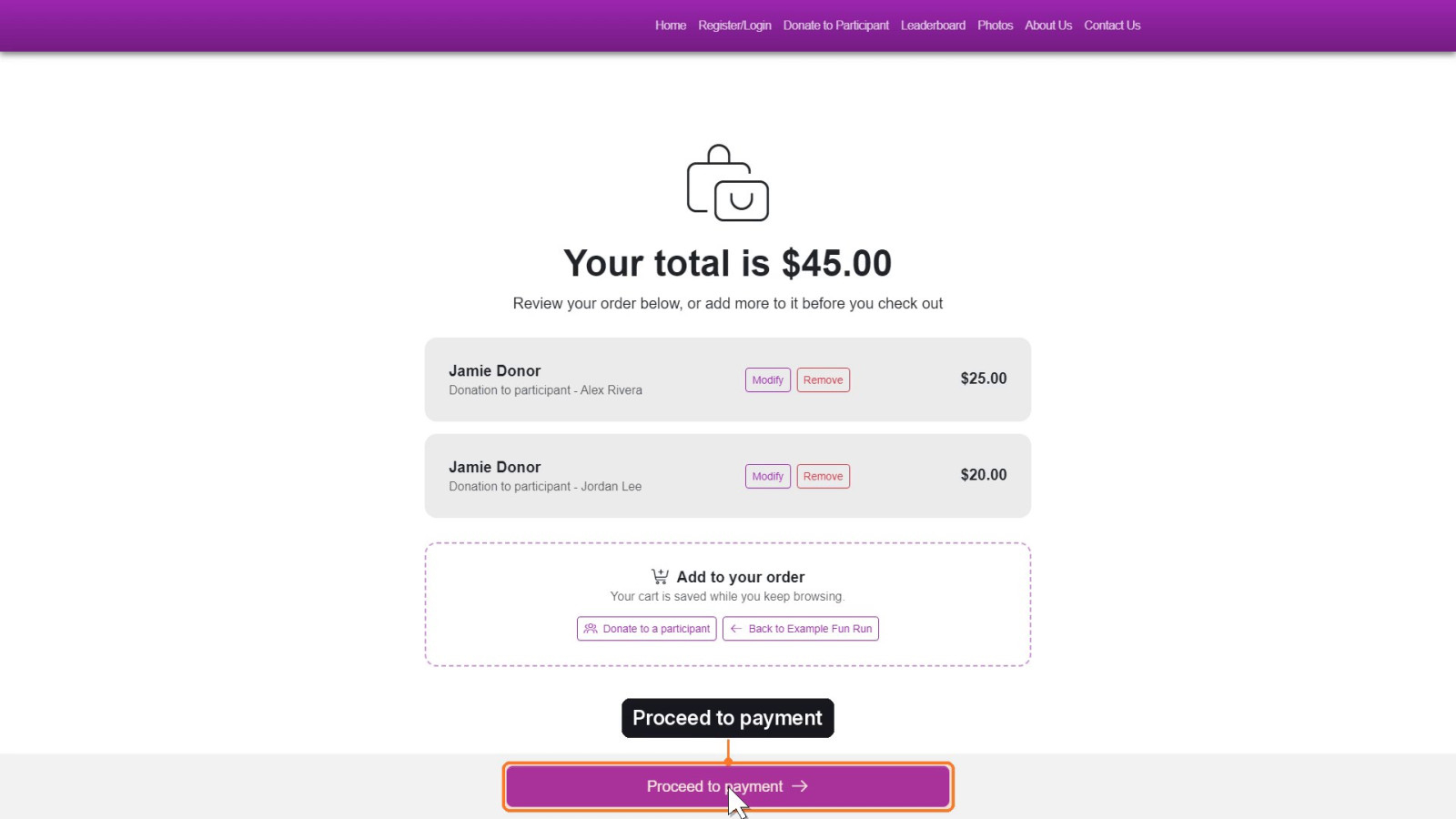
When everything looks right, click Proceed to payment.
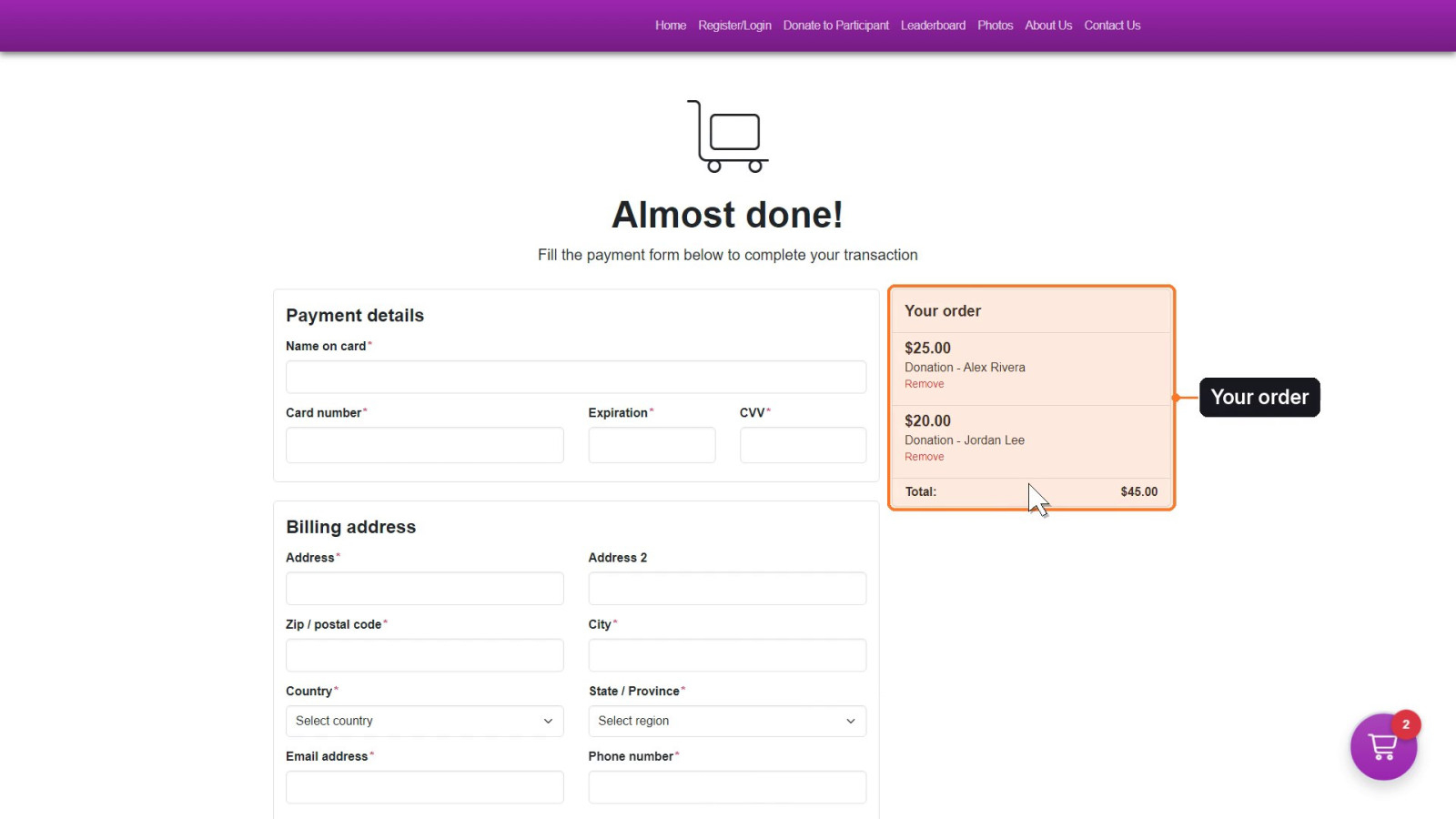
On the payment page, Your order lists both donations and the total.
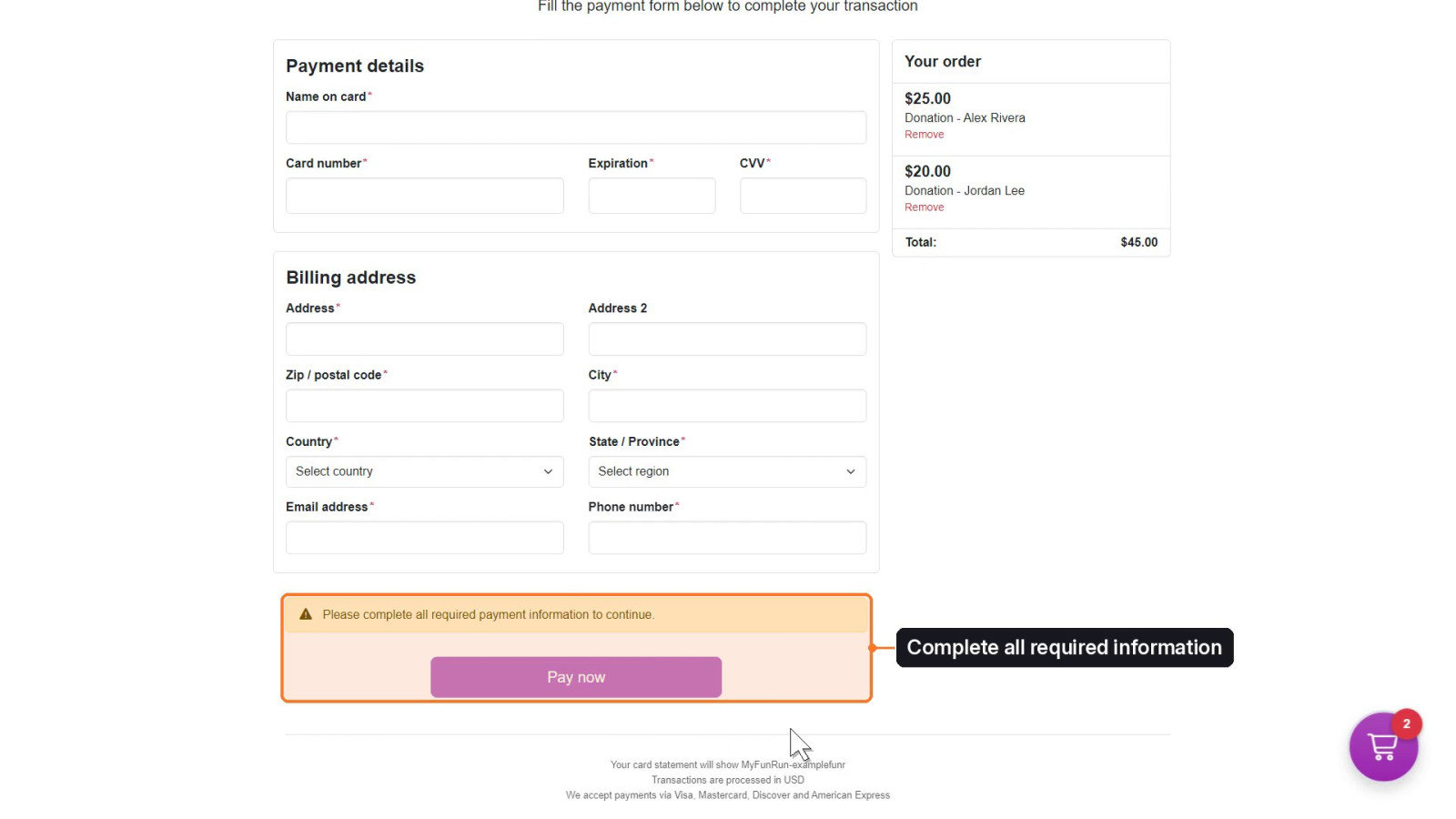
Fill in Payment details and Billing address, then click Pay now. Pay now stays greyed out until all required payment information is complete.
Good to know
- The Add to your order box only shows links to pages that are online on your fun run's site, and the donation link is hidden after the donation cutoff date.
- If your site keeps only the last item in the cart, the Add to your order box is not shown.