

Sometimes a general donation was really meant for a participant, or a P2P donation should count for the whole fundraiser instead. You can move a donation either way from your reports, using the Assign to field.
Move a general donation to a participant
Step 1: Open the Donations report
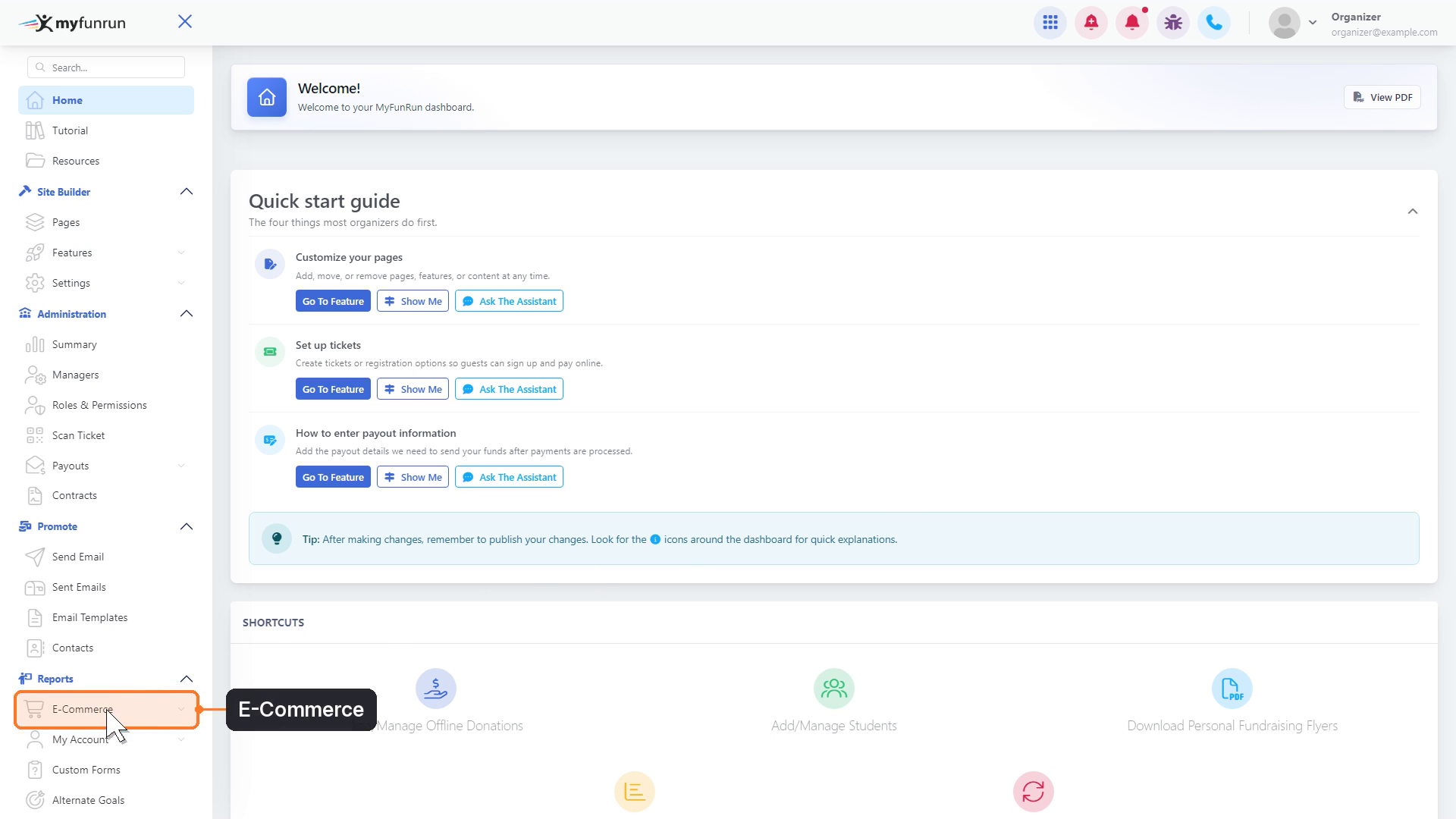
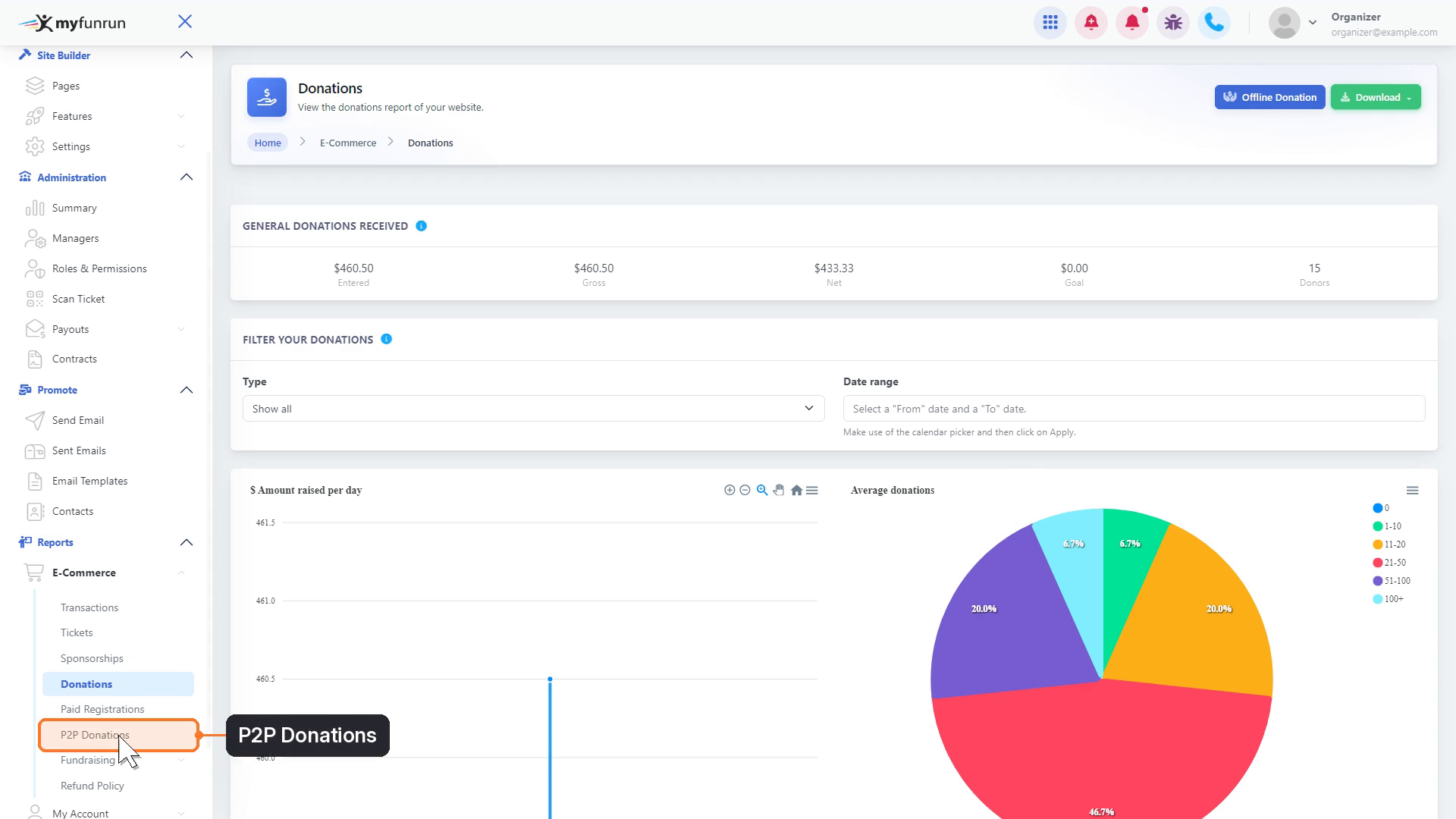
From your dashboard, under Reports, click E-Commerce.
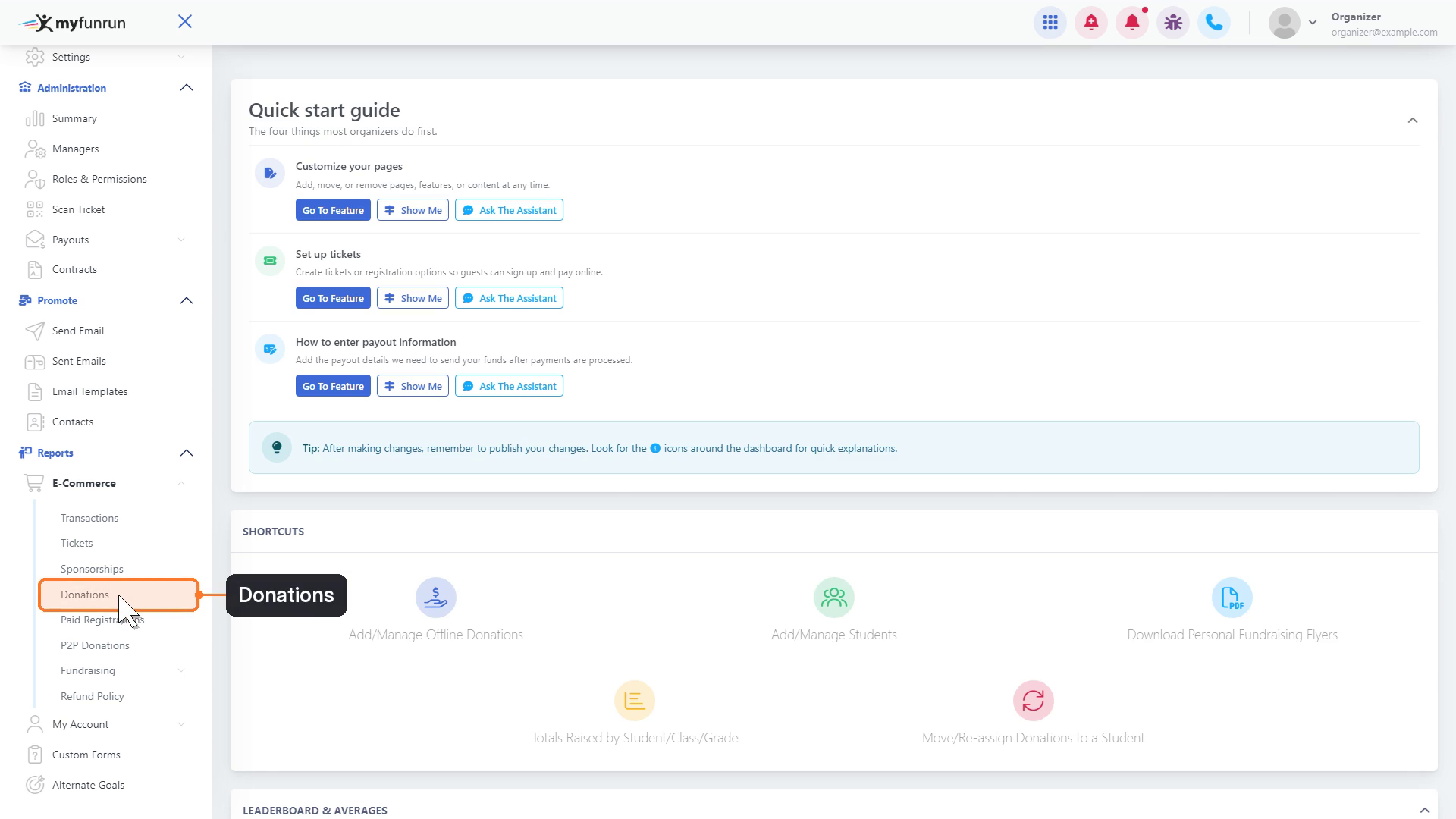
Then click Donations.
Step 2: Find the donation
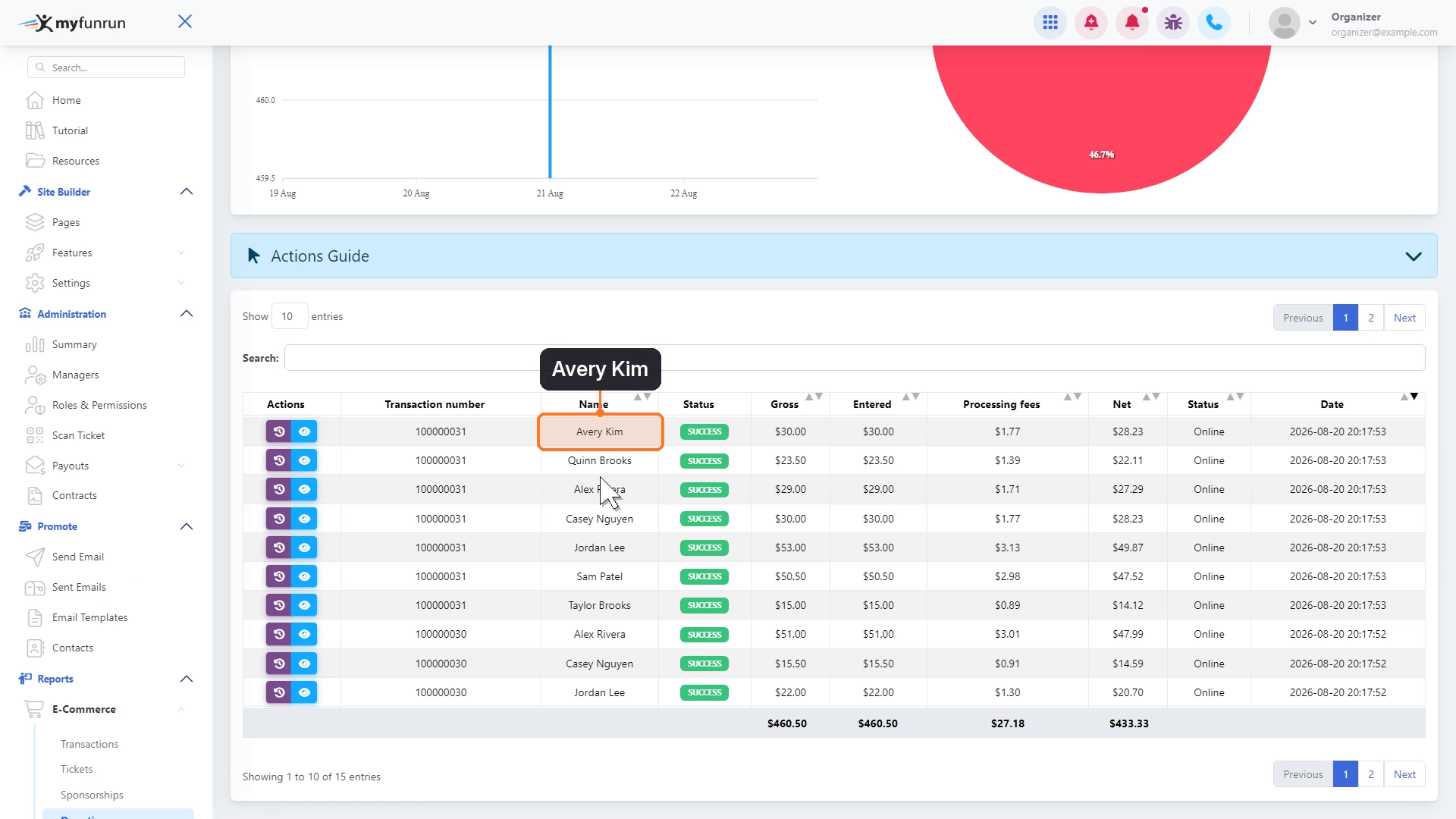
This report lists your general donations. Find the donation you want to move.
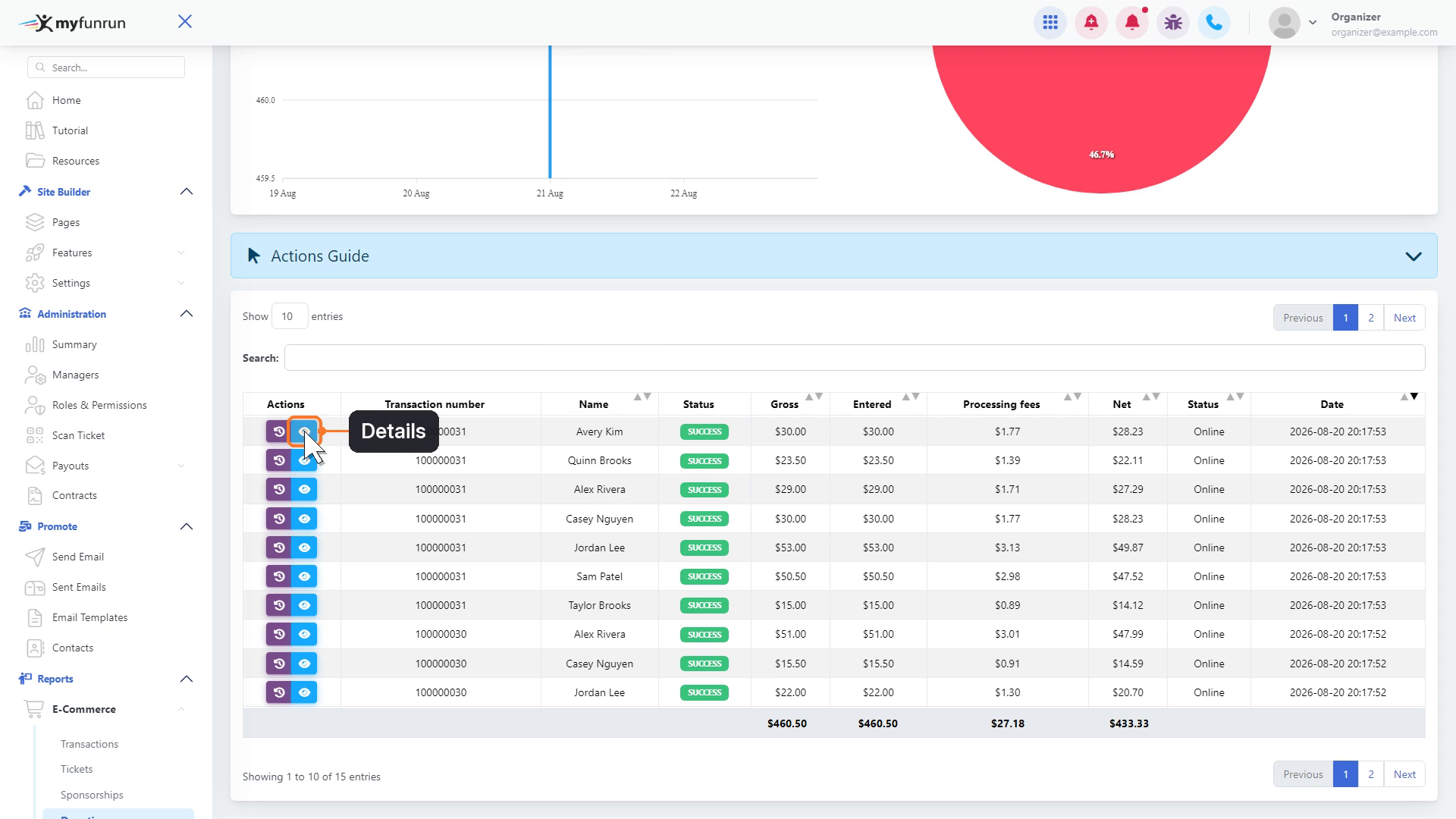
Click the blue Details button on that row.
Step 3: Edit the donation
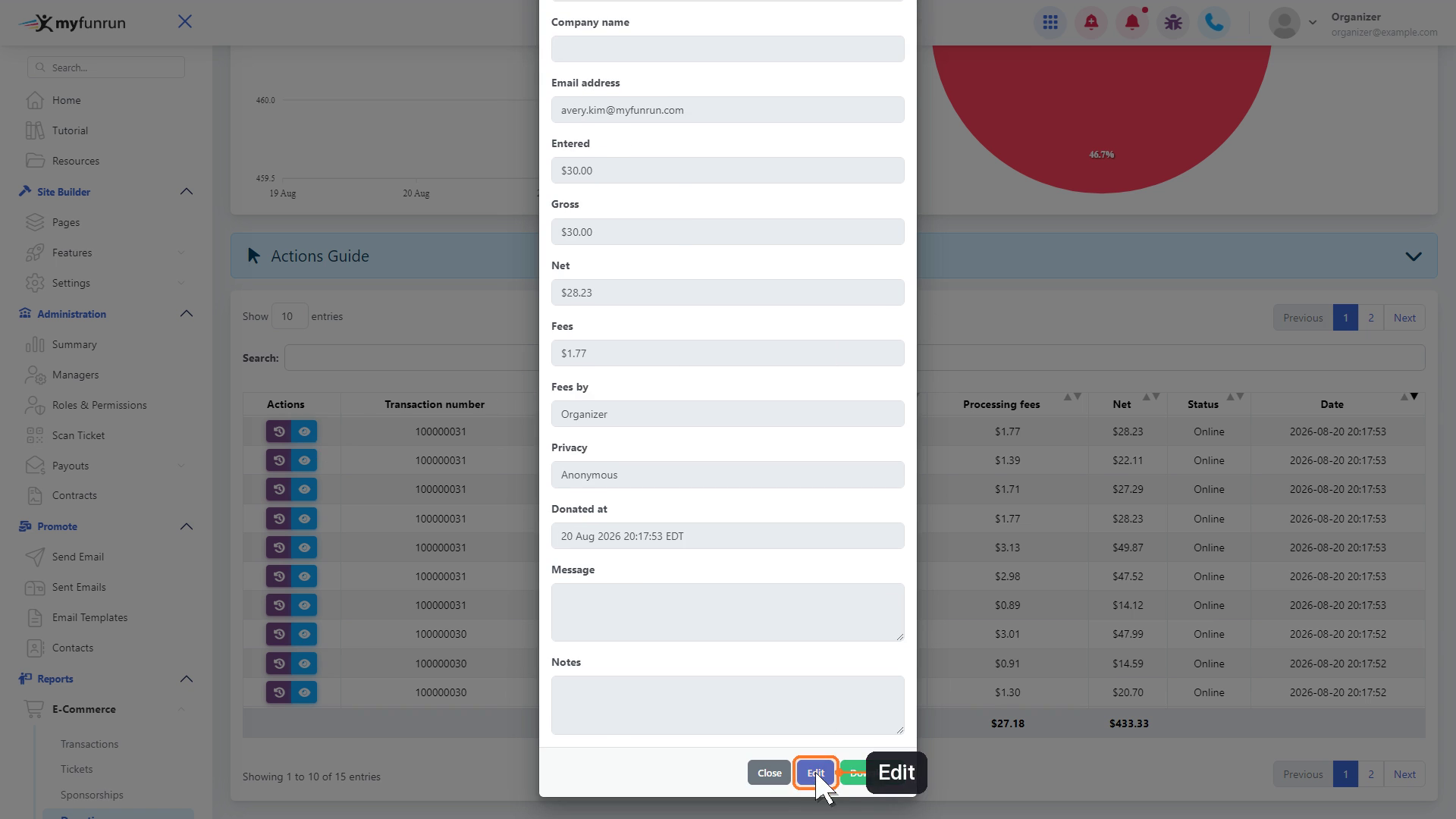
Scroll to the bottom of the Donation details window and click Edit.
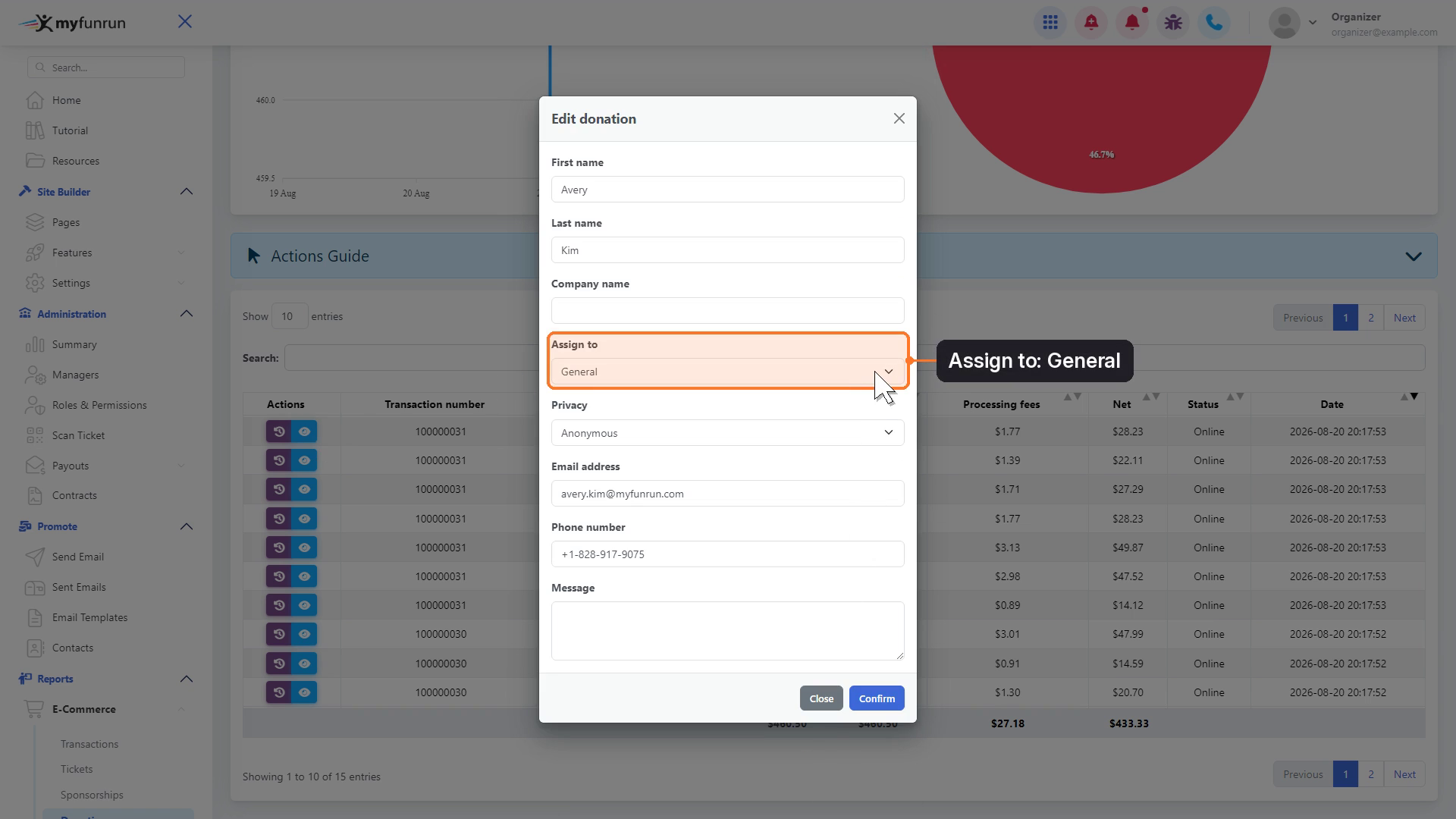
In Edit donation, Assign to is set to General.
Step 4: Choose the participant
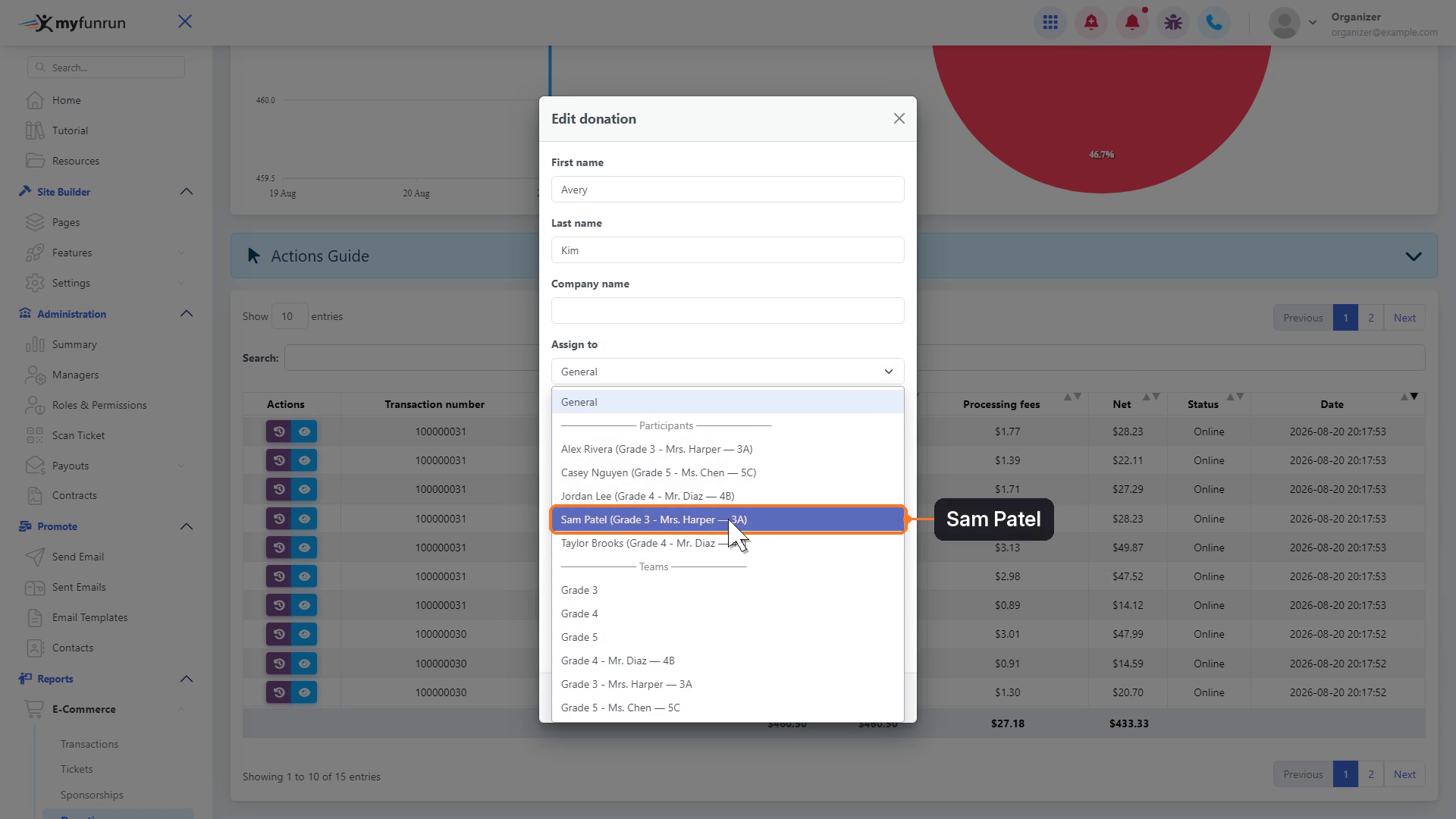
Open the Assign to list and pick the participant. Participants are listed with their class. You can also pick a team.
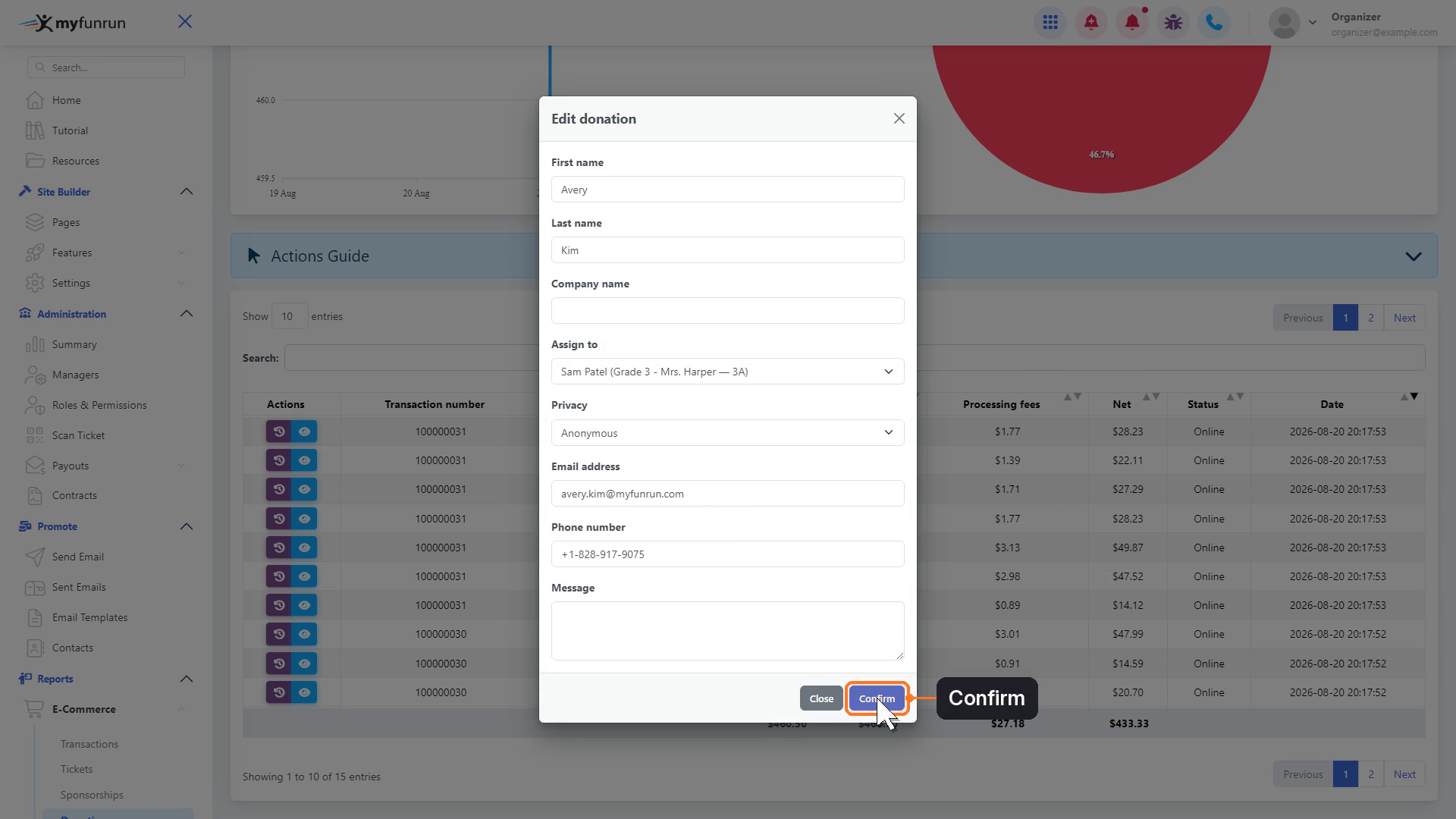
Click Confirm. A message confirms that the donation was updated.
Step 5: Check the P2P Donations report
Under E-Commerce, click P2P Donations.
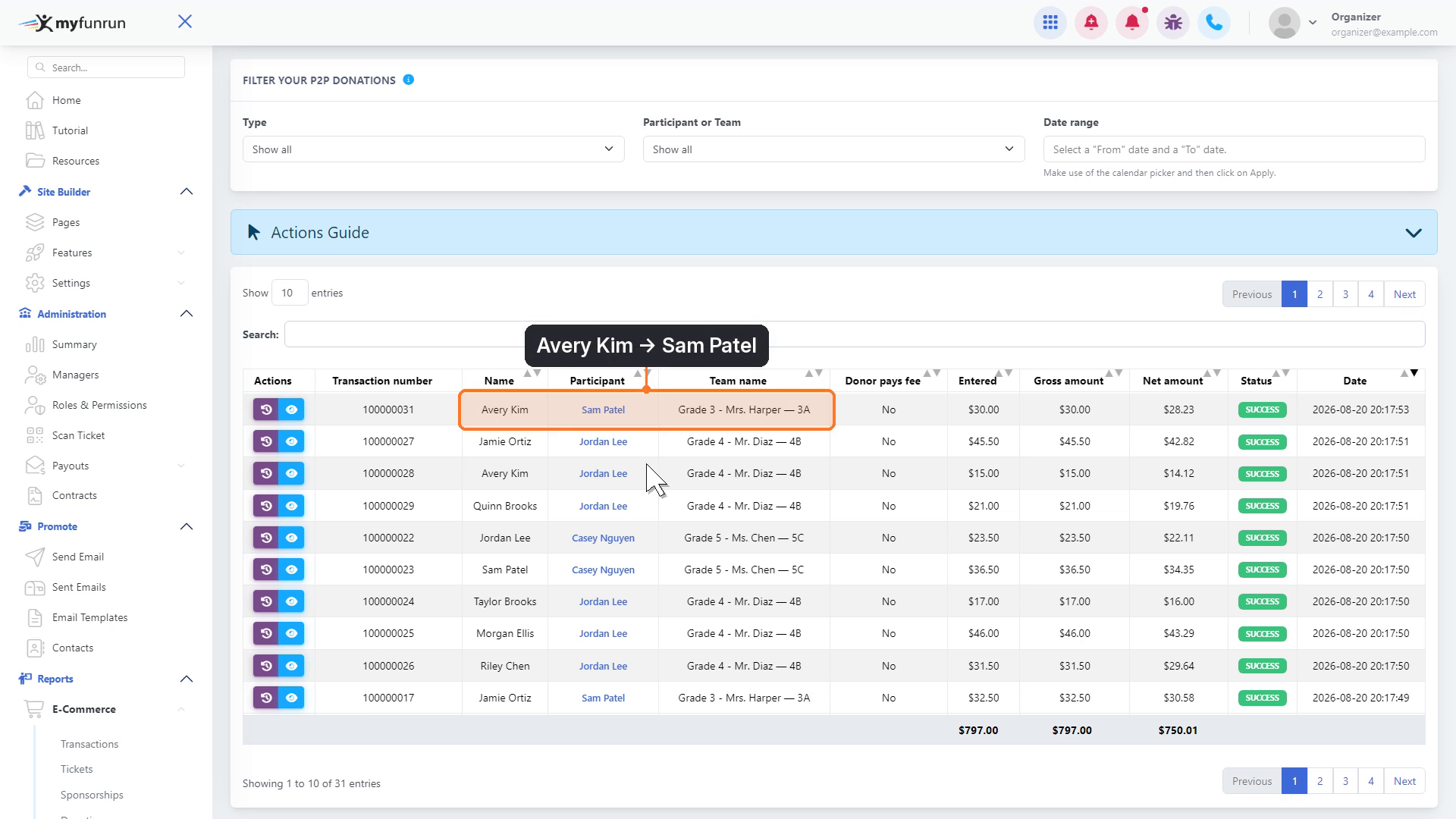
The donation is now listed under the participant and their class.
Move a P2P donation back to General
Step 1: Open the P2P donation
In Reports > E-Commerce > P2P Donations, click Details on the donation, scroll down and click Edit.
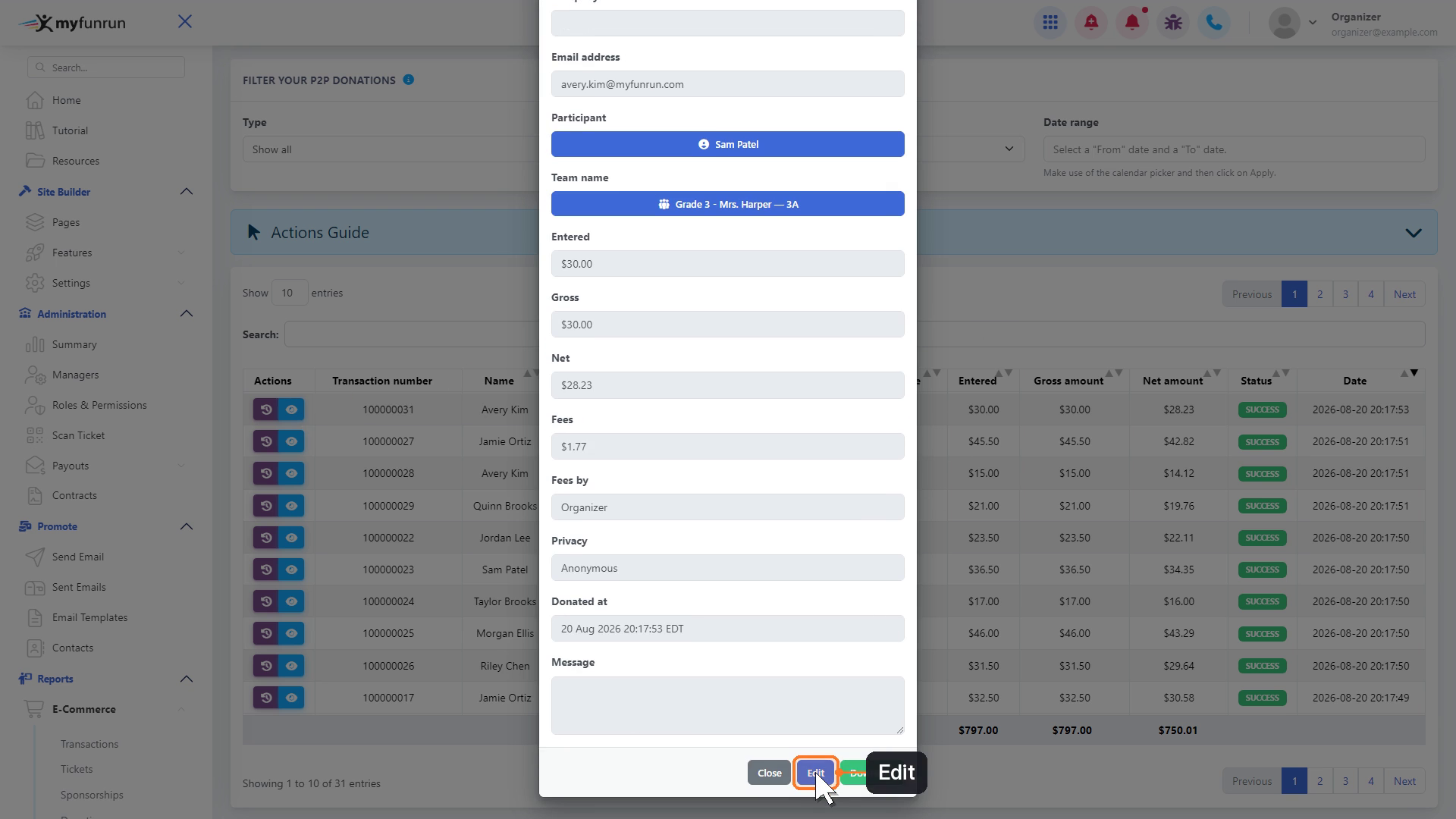
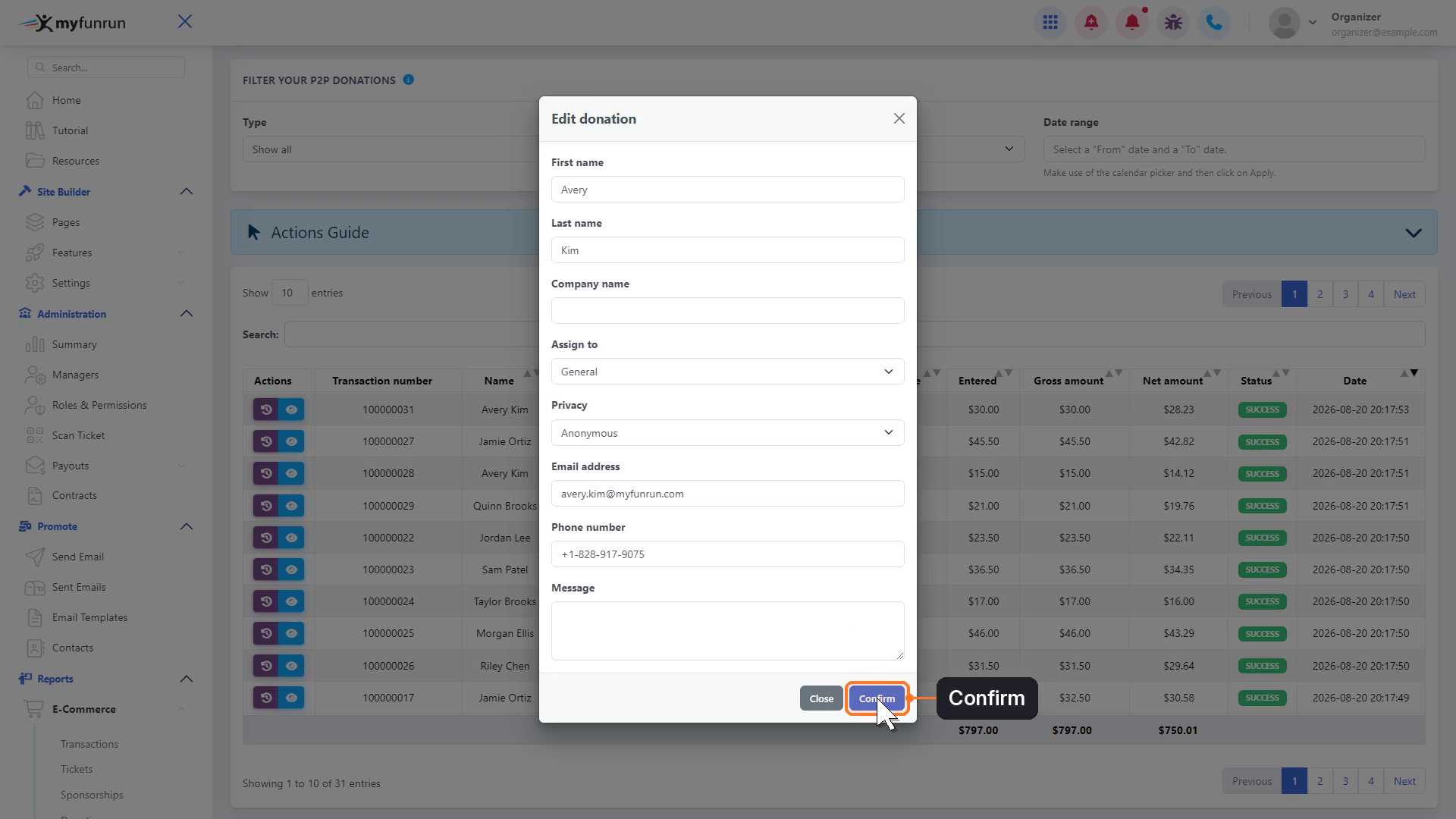
Step 2: Choose General
In Assign to, choose General at the top of the list.
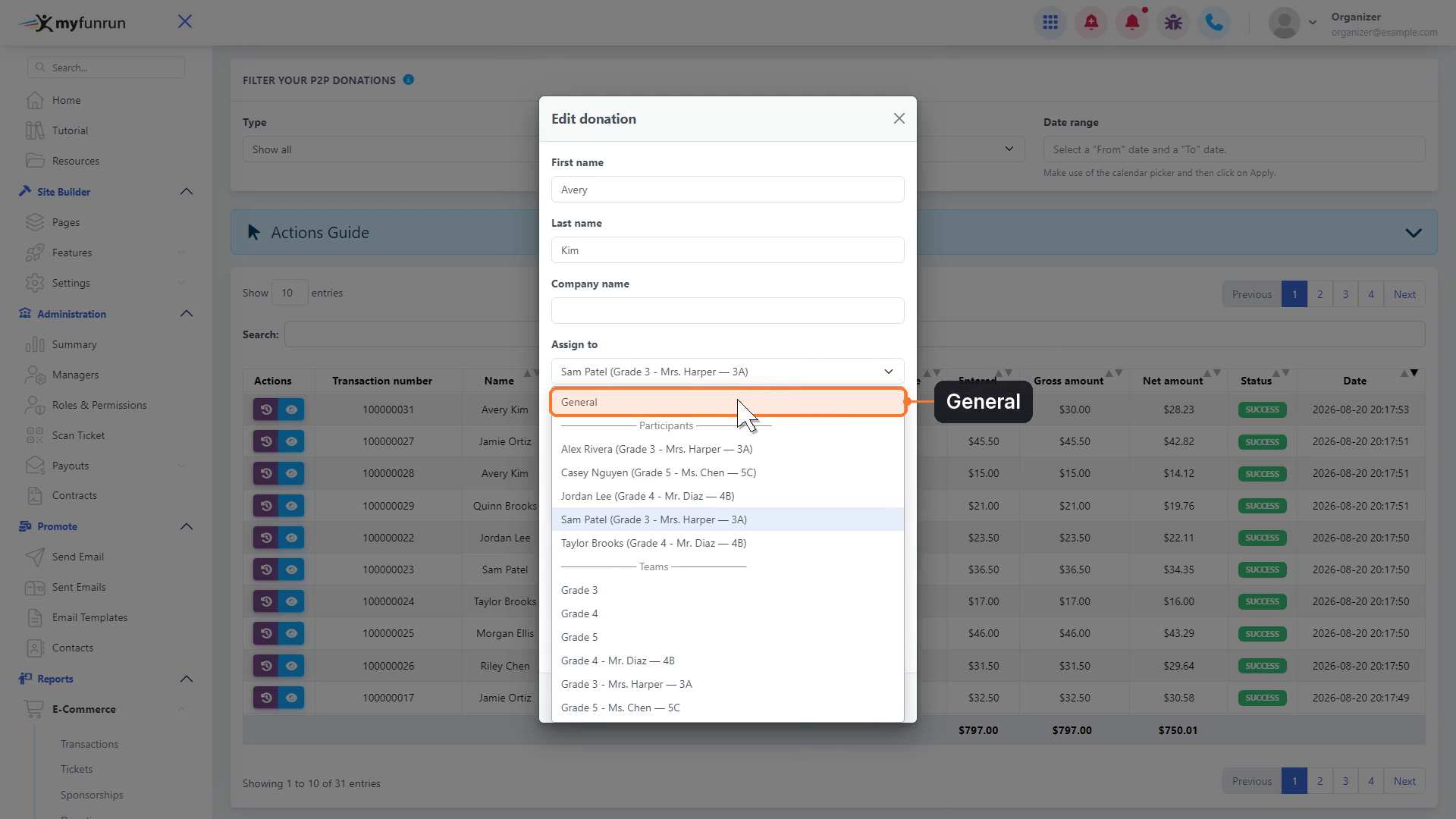
Click Confirm.
Step 3: Check the Donations report
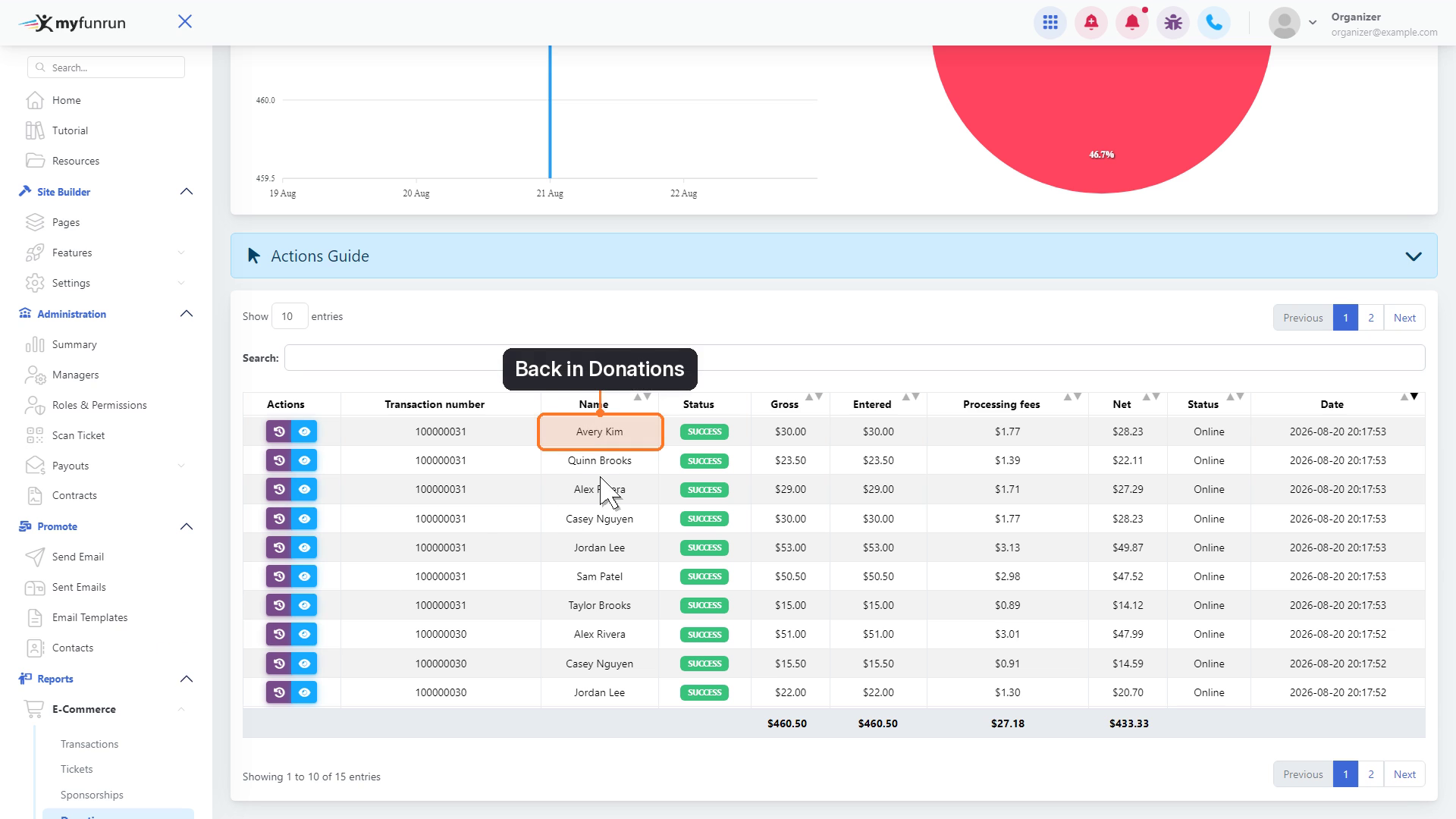
After the success message, open Donations. The donation is back with your general donations.
Tip
To move a P2P donation to a different participant instead, follow the same steps and pick the new participant in Assign to.