

Need Help? Contact Our Support Team
If you need assistance with your website, event, fundraising campaign, or account, you can easily contact our support team through Get Help.
Step 1: Open the Help Center
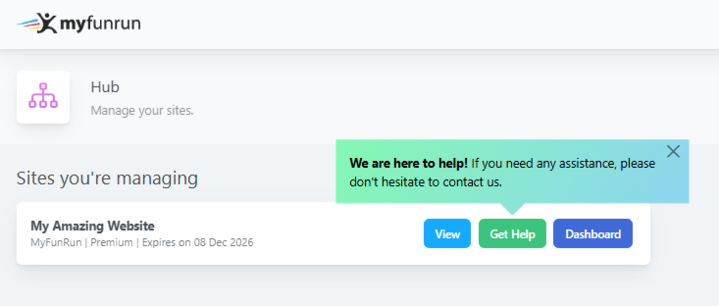
From your Hub, locate your website and click the Get Help button.
This will take you directly to the Support section, where you can view your existing support tickets and create new ones.
Step 2: Create a Ticket or Review your current ones
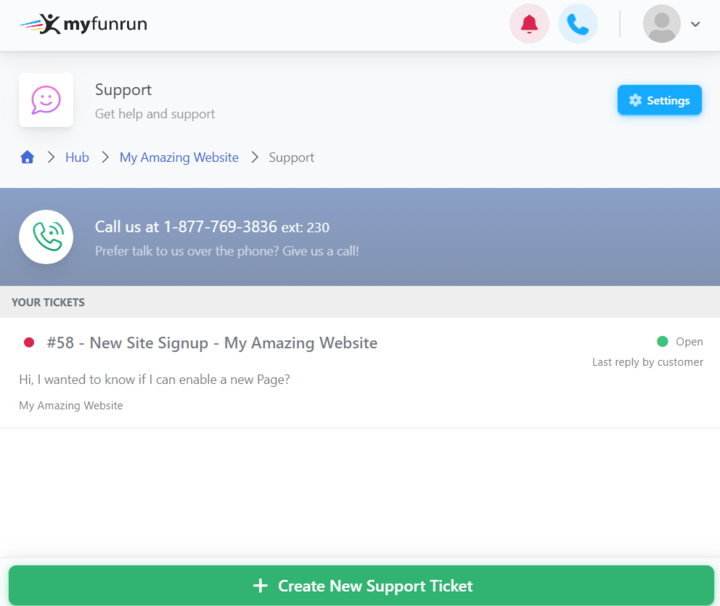
When you arrive in the Support section, you'll see a list of your support tickets.
You can:
- Review an existing ticket by clicking on the ticket you would like to view or continue. This will open the conversation history and allow you to send additional messages to our support team.
Create a new support ticket by clicking Create New Support Ticket if your question or issue is not related to an existing request.
Keeping related questions in the same ticket helps our support team review previous communications and assist more efficiently.
Creating a new Ticket
In the Support section:
- Click Create New Support Ticket.
- Enter a subject and describe the issue or question you need help with.
- Provide as much detail as possible so our team can assist you quickly.
- Attach Pictures or Files
To add an attachment, picture, or files:
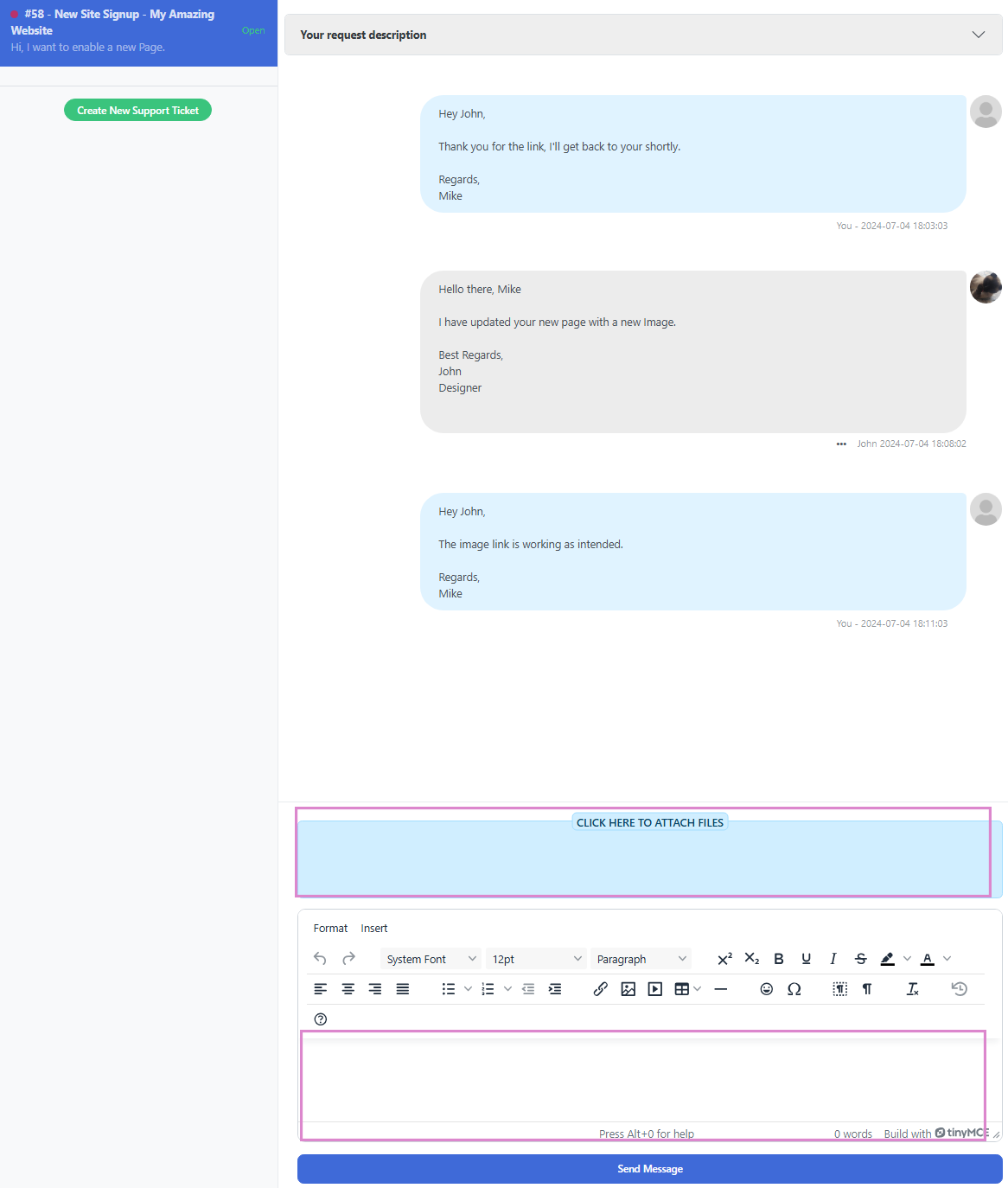
- Click the CLICK HERE TO ATTACH FILES area above the message editor.
- Select the file(s) you would like to upload.
- Once uploaded, write your message and click Send Message.
Attaching screenshots is often the fastest way for our team to understand and resolve an issue.
Note: Files must be uploaded directly through the platform. The use of third-party file-sharing services, such as WeTransfer, Google Drive, Dropbox, or similar services, is not permitted. Users are responsible for ensuring their files meet the platform's size and technical requirements before uploading. If an uploaded image exceeds the maximum allowed size of 10 MB, it must be compressed or resized before submission. Managing file sizes before upload is the sender's responsibility, as we cannot process files that exceed the platform's limits.